The Emails tab holds every email a webinar sends, with the numbers for each one at the top. Every email comes with copy already written, so a new webinar works before you change a word.
Where to find it:
Open the webinar, then the Emails tab. Email Performance is at the top, the list of emails below it, and Autoresponder for this webinar at the bottom.
The emails before the webinar:
- Confirmation. Sent the moment someone registers, with their private join link. On by default.
- Reminder: 24 hours before
- Reminder: 1 hour before
- Reminder: 15 minutes before
- Replay sign-up. Sent instead of the confirmation to someone who signs up after a live show has ended. It takes them straight to the replay. On by default.
The reminders start switched off. Click the switch on each one you want.
Keep the confirmation on:
It is the email that carries the join link. The setup guide shows Emails as not done until it is on.
Late sign-ups:
A reminder is only queued if its time is still ahead. Someone who signs up 40 minutes before the start gets the confirmation and the 15 minute reminder.
Editing an email:
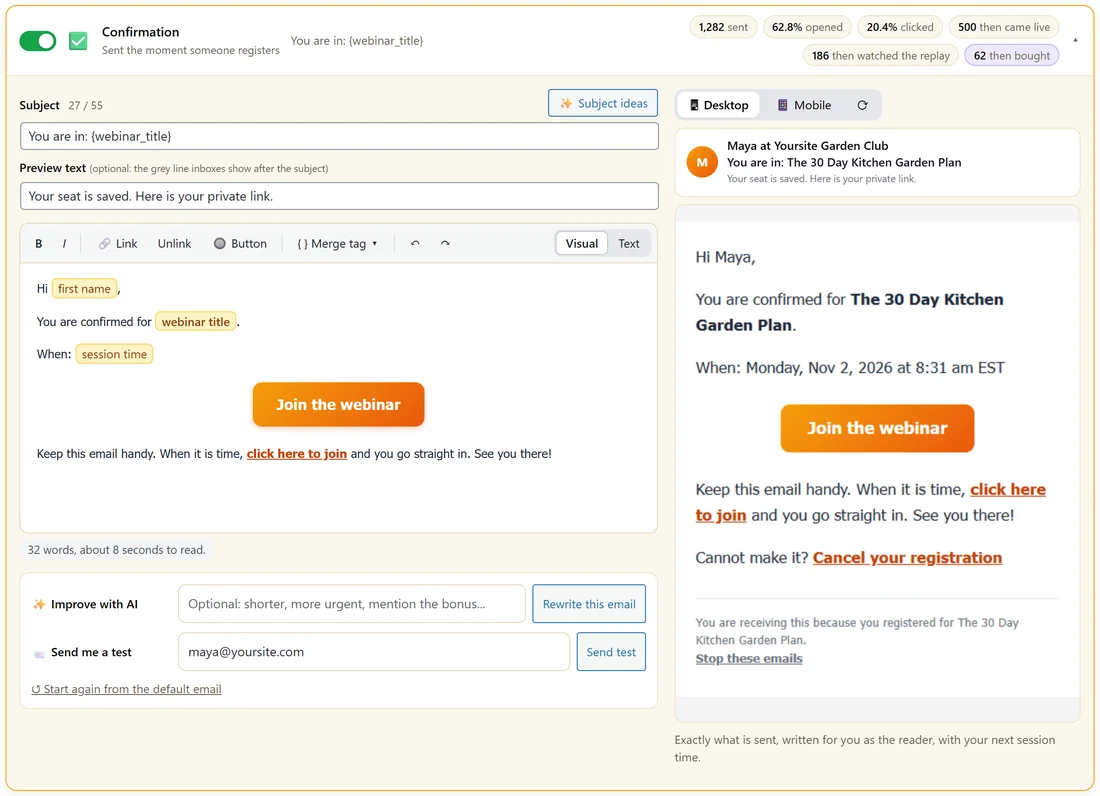
- Click an email's row to open it.
- Edit the Subject. Subject ideas suggests more with AI.
- Add Preview text, the grey line inboxes show after the subject.
- Write the body in Visual or Text. The toolbar has bold, italic, Link, Unlink, Button and Merge tag.
- Check the preview on the right in Desktop or Mobile. It is built by the real send path.
- Send me a test sends it to the address beside the button.
- Click Save.
Start again from the default email puts back the original copy.
Merge tags:
- {first_name}, their first name
- {webinar_title}, your customer-facing title if you set one
- {session_time}, in their own time zone
- {join_link}, their own seat
- {replay_link}, their own replay link
- {offer_url}, your offer link with their tracking
- {handouts}, the handouts you marked In emails
- {cancel_link}, a link to cancel their seat
- {unsubscribe_link}, their one-click unsubscribe link
Writing them with AI:
Add notes in Notes for the AI (optional), such as your tone, bonuses or the language, then click Write all these emails with AI from my webinar. It reads your script and offer, writes every email and fills the fields for you to review. It never switches an email on or off. Inside one email, Improve with AI and Rewrite this email work on that email alone. These need an AI key.
Email Performance:
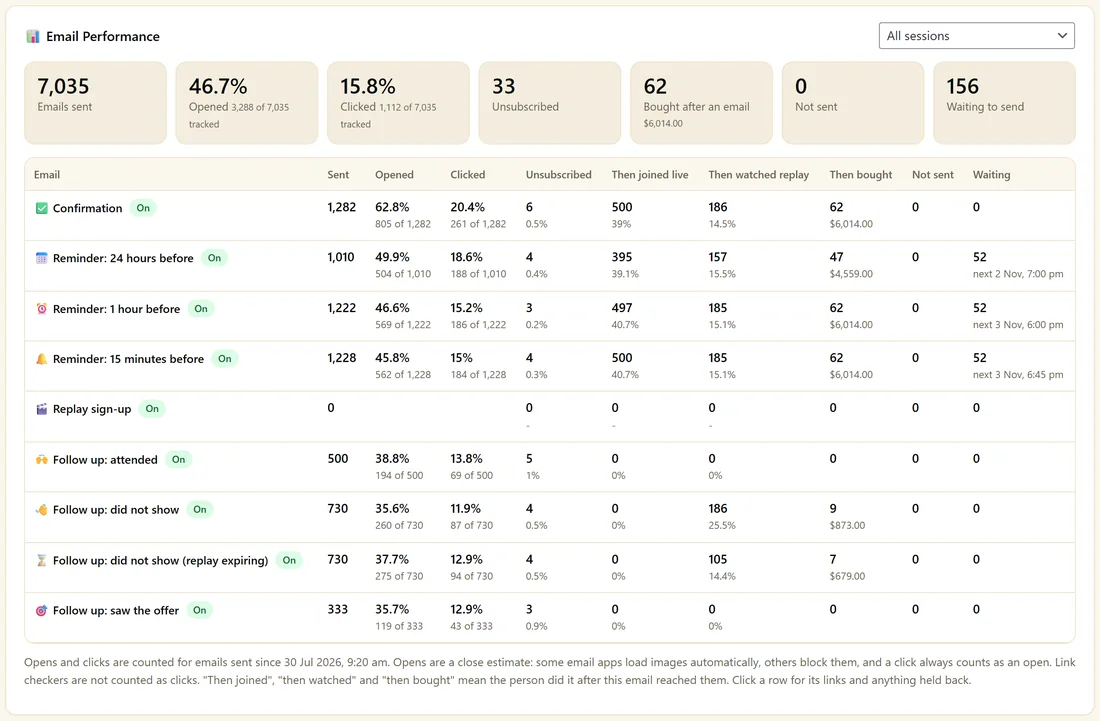
At the top: Emails sent, Opened, Clicked, Unsubscribed, Bought after an email, Not sent and Waiting to send. The table below gives each email its own row: Sent, Opened, Clicked, Unsubscribed, Then joined live, Then watched replay, Then bought, Not sent and Waiting. Pick one session from the menu to see just that airing. Click a row for its links and anything held back.
Opens and clicks are counted for emails sent by the plugin with tracking. Test sends are never counted. Then bought needs ResultsAiX Mailer recording your sales on the same site.
Unsubscribing:
Every email carries an unsubscribe link in its footer. Place {unsubscribe_link} yourself to choose where it sits. One click stops reminders and follow ups for that person, and the page offers an undo. Signing up again puts them back on.
How sending works:
The email queue runs every minute. If a send does not go through, it is tried again, up to four attempts. Emails to people who unsubscribed or cancelled are held back and shown as Not sent with the reason.
A real example:
Maya keeps the confirmation subject "You are in: {webinar_title}" with the preview text "Your seat is saved. Here is your private link." The table shows 63.6 percent opened and 484 people who then came live after it.
Next step:
Set how emails are sent in Choosing How Your Emails Are Sent, and the after-webinar emails in Behaviour Follow Ups After The Webinar.
A good reminder set:
- Confirmation: what they signed up for, when, and the join button
- 24 hours before: one reason to come, and the join button
- 1 hour before: a short nudge to get ready
- 15 minutes before: "We are about to start" and the join button
Keep each one short. The button matters more than the words.
Buttons and links in the body:
In Visual mode, select words and click Link, or click Button to add a large button. In Text mode, a link on a line of its own becomes a button. Use {join_link} for the room, {replay_link} for the replay and {offer_url} for your offer, so each person gets their own link and tracking.
Reading Email Performance:
- Opened and Clicked show how many people opened and clicked, out of those tracked.
- Then joined live counts people who came to the live session after that email.
- Then watched replay counts people who opened the replay after it.
- Then bought counts buyers after it, when sales are recorded.
- Not sent explains emails that were held back, for example switched off, unsubscribed or a cancelled seat.
- Waiting counts emails queued for later, with the next send time.
Testing an email:
- Open the email.
- Check the address in Send me a test.
- Click Send test.
- Open it on your phone and click every link.
Test sends are never counted in the stats, and do not affect anyone's queue.
Changing a subject after people are booked:
Saved changes apply to every email still waiting in the queue, so the next reminder goes out with your new wording.
A real example, continued:
Maya's 1 hour reminder says "Starting in 1 hour: {webinar_title}" with one line about having a pen ready. Its Then joined live figure is higher than her 24 hour reminder, so she keeps both.
What to do next:
- Behaviour Follow Ups After The Webinar
- Different Lists For Each Webinar And Behaviour
Common questions:
Can I send the reminders from my own email tool instead?
Yes. Send each person's link with the rwb_join_url field. See Tags And Custom Fields Sent To Your Autoresponder.
Can I write the emails in another language?
Yes. Write them in any language, or add the language to Notes for the AI before using Write all these emails with AI.