ResultsAiX Webinars installs like any WordPress plugin. Once your license key is accepted, every screen opens up.
What you need:
- WordPress 5.8 or newer
- PHP 7.4 or newer
- A current desktop Chrome, Edge or Brave for building, narrating, recording and broadcasting
Installing:
- In WordPress, go to Plugins, Add New Plugin, Upload Plugin.
- Choose the plugin zip file and click Install Now.
- Click Activate Plugin.
- A new AiX Webinars menu appears in your admin sidebar. If the free ResultsAiX Hub is installed, the menu sits inside the Hub with your other ResultsAiX tools.
When it activates, the plugin creates its own database tables and schedules its background jobs: the email queue every minute and the session scheduler every five minutes.
Activating your license:
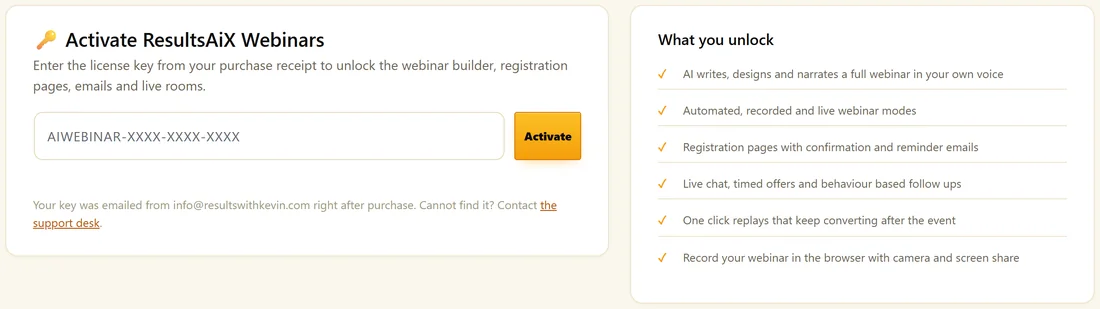
Until a key is accepted, every screen shows the activation card.
- Find the key in your purchase email.
- Paste it into the box. Keys start with AIWEBINAR.
- Click Activate.
The key is checked with the license server and this site is registered as one of your installs. If the server cannot be reached at that moment, the plugin activates on your site so you can keep working, and the sync is retried automatically once a day. Diagnostics shows the license status and whether it has synced.
Managing your license:
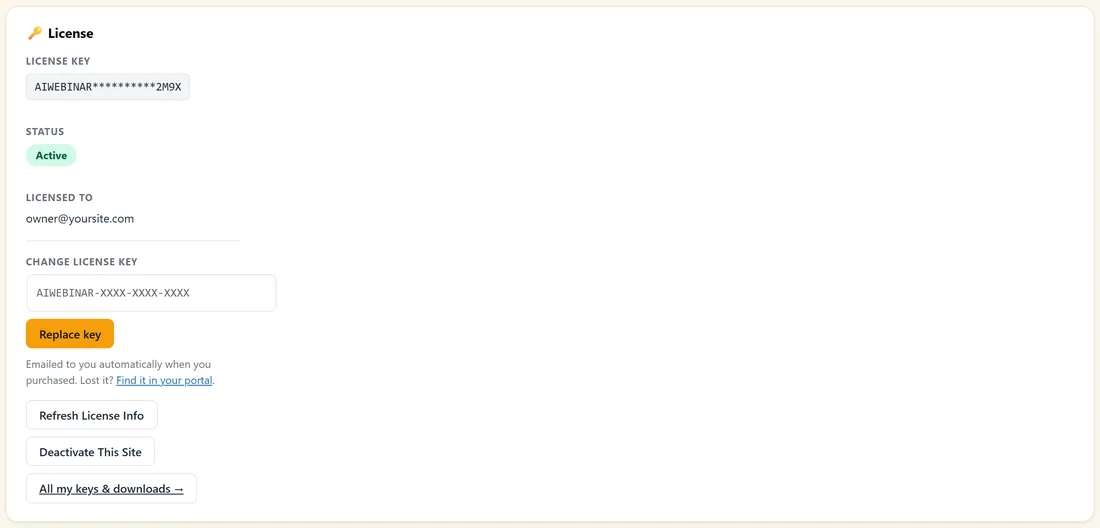
Open Settings and scroll to the License card. It shows:
- License key, shown masked
- Status, for example Active
- Licensed to, the email on your purchase
- Change license key, a box and a Replace key button for swapping to a new key
- Refresh License Info, which reads the details fresh from the license server
- Deactivate This Site, which releases this install so you can use the key on another site
- All my keys & downloads, a link to your account portal
Moving to a new site:
- On the old site, open Settings, License and click Deactivate This Site.
- Install the plugin on the new site and activate the same key there.
A real example:
Maya builds her webinars on a staging copy of yoursite.com, then moves to the live site. She clicks Deactivate This Site on staging, installs the plugin on the live site and pastes the same key. Her webinars come across with her database.
Updates:
The plugin checks for its own updates and offers them on the normal WordPress Plugins and Updates screens, so you update it like anything else. Diagnostics also has a Check for updates now button that asks the update server straight away.
Removing the plugin:
Deleting the plugin clears its scheduled jobs and a cached update note. Your webinars, registrants, attendance history, settings and keys stay in your database, so reinstalling picks up exactly where you left off.
Next step:
Read Finding Your Way Around The Screens for a tour of the menu.
Updating to a new version:
- Go to Dashboard, Updates or Plugins in WordPress.
- When ResultsAiX Webinars shows a new version, click Update now.
- Open Diagnostics afterwards. The Update server line shows the version you are running.
Your webinars, people and settings stay as they are through every update. New database columns are added for you the first time the new version loads.
Where your key is used:
The key is checked when you activate, when you click Refresh License Info, and once a day in the background. Your webinars, pages and emails keep running between those checks.
If the activation card is still showing:
- Check the key has no space before or after it.
- Click Activate again.
- Open Diagnostics and read the License and License server reachable lines.
- If your host blocks outside connections, ask them to allow your site to reach the license server, then click Refresh License Info.
Working with a staging site:
Activate the same key on staging while you build, then use Deactivate This Site on staging when you move to the live site. That keeps your install count tidy.
A quick tour after activating:
- The Dashboard opens. It is quiet until your first sign-ups.
- Click Webinars, then + New Webinar to create your first one.
- Open Email to set up sending.
- Open AI if you want the writing helpers.
What to do next:
Read Finding Your Way Around The Screens, then Quick Start: Your First Webinar.
Common questions:
Where do I find my key again?
In your purchase email, and under All my keys & downloads, which opens your account portal.
Does the license affect my webinars running?
Your webinars, pages and emails run on your own site. The key opens the plugin's screens on this install.