The Schedule tab decides when your webinar airs. A session is one airing. Everyone who signs up for the same session watches together and shares the same chat.
Where to find it:
Open the webinar, then the Schedule tab.
Times and time zones:
You type times in your WordPress site time zone, and the tab names it at the top. Visitors always see the session time converted to their own clock. If your site uses a fixed UTC offset instead of a city, the tab shows a note, because an offset does not follow daylight saving. Choose your nearest city under Settings, General, Timezone in WordPress.
The four schedule types:
- One-off dates. Add each date and time with + Add a date. Each one becomes its own session. Good for a launch or a live event.
- Recurring weekly. A repeating pattern. See below.
- Just in time (starts soon, on repeat). A new session starts every few minutes, set in New session every (minutes), from 1 to 120, 15 by default. A visitor joins the next slot, so nobody waits long.
- On demand (starts the moment they register). Every visitor gets their own session a few seconds after they sign up. Ideal for evergreen funnels.
Setting a recurring schedule:
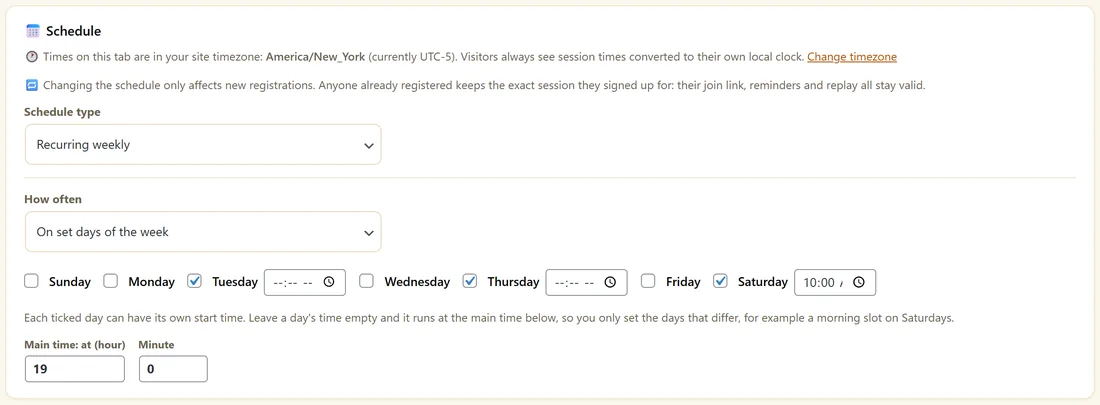
- Choose Recurring weekly.
- In How often, pick On set days of the week, Every day, or Every N days (2 to 30).
- For set days, tick the days. Each ticked day can have its own start time. Leave it empty to use the main time.
- Set Main time: at (hour) and Minute.
- Click Save.
The scheduler keeps the next four airings created ahead of time.
Letting people choose a session:
On one-off and recurring webinars with two or more upcoming sessions, the registration form shows Choose your session with the next five, in the visitor's own time zone. Just in time and on demand webinars have no picker, because their sessions are made as people sign up.
Changing a schedule:
A change only affects new registrations. Anyone already booked keeps their session, join link, reminders and replay. Sessions the new schedule no longer has are taken off the registration page, and the save note tells you how many.
Upcoming Sessions:
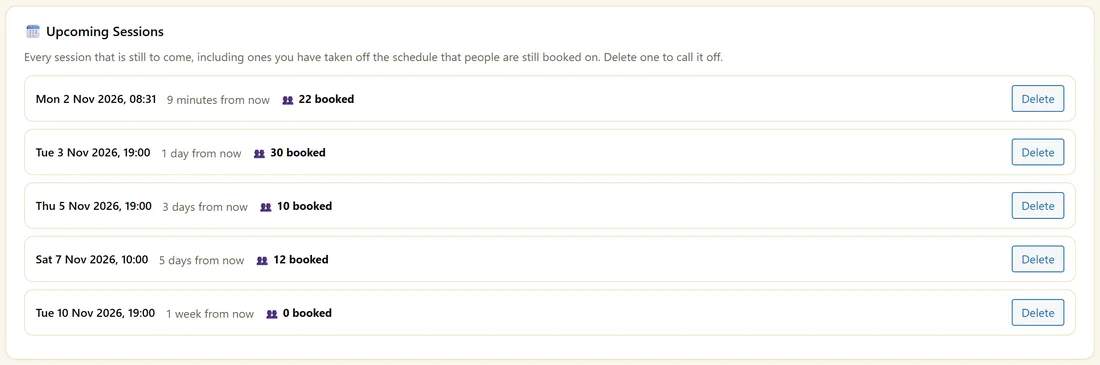
Below the schedule, Upcoming Sessions lists every session still to come, with how many are booked. To call one off:
- Click Delete beside it.
- If people are booked, choose Move them to another session, where they keep their join link and get a confirmation with the new time, or cancel their registrations.
- Click Yes, delete it.
When a session ends:
The scheduler runs every five minutes. It closes a session once its airing is over: the narration length for an AI Deck, the video length for a Recorded webinar, or 90 minutes when no length is known. Closing a session sorts everyone into attended, saw the offer, clicked the offer or no show, and queues the follow up emails.
A real example:
Maya's Kitchen Garden Plan runs on Tuesday, Thursday and Saturday at 19:00, with Saturday at 10:00 for weekend gardeners. Her site uses America/New_York, so a visitor in London sees Tuesday's session at midnight their time and a visitor in Chicago sees 18:00.
About WordPress cron:
Sessions and emails run on WordPress cron, which on a quiet site only runs when someone visits. For reminders that land on the minute, ask your host for a real server cron. Diagnostics shows how cron is set up.
Next step:
The bottom of the tab holds the repeat registration rules. See Repeat Registrations, Switching Sessions And Cancelling.
Which type to choose:
- A launch or a one-time event: One-off dates
- An evergreen sales webinar with a busy chat: Recurring weekly, two or three times a week
- An evergreen webinar where nobody should wait long: Just in time every 15 or 30 minutes
- A short demo or class people want now: On demand
How the session picker works for visitors:
The picker lists the next five sessions in the visitor's own time zone, with the soonest first. A visitor who does not choose is booked into the next session.
Adding one-off dates:
- Choose One-off dates.
- Click + Add a date and pick the date and time.
- Repeat for each date.
- Click Save.
Each date becomes its own session with its own chat, numbers and follow ups.
Recurring examples:
- Every Tuesday at 19:00: On set days of the week, tick Tuesday, Main time 19 and 0.
- Weekdays at noon: tick Monday to Friday, Main time 12 and 0.
- Every three days at 20:00: Every N days, 3, Main time 20 and 0. The series starts from the day you first save it.
Just in time in practice:
With 15 minutes, someone signing up at 14:07 is booked into 14:15. Everyone in that slot shares the chat, so a busy funnel gets lively rooms while nobody waits more than 15 minutes.
On demand in practice:
Each person gets their own session a few seconds after they sign up, and the button on the thank-you page takes them into the room. Turn on One shared chat for everyone watching on the Chat History tab so on-demand viewers still see each other.
What to do next:
- Repeat Registrations, Switching Sessions And Cancelling
- Confirmation And Reminder Emails, since reminders follow each person's session time
Common questions:
Can I add an extra one-off session to a recurring webinar?
A webinar has one schedule type. For an extra date, duplicate the webinar and give the copy a One-off date, or switch to One-off dates and add every date you want.
What do visitors see when there is no upcoming session?
Registration still works. The plugin finds the next real airing from your saved schedule, and books a just in time session only when nothing is scheduled.