Live mode puts you on camera, on screen or both, in real time. Your registration, chat, polls, offer and follow ups all stay inside your own room.
Where to find it:
Open a Live webinar, then the Content tab. Choose How you want to broadcast in the Live Webinar panel. Settings, Live Streaming holds the default for new webinars.
This site (no account needed):
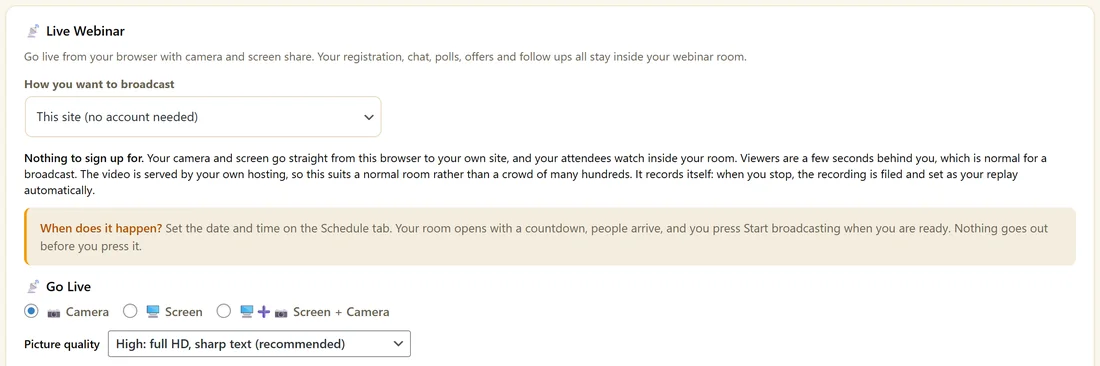
Your camera and screen go straight from your browser to your own site, and attendees watch inside your room. Viewers are a few seconds behind you, which is normal for a broadcast. The video is served by your own hosting, so this suits a normal room rather than a crowd of many hundreds. It records itself: when you stop, the recording is saved and set as your replay.
Cloudflare Stream (for very large rooms):

Connect your own Cloudflare Stream account under Settings, Live Streaming, with your Account ID and an API token that has the Stream Edit permission, and click Test connection. Cloudflare then carries the video with adaptive quality and bills your account directly. You still broadcast from your browser, with nothing to install. The plugin is built around rooms of up to about 500 viewers on Cloudflare, and sets no hard limit.
Embed a stream I run somewhere else:
Paste the embed address of a stream you already run, such as an unlisted YouTube Live. Your registration, chat, offer and tracking stay in your room.
Going live:
- Set the date and time on the Schedule tab, as One-off dates or Recurring weekly.
- At show time, open the Content tab or click Go Live at the top.
- In Go Live, choose Camera, Screen or Screen + Camera.
- Pick Picture quality: High (full HD, sharp text) or Standard (720p, for a slower connection).
- Allow your browser to use the camera, microphone or screen when it asks.
- Click Start broadcasting. Nothing goes out before you press it.
People already waiting in the room pick up the stream the moment you start.
While you are live:
- Post to the chat as the host
- Show offer now, which shows the offer to everyone straight away
- The full Host Chat Console below, with moderation, questions and polls
Your source is locked while you broadcast. Click Stop to change it.
When you stop:
With This site, the recording is already saved and set as the replay. With Cloudflare Stream, Cloudflare saves the recording and the plugin attaches it as the replay. If Cloudflare is still processing, Use my live recording as the replay in the Live panel fetches it when ready.
A real example:
Maya's Spring Planting Live Q&A is set for 12 November at 19:00 with This site. At 18:55 she opens Go Live, picks Screen + Camera at High, and presses Start broadcasting at 19:00. 96 people are booked, and the waiting room hands them the stream the moment she starts.
Tips:
- Broadcast from Chrome, Edge or Firefox on an https site.
- Turn the show into an automated webinar afterwards. See Turning A Live Webinar Into An Automated One.
A checklist for show day:
- An hour before, open the webinar's Content tab and check the Schedule tab time.
- Close other apps using your camera or microphone.
- Use a wired connection or strong wifi.
- Choose your source and picture quality.
- Open the Host Chat Console pop outs on a second screen.
- Post a welcome as the host so early arrivals see you.
- Press Start broadcasting at the start time.
Picture quality:
High: full HD, sharp text suits screen sharing with small text. Standard: 720p suits a slower internet connection.
Sharing your screen:
Your browser asks which screen or window to share. Share one window, such as your slides, so notifications stay private.
Embedding a stream:
- Choose Embed a stream I run somewhere else.
- Paste the embed address of your stream, for example an unlisted YouTube Live.
- Save Webinar.
Your room shows the stream with your chat, polls and offer around it.
After the show:
- The replay is ready for people who missed it
- The follow ups go out once the session closes
- Chat History holds every message and question
- Turn it into an automated webinar from the Chat History tab
What to do next:
- The Host Chat Console
- Replays And Expiry Windows
- Turning A Live Webinar Into An Automated One
Common questions:
Can I start early?
Yes. Press Start broadcasting when you are ready. People already in the room pick up the stream straight away.
Can co-hosts join on camera?
The broadcast is one source from your browser. Screen + Camera shows your screen with your camera in the corner.