AI Deck webinars are narrated slide by slide. The narration is made in your browser, saved to your Media Library, and measured so the room knows exactly how long each slide runs.
Where to find it:
Content tab, Voice panel.
Generating the voiceover:
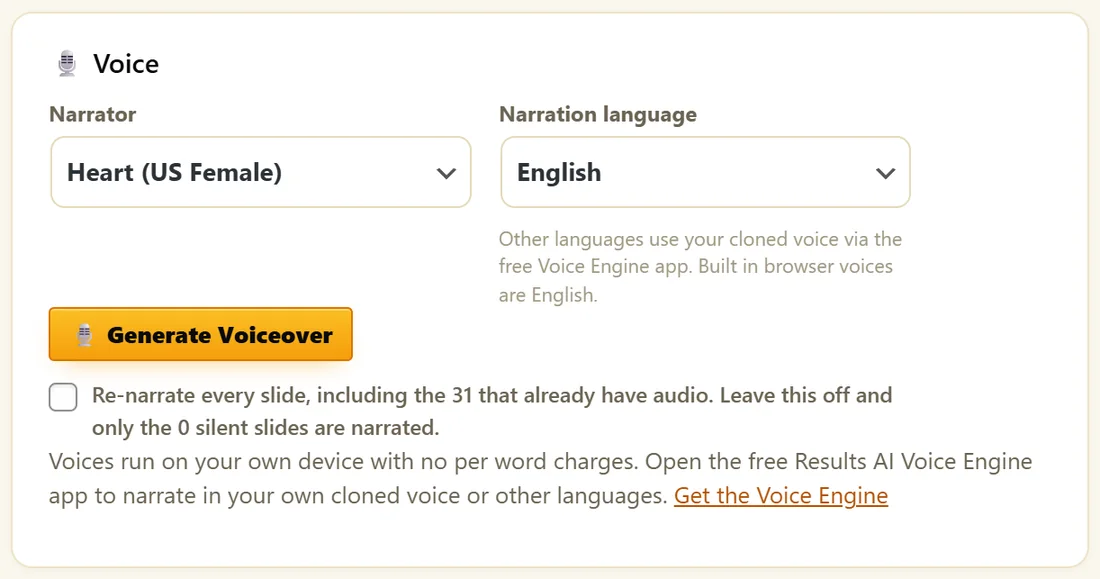
- Pick a Narrator.
- Pick the Narration language.
- Click Generate Voiceover.
- Wait while each slide is narrated in turn. The status line counts them down.
- Click Save Webinar.
The first time, the voice model downloads to your browser once. After that, narration costs nothing per word.
The built in voices:
- English: Heart, Bella, Nicole and Sarah (US female), Michael, Fenrir and Puck (US male), Emma (UK female) and George (UK male)
- Spanish and Portuguese: Dora, Alex and Santa
- French: Siwis
- Italian: Sara and Nicola
- Hindi: Alpha, Beta, Omega and Psi
- Japanese: Alpha, Gongitsune and Kumo
- Chinese: Xiaobei, Xiaoxiao, Yunjian and Yunxi
The Narration language menu offers English, Spanish, French, Italian, Portuguese, German, Hindi, Japanese and Chinese. Choose a narrator that speaks the language you pick.
Your own cloned voice:
- Install the free ResultsAiX Voice Engine app on the same computer. The Get the Voice Engine link is under the button.
- Record a short sample in the app to make your voice profile.
- Keep the app open with its keep running and network access options switched on.
- Reload the webinar editor. Your profile appears in the Narrator menu under My Voices.
Your voice is trained and stored on your own machine. Cloned voices also narrate German, which has no built in voice.
Only new slides are narrated:
Generate Voiceover narrates slides that have no audio yet, so after an edit it fills in just the gaps. To redo every slide, tick Re-narrate every slide under the button first.
Changing the narrator or language:
Changing either clears the existing clips, because they would no longer match. Click Generate Voiceover again to narrate every slide in the new voice.
A real example:
Maya chooses Heart (US Female) and English, clicks Generate Voiceover and waits while 31 slides are narrated. Each card now shows its length, and the Slides panel reads about 30 min narrated.
If some slides are skipped:
The status line says how many slides did not get audio. Click Generate Voiceover again and it fills in only those.
If your cloned voice is not listed:
Open the Voice Engine app on the same computer, switch on its keep running and network access options, and reload the editor.
Tips:
- Build and narrate in a current desktop Chrome, Edge or Brave.
- AI Deck slides can also show captions. See Slide Design, Themes And Images.
Choosing a narrator:
- Match the voice to your audience. A warm voice such as Heart or Emma suits coaching, a steady voice such as Michael or George suits business topics.
- Listen first: narrate a 2 minute quick test deck with two or three voices and compare.
- Keep one narrator per webinar, so the whole deck sounds like one person.
How long narration takes:
Each slide is narrated one after another in your browser. A 30 slide deck takes a few minutes on a modern computer. Keep the tab open until the status line says it is done, then click Save Webinar.
Editing after narration:
- Change the slide text.
- That slide's audio no longer matches, so it is narrated again next time.
- Click Generate Voiceover. Only changed or missing slides are narrated.
Narrating in another language:
- Write or paste the script in that language.
- Pick the language in Narration language.
- Pick a narrator from that language's group, or your own cloned voice under My Voices.
- Click Generate Voiceover.
Your cloned voice in practice:
Record your sample somewhere quiet, speaking at your normal pace. The app keeps your profile on your computer, so narrate from the same computer each time. For a whole deck, plug the laptop in and keep the app open.
What to do next:
- Slide Design, Themes And Images
- Viewer Controls And Subtitles, if you also want captions for viewers
Common questions:
Is the narration stored on my site?
Yes. Each clip is saved to your Media Library, and the room plays it from there.
Can I upload my own audio?
The Voice panel narrates with built in voices or your cloned voice. For a webinar with your own recorded audio and picture, use Recorded mode.