With PRO, two AI tools help you write agreements. AI Draft writes a complete first draft from a short description of the deal. AI Localize adapts any template for a client in another country and language.
Both use your own AI key, which stays on your server and is used only when you click an AI button.
Where to find it:
- The AI key: Settings tab, in the section AI (PRO): bring your own key
- AI Draft: the New Document screen, in the AI Draft (PRO) panel above the editor
- AI Localize: PRO Tools, in the section AI Localize a template
Connecting your AI key:
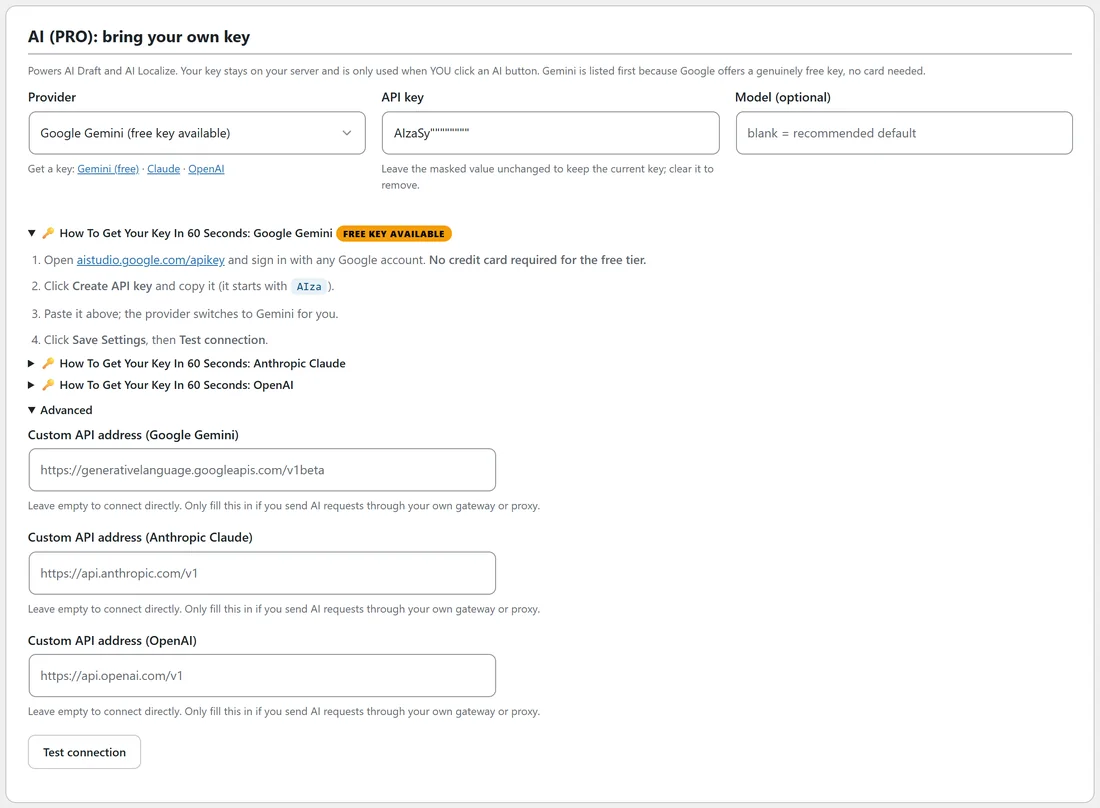
- Open the Settings tab and scroll to AI (PRO): bring your own key.
- Open one of the How To Get Your Key In 60 Seconds guides: Google Gemini, Anthropic Claude or OpenAI. Each lists the steps to create a key.
- Paste your key into API key. The Provider switches by itself to match the key: keys starting AIza are Gemini, sk-ant are Claude, and other sk- keys are OpenAI.
- Leave Model (optional) blank to use the recommended default, or type a model name.
- Click Save Settings.
- Click Test connection and wait for the result.
Google offers a Gemini key with a free tier, which is why it is listed first.
The key fields:
- Provider: Google Gemini (free key available), Anthropic Claude or OpenAI
- API key: after saving it shows masked. Leave the masked value as it is to keep the key, or clear the box and save to remove it.
- Model (optional): blank uses gemini-flash-latest for Gemini, claude-sonnet-5 for Claude and gpt-4o-mini for OpenAI
- Advanced: a Custom API address for each provider, only for owners who send AI requests through their own gateway. It must start with https://.
Using AI Draft:
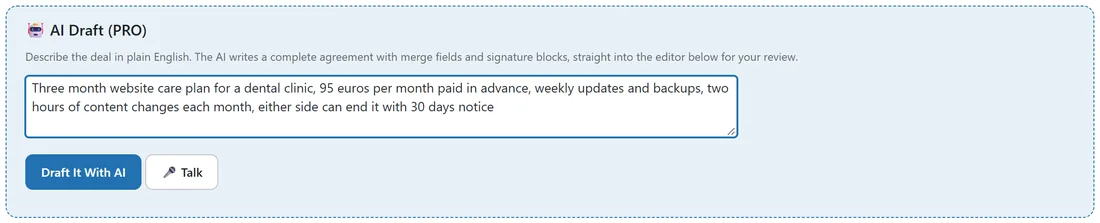
- Click New Document.
- In the AI Draft (PRO) panel, describe the deal in a sentence or two: who, what, how much, how long, and how either side can end it.
- Click Draft It With AI. A counter shows the seconds while it writes. Long agreements can take a couple of minutes.
- The draft appears in the editor with a title, numbered sections, merge fields such as {client_name} and a signature block for two signers.
- Read it, fill the merge fields, change anything you like, add signers and send.
If the editor already has text, you are asked before it is replaced. In browsers that support speech, a Talk button lets you speak the brief instead of typing. It uses the browser's own speech feature and does not use your AI key.
Writing a good brief:
- Name the type of agreement: care plan, retainer, consulting, event services
- Give the money and how it is paid
- Give the length and the notice period
- List what is included
Example brief: Three month website care plan for a dental clinic, 95 euros per month paid in advance, weekly updates and backups, two hours of content changes each month, either side can end it with 30 days notice.
Using AI Localize:
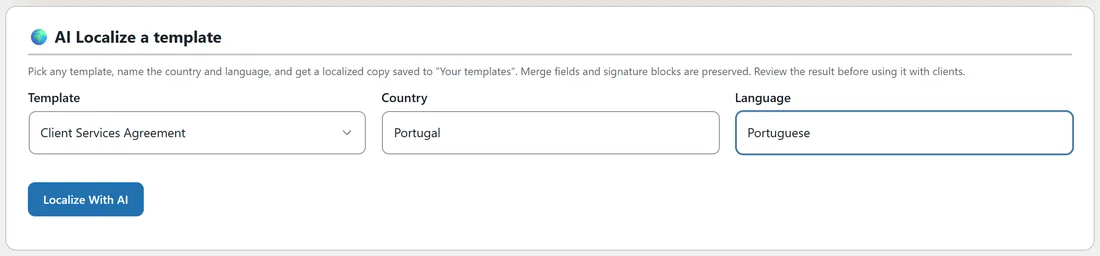
- Open AiX Sign, then PRO Tools.
- Under AI Localize a template, choose a Template. The list holds the 20 built in templates and Your templates.
- Type the Country, such as Portugal, and the Language, such as Portuguese.
- Click Localize With AI.
- When it finishes, the message reads Localized template saved. Find it under Templates, "Your templates".
The copy is named after the template with the country and language added, for example Client Services Agreement (Portugal, Portuguese). Merge fields and signature tags are kept exactly, so you fill and send it like any other template.
If a request is cut short:
If the AI stops because it reached its length limit, the plugin asks once more with more room. If a saved Gemini model has been retired by Google, the plugin uses the latest Gemini Flash model instead.
A real example:
Sam typed the dental clinic brief above into AI Draft and had a full care plan agreement in the editor about a minute later. For a new client in Lisbon, Sam localized the Client Services Agreement into Portuguese for Portugal, then asked the client to read it before signing.
Tips:
- AI writes a first draft. Read every line before sending.
- For important agreements, have a lawyer review the AI draft or the localized copy.
- Click Test connection whenever you change the key or the model.