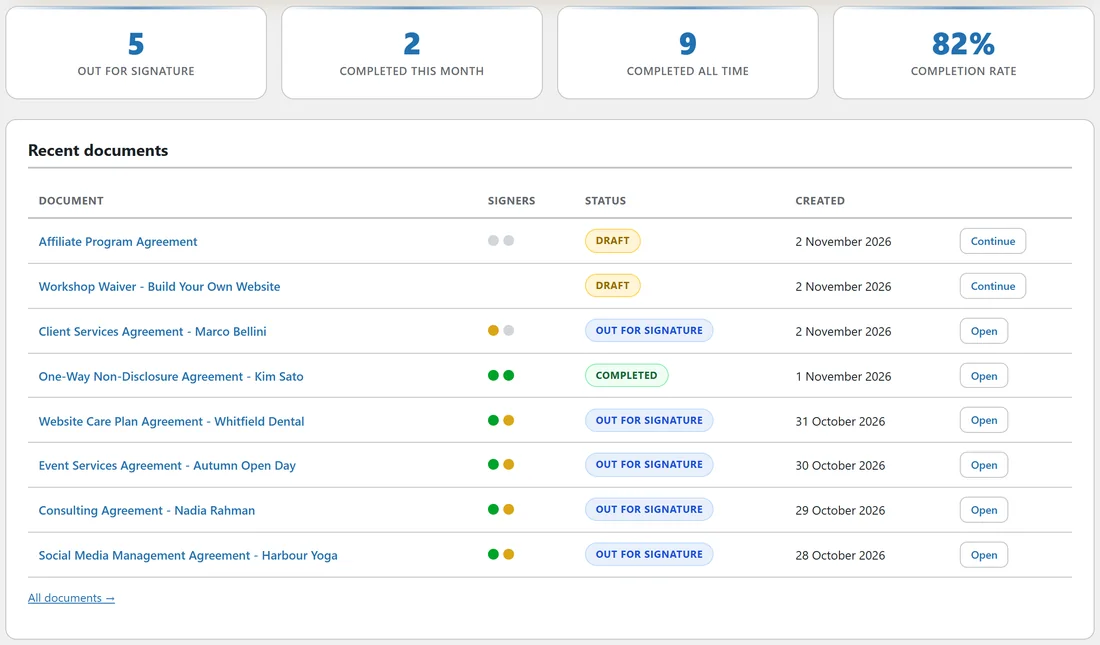
ResultsAiX Sign turns your own WordPress site into a document signing service. You prepare an agreement, add the people who need to sign, and each of them gets a private link by email. They read the document, tick a consent box and sign on any phone or computer.
When the last person signs, the plugin builds a final PDF with a Certificate of Completion, seals it with a SHA-256 fingerprint and emails it to everyone. Documents, signatures and the audit trail stay in your own WordPress database and uploads folder.
This guide is the map. Each part below has its own article with screenshots and step by step instructions.
Where to find it:

After you activate the plugin, a new menu called AiX Sign appears in your WordPress sidebar. Click it to open the Dashboard. Along the top you see the tabs Dashboard, Documents, Templates, Training, Resources, Settings and Diagnostics, plus a New Document button on the right.
The sidebar menu also has three shortcuts: Dashboard, Documents and New Document. A fourth item belongs to PRO. It reads Get PRO when the PRO plugin is not installed, PRO License when it is installed but not yet activated, and PRO Tools once it is active.
How a document moves through the plugin:
- You create it from a template, write it in the editor, or upload a PDF.
- You fill the merge fields, the blanks such as the client's name and the amount.
- You add signers, choose the signing order and click Send for Signature.
- Each signer opens their link, agrees to sign electronically and signs by drawing, typing or uploading a signature.
- When everyone has signed, the plugin seals the final PDF and emails it to every signer, to you and to anyone on the CC list.
Every step is written into the document's audit trail with the time and the IP address, and that trail is printed into the Certificate of Completion.
What this guide covers:
- Installing the plugin and activating your licence (see Installing The Plugin And Activating Your License)
- The Dashboard and its counters (see The Dashboard At A Glance)
- The three ways to start a document and the 20 built in templates
- Saving your own reusable templates
- Merge fields, signer fields, signers, signing order and access codes
- The checks before a document goes out, and the emails people receive
- Tracking progress, the signing page your signer sees, completion and the final PDF
- Verify Integrity, storage and privacy
- Deadlines, expiry and reminders
- WP Sync and ResultsAiX Mailer hand-offs
- The Settings, Diagnostics and Resources tabs
- What PRO adds: AI drafting, AI localization, reminders, branding, webhooks, bulk send, in-person and embedded signing
- Working with international clients, troubleshooting and frequently asked questions
Core and PRO:
ResultsAiX Sign is the core plugin and does all of the signing work on its own. ResultsAiX Sign PRO is a second plugin with its own licence key. It adds AI Draft, AI Localize, automatic reminders, bulk send, your branding on the signing pages, a completion webhook, in-person signing, embedded signing and unlimited saved templates.
While PRO is not active, its panels still show inside the core screens with a lock icon, so you can see what each one does. See What ResultsAiX Sign PRO Adds.
A real example used in these docs:
The screenshots in these articles come from a made-up business called Oakridge Web Studio at yoursite.com. Sam Carter runs it and sends website, retainer and care plan agreements to clients. You will see Sam's documents in every state: drafts, documents out for signature, completed, declined, voided and expired.
A note on legal matters:
ResultsAiX Sign records evidence: who opened the document, when they agreed to sign electronically, when they signed, from which IP address and device, and a fingerprint of the final file. It does not decide whether a particular document is valid where you work. Nothing in these docs is legal advice. For anything important, ask a qualified lawyer where you operate.
Tips:
- Start with Quick Start: Your First Signed Document and send a test to your own second email address.
- Fill in the Sending section of Settings before your first real document, so the emails carry your business name.
- Keep this guide open in a tab. Each section above links to the detailed article by name.