A document holds two kinds of placeholder. Merge fields are the ones you fill in before sending, such as the client's name and the price. Signer fields are the ones your signer fills in on the signing page. This article is about merge fields.
Getting them right means every client receives a clean, complete agreement, and you never retype the same contract.
What a merge field looks like:
A merge field is a lowercase name in curly braces, for example {client_name}, {amount} or {jurisdiction}. A template sentence might read: Client will pay {currency} {amount}, payable as follows: {payment_terms}.
Where to find it:
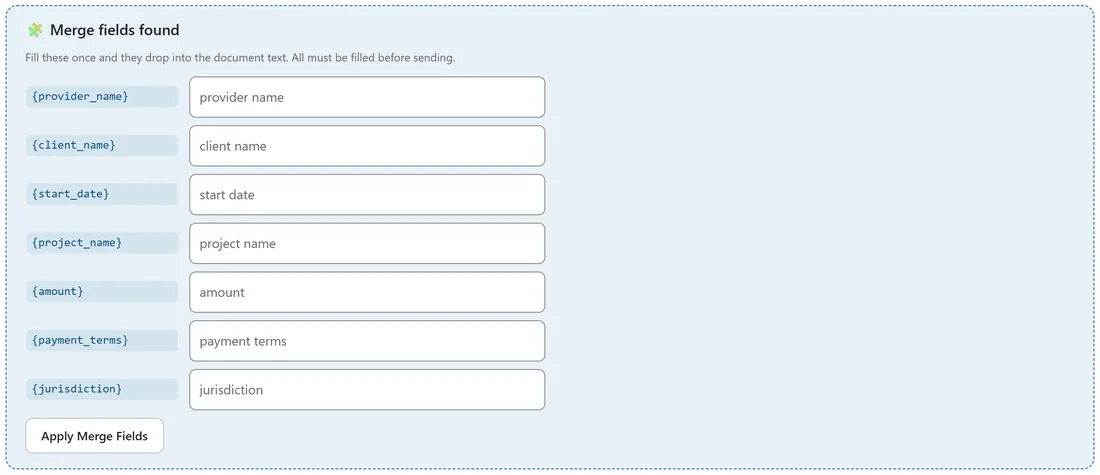
Open a document in the editor. When the text contains merge fields, a panel called Merge fields found appears under the editor. It lists each field once, with a box for the value.
The panel watches the editor. Type a new merge field into the text and it appears in the panel a moment later.
How to fill them:
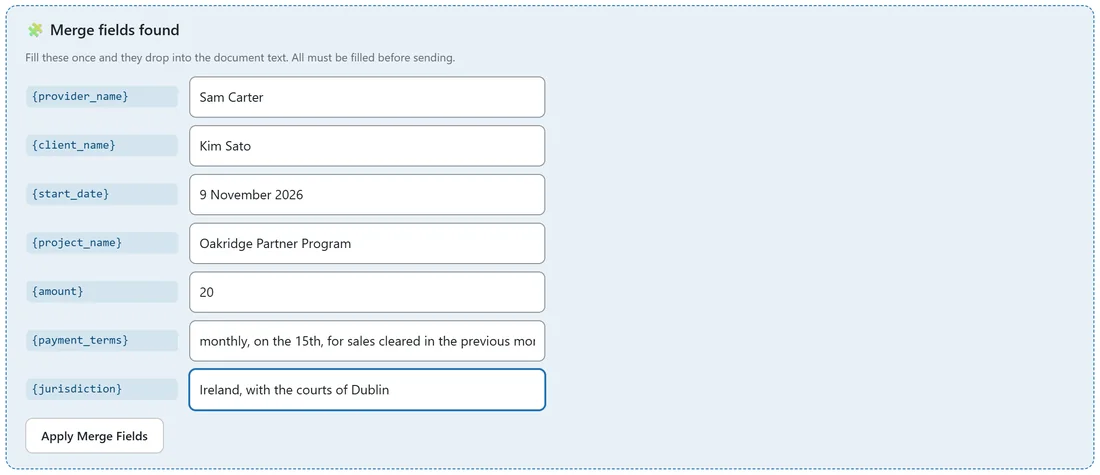
- Type a value into each box. The grey hint in each box is the field name with spaces, such as client name.
- Click Apply Merge Fields.
- The values replace every copy of each placeholder in the text.
- Fields you left empty stay in the panel for later.
- Click Save Draft or Send for Signature.
What you see in the editor after applying is exactly what your signer reads.
The fields the templates use:
- {provider_name} and {provider_company}: you and your business
- {client_name}, {client_company} and {client_address}: your client
- {start_date} and {end_date}: dates written the way you want them to read
- {scope}: the work or the subject of the agreement
- {project_name}: a project or event name
- {currency}, {amount} and {payment_terms}: the money
- {jurisdiction}: the place whose law applies
Not every template uses all of them. The panel lists only the ones in your document.
Why sending waits:
If any merge field is still in the text when you click Send for Signature, the document stays a draft and the message names it, for example: The document still contains the unfilled merge field {amount}. Fill it in the Merge Fields panel first. Fill it, apply, and send again.
This check does not apply to uploaded PDFs, which have no merge fields.
Adding your own:
Type any name in curly braces into the editor, using lowercase letters, numbers and underscores, for example {deposit_due}. It appears in the panel and is filled the same way.
Writing values well:
- Write amounts the way the sentence needs them. In the Affiliate Program Agreement the text reads {amount}% of net revenue, so the value is just 20.
- {currency} is separate from {amount}, so the same template works in EUR, USD or GBP.
- Write dates in full, such as 9 November 2026, so nobody misreads them.
- Make {jurisdiction} specific, such as Ireland, with the courts of Dublin.
A real example:
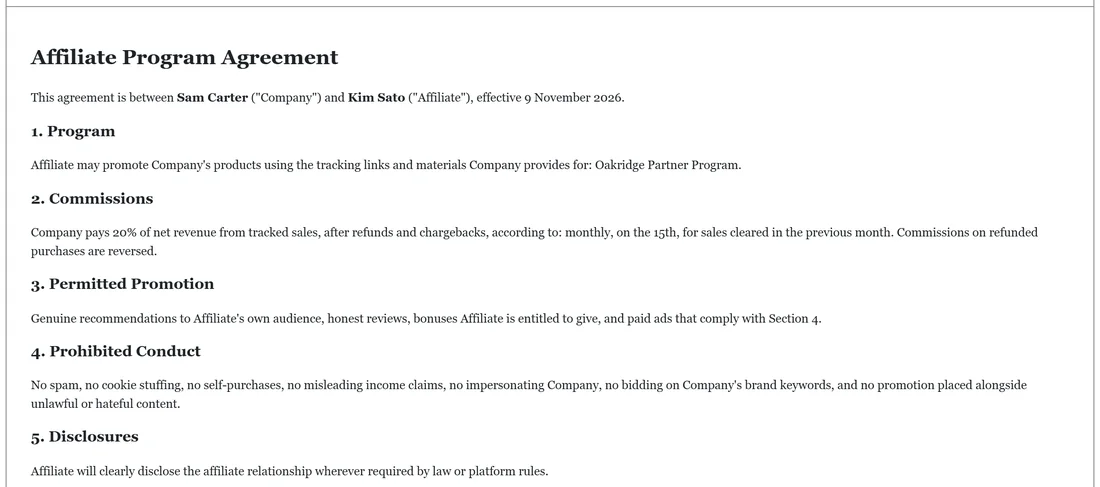
Sam opened the Affiliate Program Agreement draft for a new partner, Kim Sato. The panel listed seven fields. Sam typed Sam Carter, Kim Sato, 9 November 2026, Oakridge Partner Program, 20, the payment terms and the jurisdiction, then clicked Apply Merge Fields. The first line of the agreement now reads: This agreement is between Sam Carter ("Company") and Kim Sato ("Affiliate"), effective 9 November 2026.
Tips:
- Values are cleaned as they are applied, so punctuation in a client's name cannot break the document.
- To reuse your filled-in version, save it with Save as reusable template, leaving only the client fields empty.
- Next, check the signature blocks. See Signer Fields: Where People Sign.