The Signers section decides who signs, in what order, how long they have, and whether they need a code to open the document. The Invitation section adds your personal message and anyone who should get a copy at the end.
Getting these right means the right person is asked at the right time, and nobody waits for an email that has not been sent yet.
Where to find it:
Open a document in the editor and scroll below the document text. You see the Signers section, then the Invitation section.
Adding signers:
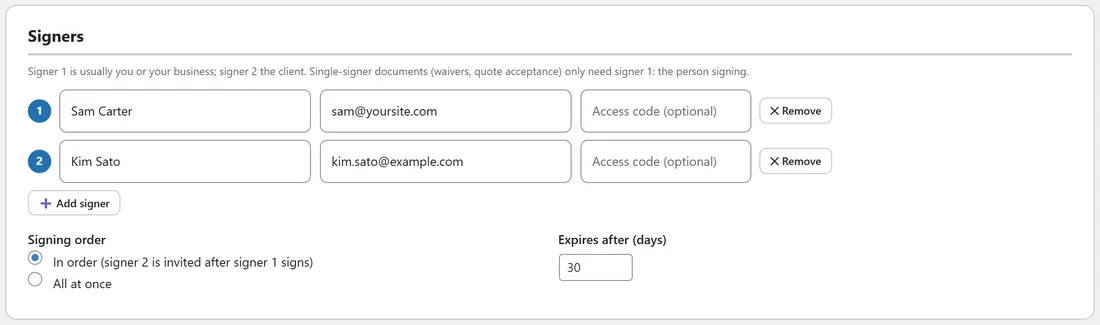
Each row has three boxes: Full name, email@example.com and Access code (optional). The number badge on the left is the signer's position. Signer field tags such as [sig:2] use that number.
- Type the name and email of signer 1. This is usually you or your business.
- Click Add signer for each extra person.
- Click Remove on a row to take it out. The numbers move up to fill the gap.
There is no limit on the number of signers. Single signer documents, such as waivers, releases and quote acceptances, need only signer 1: the person signing.
Signing order:
Choose one of two options under Signing order:
- In order (signer 2 is invited after signer 1 signs): only signer 1 is emailed when you send. As each signer finishes, the next one is invited automatically.
- All at once: every signer is emailed straight away and can sign in any order.
Use In order when you sign first and then the client, or when approvals must follow a sequence. Use All at once when the order does not matter, for example several people signing the same NDA.
In order:
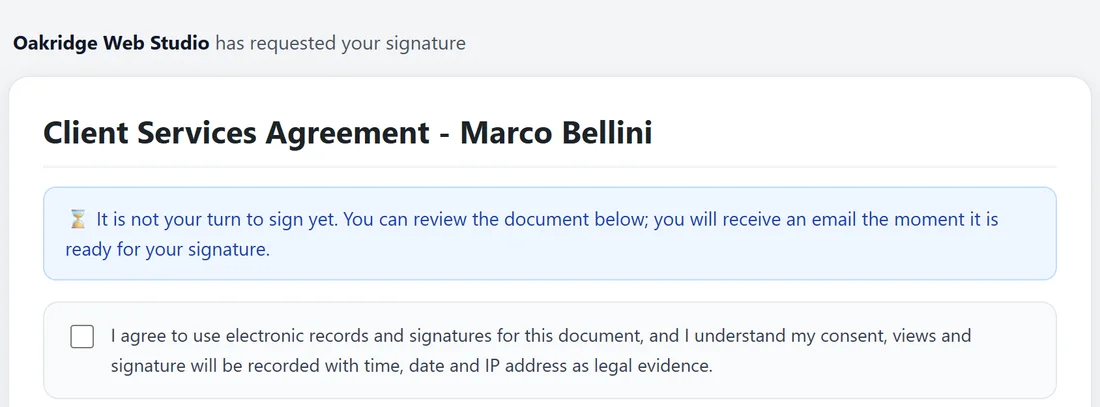
With In order, a later signer who opens their link early can still read the whole document. They see the note It is not your turn to sign yet, without a signature area. The moment the signer before them finishes, they get their invitation email. The server checks this too, so an early signature is never accepted.
On the status page the signer still waiting shows the badge Waiting.
Expires after (days):
Next to the signing order is Expires after (days). It starts at your default from Settings and accepts 1 to 365. The deadline is counted from when you save the document. See Deadlines, Expiry And Chasing Signatures.
Access codes:
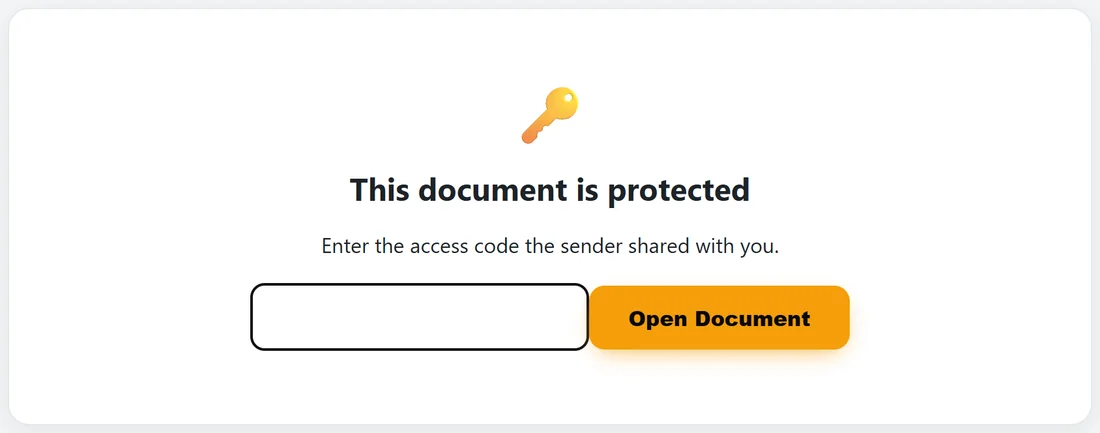
Type a code in a signer's Access code (optional) box and they must enter it before the document opens. Share the code another way, such as a text message or a call, so a forwarded email alone is not enough to open it.
- The invitation says the document is protected with an access code that you will share separately. It never includes the code.
- Capital letters do not matter when the signer types the code.
- After a correct code, that browser remembers it for two hours.
- A wrong code shows That code is not correct. Please try again.
Personal message:
In the Invitation section, the Personal message box is shown in the invitation email and in a highlighted note at the top of the signing page. Keep it short and friendly.
CC on completion:
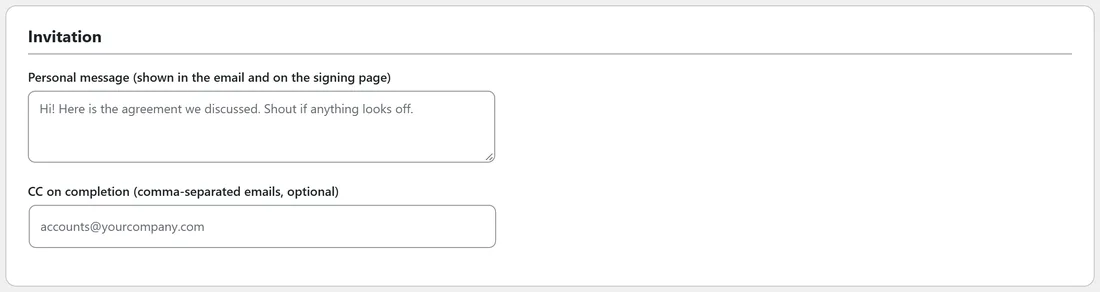
Type one or more email addresses into CC on completion, separated by commas. When the document completes, each of them receives the sealed PDF by email. They are not signers and receive nothing before that.
When signers can be changed:
Signers, order, deadline and message can be changed freely while the document is a draft. Once it is sent they are locked with the text. To change them, Void the document, click Duplicate and edit the copy.
A real example:
For the Autumn Open Day event, Sam added himself as signer 1 and Marcus Lee as signer 2 with the access code OAK2611, chose All at once, and texted Marcus the code. For the Thornton Physio website, Sam chose In order, signed first, and the plugin emailed Mia the moment Sam finished. Accounts@yoursite.com was on CC, so the bookkeeper got the final PDF.
Tips:
- Use the client's real email address. The signing link goes there, and it is recorded as evidence.
- Want the client to sign first? Put them in row 1 and yourself in row 2, and check the signer numbers in the signature blocks match.
- The Copy Signing Link button on the status page lets you send a link through another channel. See Sending A Document And The Checks Before It Goes.