Every agreement starts on the New document screen. You can start from a ready made template, type or paste your own text, or upload a PDF you already have. With PRO you can also describe the deal and let AI write the first draft.
Pick the route that saves you the most typing. All of them end at the same Signers and Invitation sections and the same Send for Signature button.
Where to find it:
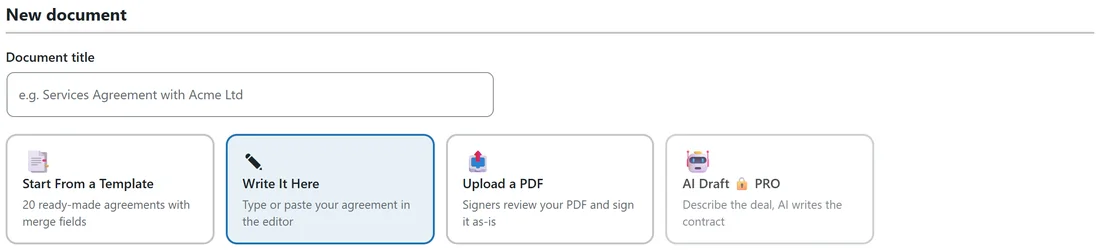
Click the New Document button at the top right of any AiX Sign screen, or New Document in the AiX Sign sidebar menu. The screen opens with a Document title box and four cards:
- Start From a Template: opens the Templates tab
- Write It Here: the editor, selected by default
- Upload a PDF: shows the file box instead of the editor
- AI Draft PRO: shown with a lock when PRO is not active
From a template:
This is the fastest route. Click Start From a Template, then Use This Template on the agreement you want. The editor opens with the text, the title, the merge fields and the signature blocks already in place. You can change any wording before sending. See The Twenty Built In Agreement Templates.
Saved templates of your own work the same way. Open the Templates tab and click Use next to one under Your templates. See Saving Your Own Reusable Templates.
Write it in the editor:
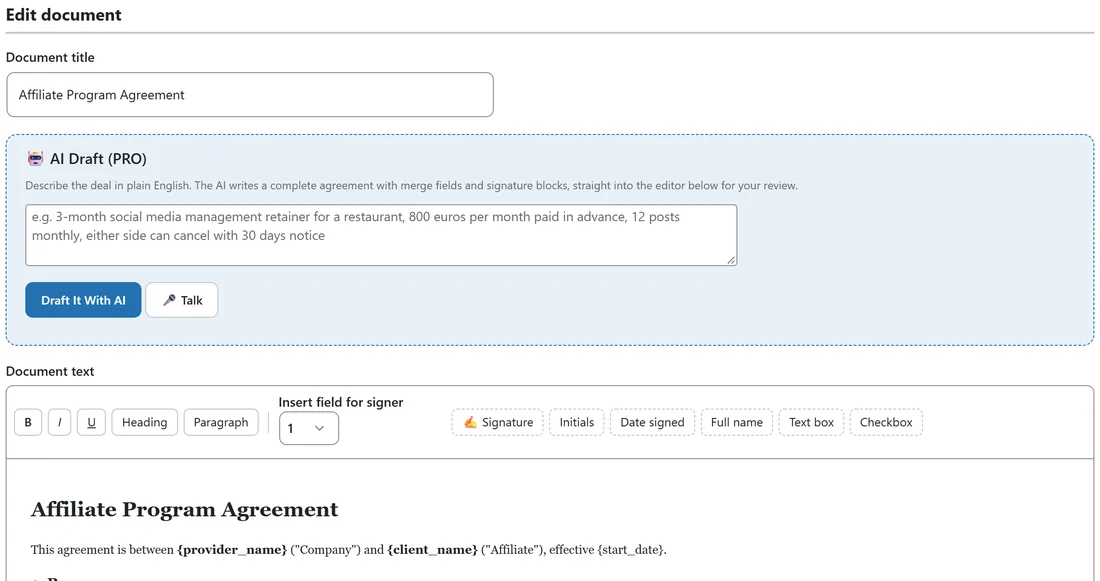
Type or paste your agreement into the Document text area. The toolbar above it has:
- B, I and U for bold, italic and underline
- Heading and Paragraph to change the selected block
- Insert field for signer, a number selector, followed by Signature, Initials, Date signed, Full name, Text box and Checkbox
The field buttons drop a tag such as [sig:2] at your cursor. Every signer needs at least one signature tag. See Signer Fields: Where People Sign.
The editor keeps headings, paragraphs, bold, italic, underline, lists and tables. Scripts, links and images are removed when you save.
Upload a PDF:

Click Upload a PDF, then choose your file in the PDF file box. The plugin accepts PDF files up to 20 MB. Signers see your PDF exactly as uploaded, and their signatures go on a generated Execution Certificate tied to the file's fingerprint. See Uploading Your Own PDF For Signature.
AI Draft, PRO:
With PRO active, an AI Draft panel sits above the editor. Describe the deal in plain English and click Draft It With AI. The draft lands in the editor with merge fields and signature blocks placed. See AI Draft And AI Localize With Your Own Key (PRO).
How the routes differ:
- Merge fields and signer fields work in template, editor and AI documents. An uploaded PDF is used exactly as supplied, so it has neither.
- Template and editor documents become a native PDF with the signatures in place. Uploaded PDFs keep your original file untouched and pair it with an Execution Certificate.
- The Documents list labels each one Template, Editor or Upload under the title.
A real example:
Sam uses a template for new website clients, writes the short care plan agreement in the editor, and uploads the coworking agreement that the coworking space sent as a PDF.
Tips:
- Give every document a clear title, such as Website Design Agreement - Thornton Physio. The title appears in emails, on the signing page and in the PDF.
- Click Save Draft at any time. Drafts wait on the Documents tab.
- Edited a template you will reuse? Use Save as reusable template at the bottom of the editor.