Three PRO tools make collecting signatures faster when one email to one person is not the best fit. Bulk send gives a whole list their own copy of the same agreement. In-person signing lets someone sign on your phone or tablet. Embedded signing puts the signing page inside a page of your own site.
Where to find it:
Open AiX Sign and click PRO Tools in the sidebar. The three tools have their own sections on that screen.
Bulk send:
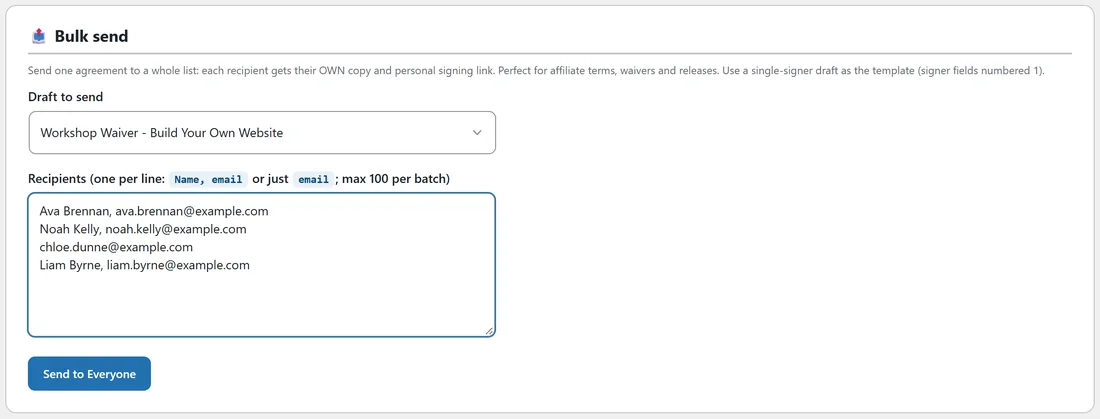
Bulk send turns one draft into a separate document for each person on your list. Each person gets their own copy, their own private link and their own audit trail.
Prepare the draft first:
- Create a new document, for example from the Liability Waiver & Assumption of Risk template.
- Fill the merge fields. Use a single signer: the signature, name and date fields numbered 1.
- Add your personal message and set the deadline.
- Click Save Draft. You do not need to add a signer.
Then send it:

- Open PRO Tools and scroll to Bulk send.
- Choose the draft under Draft to send.
- In Recipients, type one person per line: Name, email or just the email.
- Click Send to Everyone and confirm.
The page shows how many were sent, for example Bulk send finished: 4 document(s) sent. If a line has an email that is not valid, it is skipped and counted in the message.
What each copy looks like:
- Title: the draft title, a dash, then the person's name or email
- One signer: that person
- The draft's text, message and deadline
- Sent straight away
Each copy appears on the Documents tab like any other document. The original draft stays a draft, so you can use it again. Up to 100 documents are sent per batch.
In-person signing:
When the person is with you, open their signing link on your own device and hand it over.
- Send the document as usual.
- Open PRO Tools and scroll to In-person signing. It lists up to 25 signers who have not signed yet, with the document and the signer's name.
- Click Start In-Person Signing next to the right person. Their signing page opens in a new tab.
- Hand over your phone or tablet. They tick the consent box, sign and click I Agree and Sign.
Everything is recorded as normal, including the device and IP address of the phone or tablet used.
Embedded signing:

Embedded signing shows a signer's page inside any page or post on your site, using a shortcode.
- Open the document's status page and click Copy Signing Link in the signer's row.
- Take the long code at the end of the link, after rsign=.
- Add this shortcode to a page and paste the code in place of PASTE_THE_TOKEN: [rsign_document token="PASTE_THE_TOKEN" height="900"]
- Publish the page and share it with that signer.
The height is in pixels and can be changed. The page shows the signer's own signing page in a frame. Each token belongs to one signer, so use one page per signer and keep the page private.
A real example:
Oakridge Web Studio runs a Build Your Own Website workshop. Sam saved a Workshop Waiver draft with one signer, then pasted four attendees into Bulk send. Ava, Noah, Chloe and Liam each got their own waiver to sign before the day. When one attendee arrived without signing, Sam opened In-person signing and handed over the tablet at the door.
Tips:
- Bulk send works best with single signer agreements: waivers, releases, affiliate terms.
- Split long lists into batches of up to 100.
- For embedded signing, add the page to no menus and share it only with that signer.