Two tabs sit next to Settings. Diagnostics gives you, and support, a quick health check of the plugin on your site. Resources shows the other tools from the same team that work alongside Sign.
Where to find it:
Open AiX Sign and click the Diagnostics tab or the Resources tab.
Copying the report for support:

At the top of Diagnostics are two buttons:
- Copy Report for Support: copies a plain text report. The button changes to Copied! Paste into your support ticket.
- Open Support: opens the support contact page.
The report never includes passwords or API keys.
The Plugin section:
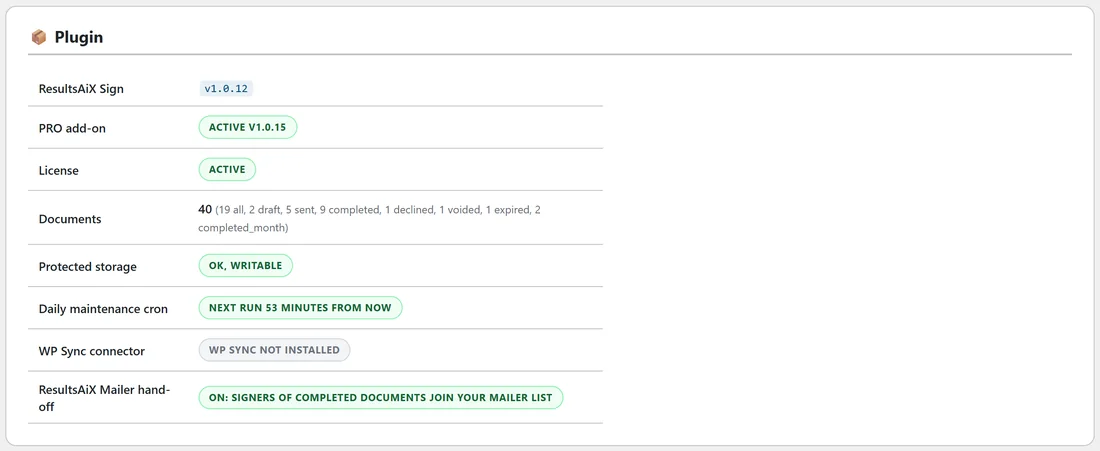
- ResultsAiX Sign: the version number
- PRO add-on: Active with its version, or Not installed
- License: your licence status
- Documents: document counts by status
- Protected storage: whether the storage folder exists and can be written to
- Daily maintenance cron: when the daily job next runs. This job marks overdue documents Expired and, with PRO, sends reminders.
- WP Sync connector: Connected, installed but not licensed, or not installed
- ResultsAiX Mailer hand-off: on, off, or Mailer not installed
The Environment section:
Your WordPress, PHP and database versions, your site address, whether HTTPS is active, the permalink setting, the memory limit, the maximum run time for a request, and the address outgoing mail is sent from.
HTTPS matters: signing links should open on a secure address, so make sure your site has an SSL certificate.
The Database Tables section:
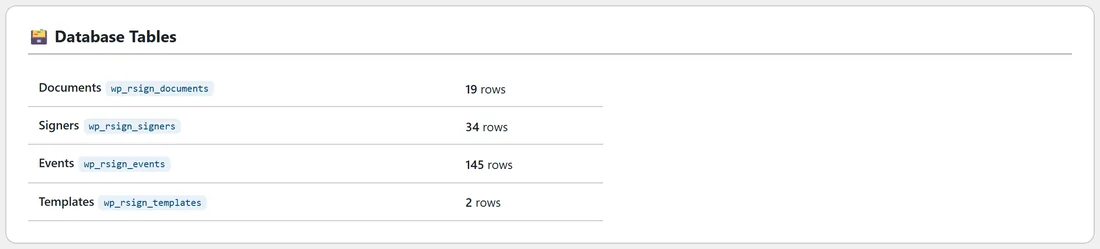
The four plugin tables, Documents, Signers, Events and Templates, with the number of rows in each. If a table is listed as missing, deactivate the plugin and activate it again to create it.
What to check first:
- If documents never expire, look at Daily maintenance cron. WordPress scheduled tasks run when your site has visitors.
- If PDFs are not created, look at Protected storage.
- If emails show the wrong sender, look at Outgoing mail from, and set the Sender / reply-to email on the Settings tab.
The Resources tab:
Resources shows a card for each tool from the same team, grouped under headings such as Plugins & Add-ons. Each card has a short description and opens the tool's page. Cards for plugins found on your site carry an Installed badge.
A real example:
When Sam asked support why a client's reminder had not gone out, support asked for the report. Sam clicked Copy Report for Support and pasted it into the ticket. It showed the PRO add-on active and the next daily run time, which answered the question straight away.
Tips:
- Copy the report before you open a ticket. It saves a round of questions.
- Run Diagnostics after moving to a new host.
- The Training tab inside the plugin has quick how-to notes; these docs go deeper.