Your signer never creates an account, installs an app or sets a password. The link in their email is their key. This article walks through exactly what they see, so you can guide a client who asks "what do I do?"
The example is Grace Whitfield of Whitfield Dental signing the care plan agreement Sam sent her.
Where to find it:
Signers reach this page from the Review and Sign button in their invitation, or from a link you shared with Copy Signing Link. To see it yourself, send a test document to your own second email address.
Step 1, opening the link:
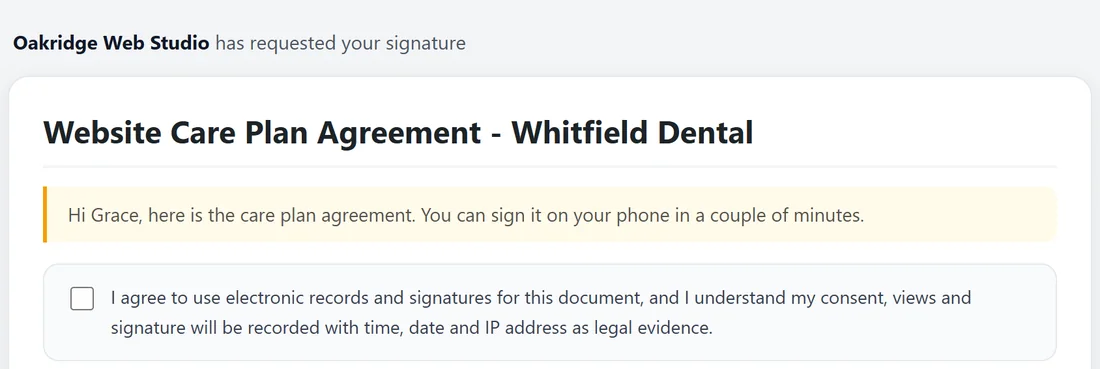
The page opens on its own, outside your theme, so no theme or page builder can change it. At the top it reads: your sender name has requested your signature. Below that are the document title and your personal message in a highlighted box.
If you gave this signer an access code, they first see a page called This document is protected. They type the code and click Open Document.
If it is not their turn yet with In order signing, a note reads: It is not your turn to sign yet. They can read the whole document but there is no signature area until they are invited.
Step 2, consent:
Before anything else, a checkbox reads: I agree to use electronic records and signatures for this document, and I understand my consent, views and signature will be recorded with time, date and IP address as legal evidence. Ticking it is recorded at once.
Step 3, their fields:
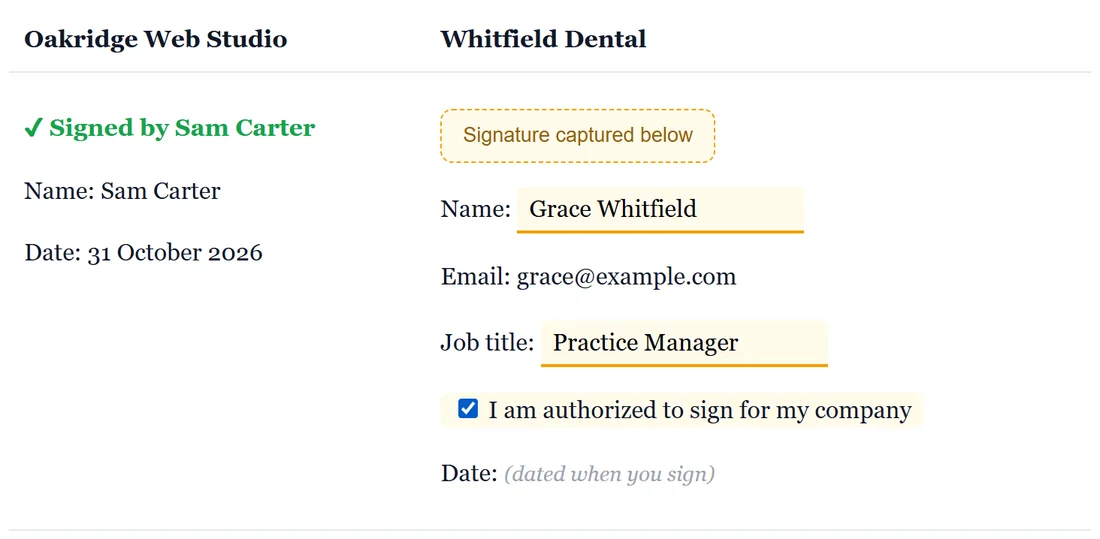
The document text comes next. Fields that belong to this signer are live: their name, initials, text boxes and checkboxes. Their signature spot reads Signature captured below. The date shows (dated when you sign) and fills in when they sign.
Other signers' fields show what those people entered. A signer who has already signed shows a green Signed by mark.
For an uploaded PDF, the PDF appears in a frame with a link to open it in a new tab.
Step 4, signing:
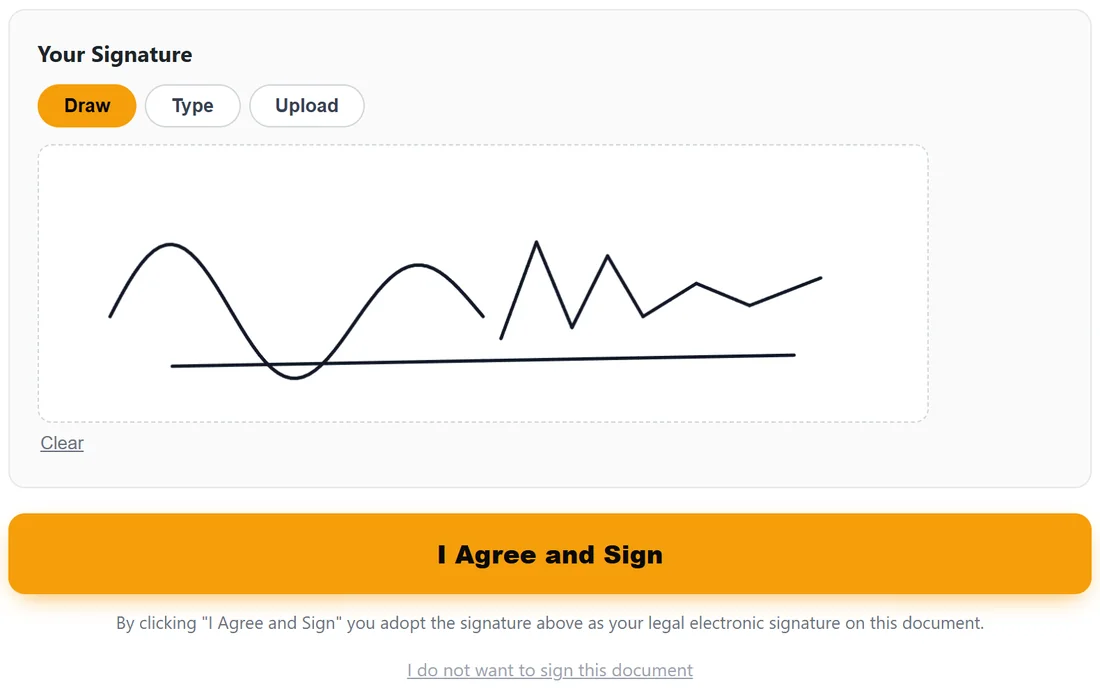
Under the document is Your Signature, with three tabs:
- Draw: sign with a finger or mouse on the pad. Clear wipes it to start again.
- Type: type a name and it appears in a handwriting style. The box starts with the name from the signer list.
- Upload: choose a photo or scan of a handwritten signature.
Type and Upload:
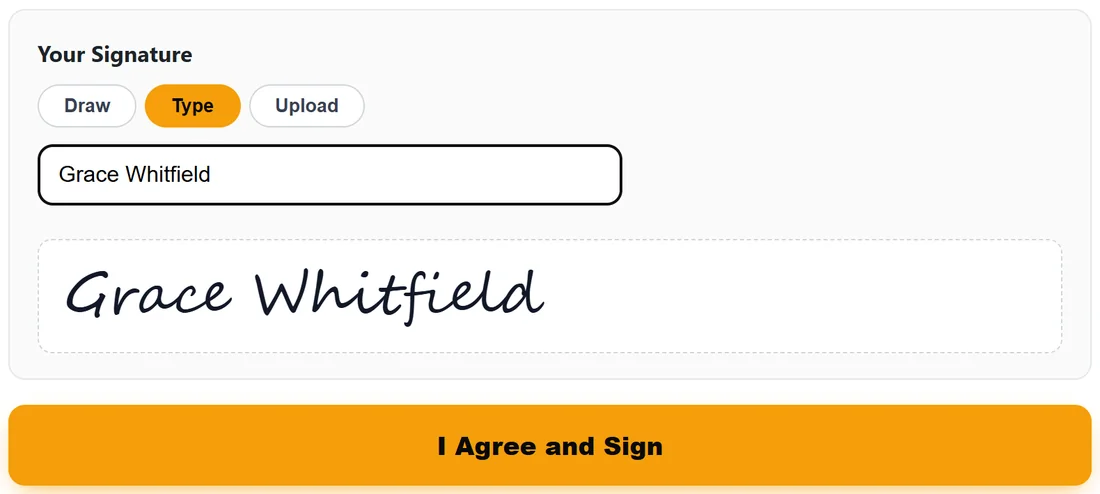
Whichever tab they use, the signature is placed on a white background and saved as an image. That image appears in the final PDF and in the certificate.
The orange I Agree and Sign button switches on only when the consent box is ticked and a signature is added. The line under it reads: By clicking "I Agree and Sign" you adopt the signature above as your legal electronic signature on this document.
Step 5, done:
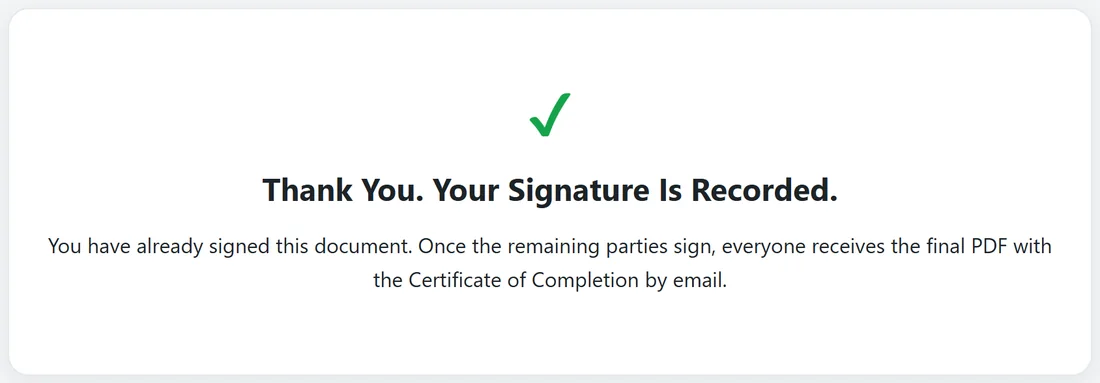
After they click I Agree and Sign, the button reads Recording your signature... and then the page changes:
- If others still have to sign: Thank You. Your Signature Is Recorded. Everyone receives the final PDF with the Certificate of Completion by email once the remaining parties sign.
- If they were the last: All Done. The Document Is Complete, with a Download the Signed PDF button.
If they open their link again later, they see the same confirmation page instead of the form.
On a phone:
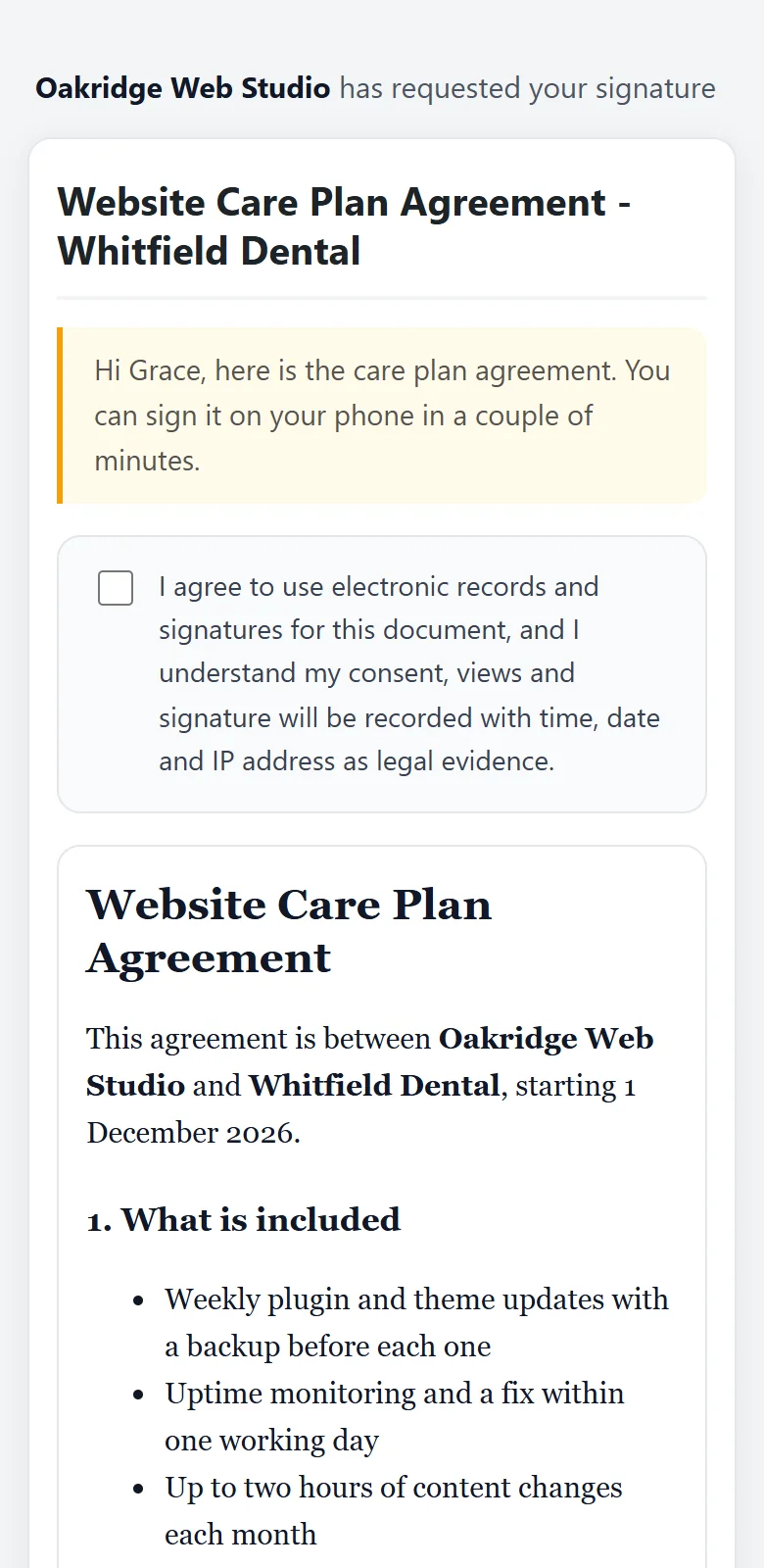
The page is built for narrow screens. The text, the consent box and the signature pad fit the width, and drawing with a finger works on the pad.
If a signer does not want to sign:
Under the button is a small link: I do not want to sign this document. The signer can type a reason, then confirms. You get an email with their reason, the document closes as Declined, and other signers who open their link see Signing stopped.
Other messages a signer may see:
- Document voided: you withdrew the document.
- Document expired: the deadline passed. Duplicate it and send a new copy.
- Link not found: the link is incomplete. Send it again with Resend Invite or Copy Signing Link.
At the bottom of every page is a small Powered by ResultsAiX Sign line. With PRO, your company name, logo and colour take its place. See What ResultsAiX Sign PRO Adds.
A real example:
Grace opened Sam's email on her work computer, ticked the consent box, typed GW in the initials box, filled Practice Manager as her job title, ticked I am authorized to sign for my company and drew her signature. The button turned orange, she clicked it, and the page thanked her.
Tips:
- Tell clients in your message how long it takes. The default text says it takes a couple of minutes.
- If a signer struggles to draw on a phone, suggest the Type tab.
- The signing page is not listed in search engines and is never cached.