When a contract already exists as a PDF, for example one a client or a lawyer sent you, upload it instead of retyping it. Your signers read that exact file and sign it on their phone or computer.
The plugin never writes on your PDF. It stores it as it is, records its fingerprint, and puts the signatures on a separate Execution Certificate tied to that fingerprint.
Where to find it:
Click New Document, then the Upload a PDF card. The editor is replaced by a PDF file box.
How to upload a PDF:

- Type a Document title, for example Shared Studio Space Agreement.
- Click Upload a PDF.
- Click Choose File in the PDF file box and pick your PDF.
- Add your signers in the Signers section and choose the signing order.
- Add a personal message if you like.
- Click Save Draft to keep it, or Send for Signature to send it now.
The file is uploaded when you save or send. After saving, the box shows Uploaded with the stored file name and the first characters of its SHA-256 fingerprint. To replace the file, choose another PDF and save again.
What the plugin checks:
- The file must be a PDF, up to 20 MB.
- The start of the file must look like a real PDF.
If the upload is refused, the message tells you why: PDF is too large (20 MB max), Only PDF files can be uploaded, or That file does not look like a valid PDF. Pick a different file and save again.
Where the file is kept:
The PDF is saved in the plugin's protected storage folder inside your uploads directory, with a random file name. Its SHA-256 fingerprint is stored with the document. See Where Documents Are Stored, And Privacy.
What the signer sees:
On the signing page the PDF opens inside a frame, under the note: Review the document below. Your signature will be bound to this exact file (its digital fingerprint is recorded). Under the frame is a link, Open the PDF in a new tab, for browsers that do not show PDFs inside a page.
The consent box, the signature area and the I Agree and Sign button work exactly as on any other document. See What Your Signer Sees.
The Execution Certificate:
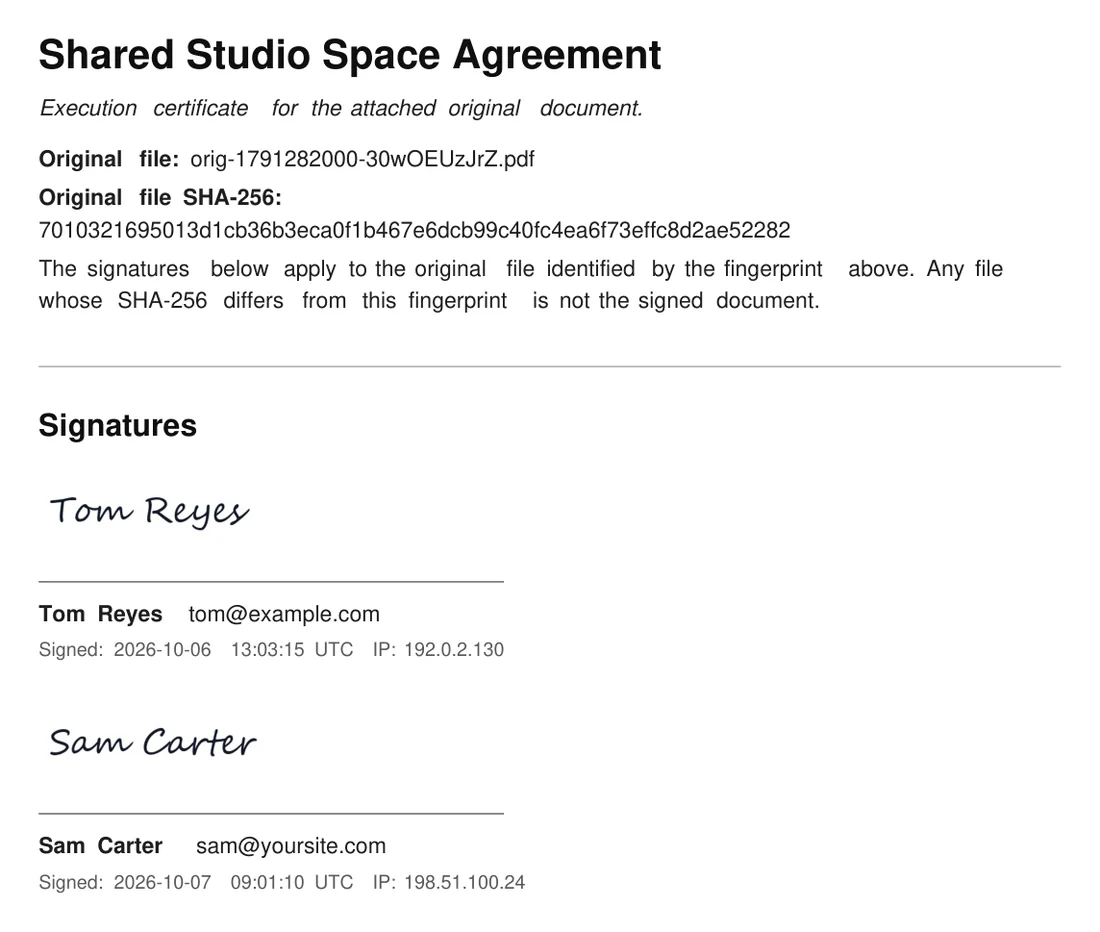
When everyone has signed, the final PDF starts with an Execution Certificate page. It shows:
- The document title and the line Execution certificate for the attached original document
- The stored name of the original file and its SHA-256 fingerprint
- A note that the signatures apply to the original file identified by that fingerprint, and that any file whose SHA-256 differs is not the signed document
- A Signatures section with each signer's signature image, name, email, signing time and IP address
The Certificate of Completion follows, with the original file's fingerprint listed among the document details. See Completion, The Final PDF And The Certificate.
Downloading the files:

Open the document from the Documents tab. Completed uploaded documents have these buttons:
- Signed PDF: the Execution Certificate with the Certificate of Completion
- Verify Integrity: checks the sealed file against its fingerprint
- Original PDF: your uploaded file, exactly as you uploaded it
Under the buttons you see the Sealed SHA-256 and the Original file SHA-256. The completion email carries the sealed PDF. Signers can open the original at any time through their own signing link.
What works differently in upload mode:
- There are no merge fields, because the PDF is used exactly as supplied.
- Field tags cannot go inside the PDF pages. If you need initials or a job title inside the text, paste the text into the editor instead.
- Every signer signs in the signature area at the bottom of the signing page.
A real example:
Harbour Coworking sent Oakridge Web Studio its desk agreement as a PDF. Sam uploaded it, added Tom Reyes from the coworking space and himself as signers, chose All at once, and sent it. Both signed within a day, and the final PDF names the original file by its fingerprint.
Tips:
- Keep the original PDF the client sent you. Its fingerprint matches the one on the certificate, which shows it is the file that was signed.
- If the client wants their signature on the page itself, use the editor version of the agreement instead.
- Upload documents show the label Upload under their title on the Documents tab.
- To send the same PDF to someone else, start a new document with Upload a PDF and choose the file again.