Once documents are out, the Documents tab and each document's status page tell you who has opened, who has signed, and what happened when. From the same screens you resend, share a link, duplicate, void or delete.
Where to find it:
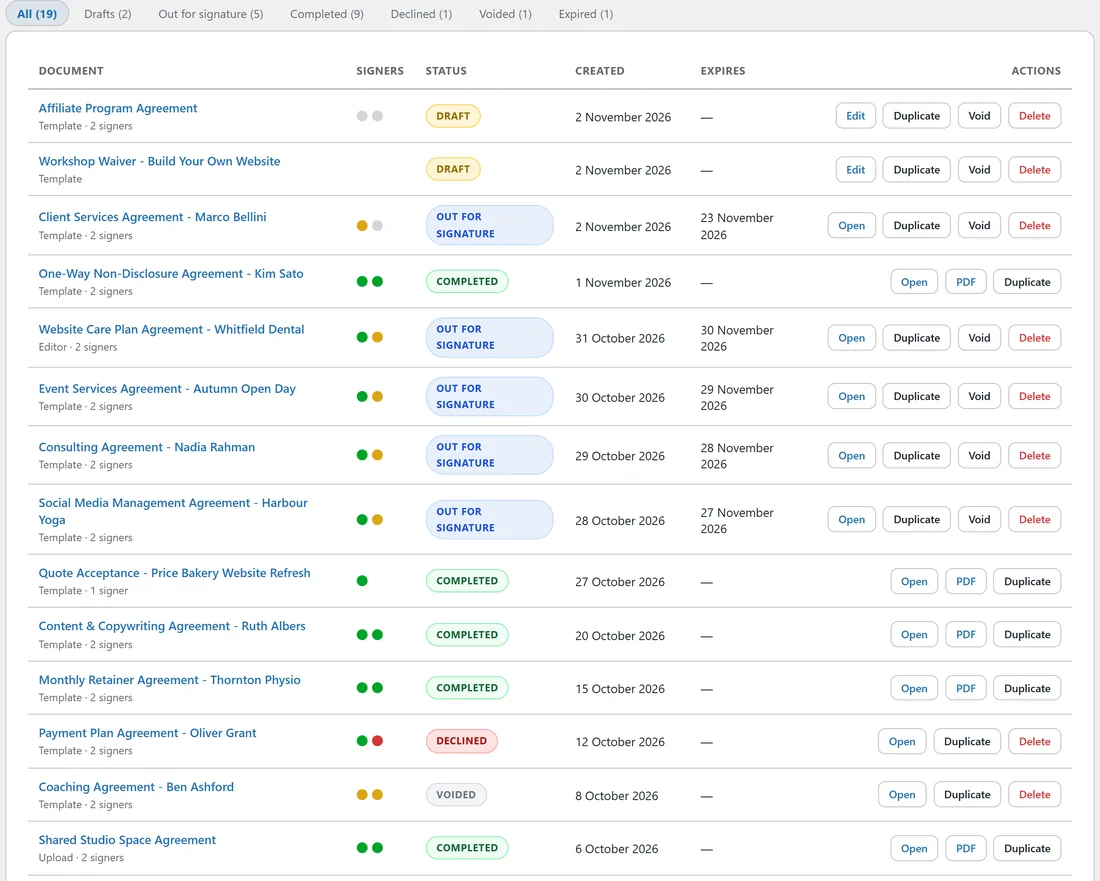
Open AiX Sign and click the Documents tab. Click any title to open it. Drafts open in the editor; everything else opens its status page.
The Documents list:
Each row shows:
- Document: the title, with Template, Editor or Upload and the number of signers under it
- Signers: a dot per signer. Green signed, amber invited or viewed, grey waiting, red declined
- Status: the status badge
- Created: the date in your chosen date format
- Expires: the deadline, shown for documents out for signature
- Actions: the buttons for that row
The newest documents are at the top.
The six document statuses:

- Draft: not sent yet, fully editable
- Out for signature: sent, with the text locked
- Completed: everyone signed, the final PDF is sealed and emailed
- Declined: a signer declined, the document is closed and you were emailed their reason
- Voided: you withdrew it
- Expired: the deadline passed before everyone signed
The filter links above the list show the count for each status. Click one to see only those documents.
Actions on the Documents list:
- Edit (drafts) or Open (everything else)
- PDF: downloads the sealed PDF of a completed document
- Duplicate: makes an editable copy and opens it in the editor
- Void: for drafts and documents out for signature. Asks for a reason, which is kept in the audit trail.
- Delete: for anything that is not completed. Asks you to confirm, then removes the document, its signers, its audit trail and its stored files.
The document status page:
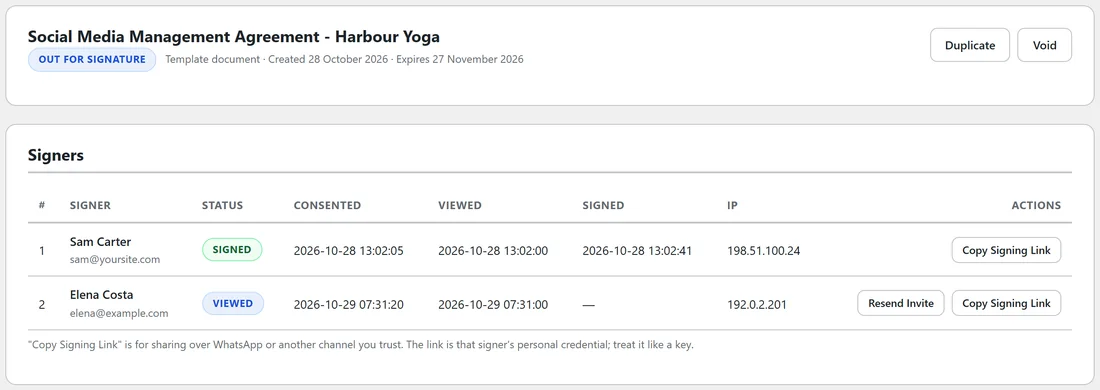
The top panel shows the title, the status badge, Template, Editor or Upload document, the date created, and while it is out, the expiry date. The buttons on the right depend on the status:
- Completed: Signed PDF and Verify Integrity
- Uploaded documents: Original PDF
- All documents: Duplicate
- Drafts and documents out for signature: Void
The Signers table:
One row per signer with:
- #: the signer number
- Signer: name and email
- Status: Waiting, Invited, Viewed, Signed or Declined
- Consented, Viewed, Signed: the times recorded
- IP: the address recorded for that signer
- Actions: Resend Invite and Copy Signing Link while the document is out for signature
Waiting means it is not their turn yet. Invited means the email went out. Viewed means they opened the page.
The audit trail:
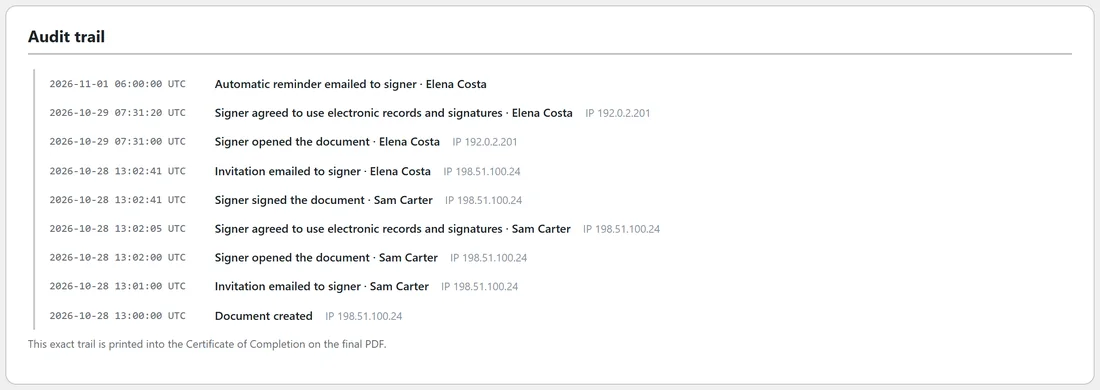
Under the signers is the full audit trail, newest first. Each line has the time, the event, the signer's name where it applies, and the IP address. The note under it reads: This exact trail is printed into the Certificate of Completion on the final PDF.
When someone declines:
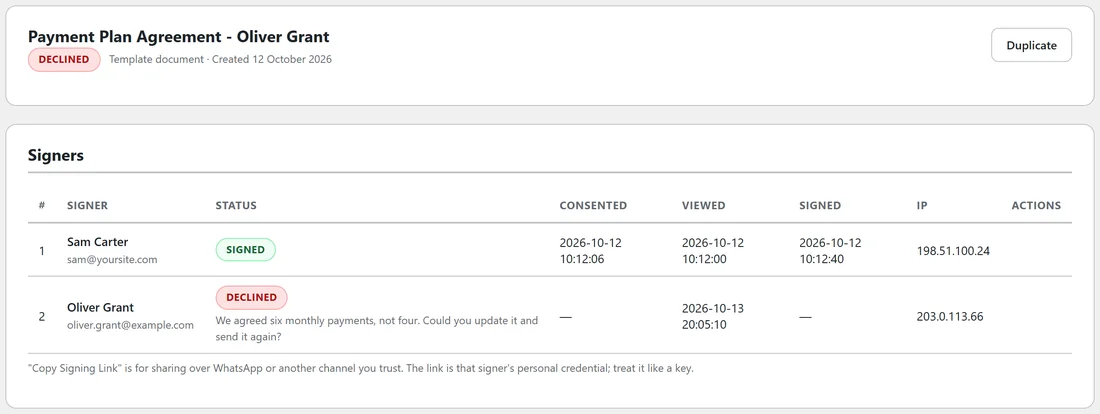
The document turns Declined. The signer's row shows the Declined badge with their reason under it, and you get the decline email. Click Duplicate, fix the copy and send it again.
Why a sent document cannot be edited:
If the text could change after someone signed, the signature would prove nothing. Opening a sent document in the editor shows a note that its content is locked, with a link to its status page. To make a change: click Void, then Duplicate, edit the copy and send it.
Duplicate copies the title with (copy) added, the text, the signers with their access codes, the signing order and the message. Set the deadline and the CC list again on the copy. For an uploaded PDF, start a new document with Upload a PDF instead, because the copy opens in the editor without the file.
Completed documents:
A completed document has no Delete button, because it is a signed record. It stays on the Documents tab with its PDF button.
A real example:
Sam's Payment Plan Agreement with Oliver Grant came back Declined, with the reason: We agreed six monthly payments, not four. Sam clicked Duplicate, changed the payment terms, and sent the copy. The declined original stays on record with its full trail.
Tips:
- Filter by Out for signature each week to see what is still waiting.
- An amber dot that stays amber for days is a good moment for Resend Invite, or Copy Signing Link and a text message.
- To see the evidence recorded on each event, see Electronic Signatures And The Evidence Recorded.