Clicking Send for Signature is the moment a draft becomes a live document. The plugin checks the document first, then emails the first signer, or every signer, and from then on the text is locked.
Knowing the checks means you can fix a refused send in seconds.
Where to find it:
The bar at the bottom of the editor holds two buttons: Save Draft and Send for Signature. The bar stays in view as you scroll.
How to send:

- Check the title, the text, the signers and the deadline.
- Click Send for Signature.
- A small box lists the signer email addresses and asks you to confirm. Click OK.
- The status page opens with the note Sent! and the signer table.
If no signer has an email address yet, the plugin asks you to Add at least one signer email before sending.
The checks before it goes:
Before anything is sent, the plugin checks that:
- The document is still a draft
- There is at least one signer
- The text is not empty, or for an uploaded PDF, that the file is there
- Every signer has a [sig:N] field in the text (not needed for uploaded PDFs)
- No merge field such as {amount} is left unfilled (not needed for uploaded PDFs)
If something is missing, the document is saved as a draft and stays open in the editor, with a message that names the problem.
The messages, and what to do:
- Add at least one signer before sending: add a signer row.
- The document has no content yet: type or load the text.
- Upload the PDF file before sending: choose the PDF in the PDF file box.
- Signer 2 (name) has no signature field. Use Insert Field to add one: set the toolbar to that number and click Signature.
- The document still contains the unfilled merge field {amount}. Fill it in the Merge Fields panel first: fill it and click Apply Merge Fields.
What happens the moment you send:
- The status changes to Out for signature and the text, signers and settings lock.
- With In order, signer 1 is emailed. With All at once, every signer is emailed.
- Each invitation is added to the audit trail as Invitation emailed to signer, with the time.
What the invitation email contains:
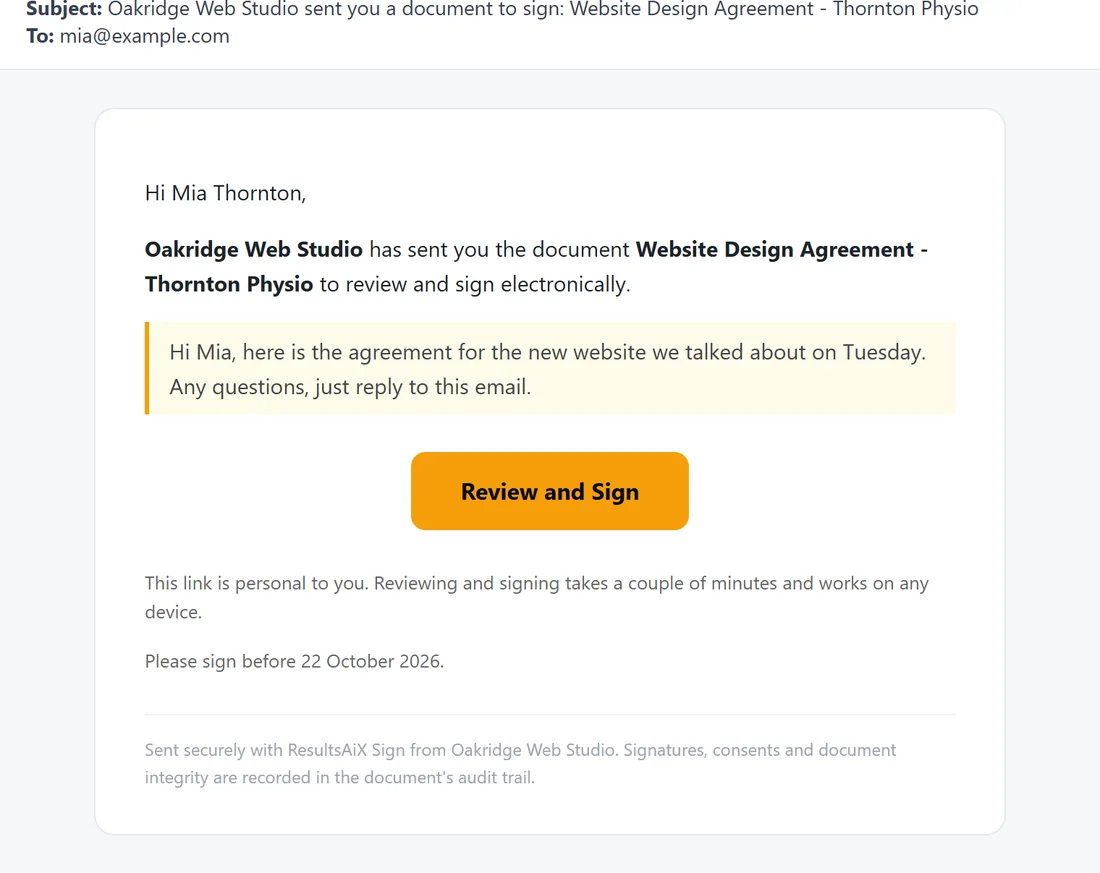
The subject reads: your sender name sent you a document to sign: the document title. The email has:
- A greeting with the signer's name
- Your sender name and the document title
- Your personal message, if you wrote one
- A Review and Sign button that opens their private signing page
- A note that the link is personal to them
- Please sign before, with the deadline in your chosen date format
- A note about the access code, when the signer has one
The PDF is not attached at this stage. Everyone receives it when the document completes. See The Emails Your Signers And You Receive.
Sending the link yourself:
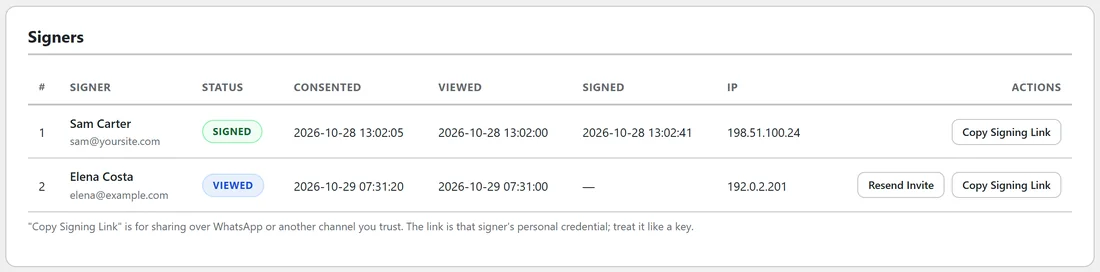
Some people do not see email straight away. On the document's status page, click Copy Signing Link in that signer's row. The link is copied so you can paste it into a text message or chat. It opens exactly the same page as the email button, and the plugin records Signing link generated for manual sharing in the audit trail.
Treat a signing link like a key: whoever opens it can sign as that person. For sensitive documents, add an access code.
Resend Invite:
Resend Invite in a signer's row emails the same private link again. The audit trail records Invitation re-sent to signer.
Getting emails delivered:
Invitations are sent through WordPress mail. Set a Sender / reply-to email on your own domain in Settings. If clients say nothing arrived, ask them to check spam, and send mail through an SMTP service on your site. Meanwhile, Copy Signing Link keeps the deal moving.
A real example:
Sam clicked Send for Signature on the Harbour Yoga agreement and got: Signer 2 (Elena Costa) has no signature field. Sam had pasted the client column from an older document with [sig:1] twice. After changing the second one to [sig:2], the send went through and Sam was emailed first because the order was In order.
Tips:
- Send a test to your own second email address before your first real document.
- Use Save Draft when you are waiting on a detail. Drafts wait on the Documents tab.
- Next: see Tracking Status And Managing Sent Documents.