When the last signer clicks I Agree and Sign, ResultsAiX Sign finishes the document by itself. You do not need to do anything. A few seconds later, everyone has the signed PDF in their inbox.
This article shows what is in that PDF and where to find it again.
Where to find it:
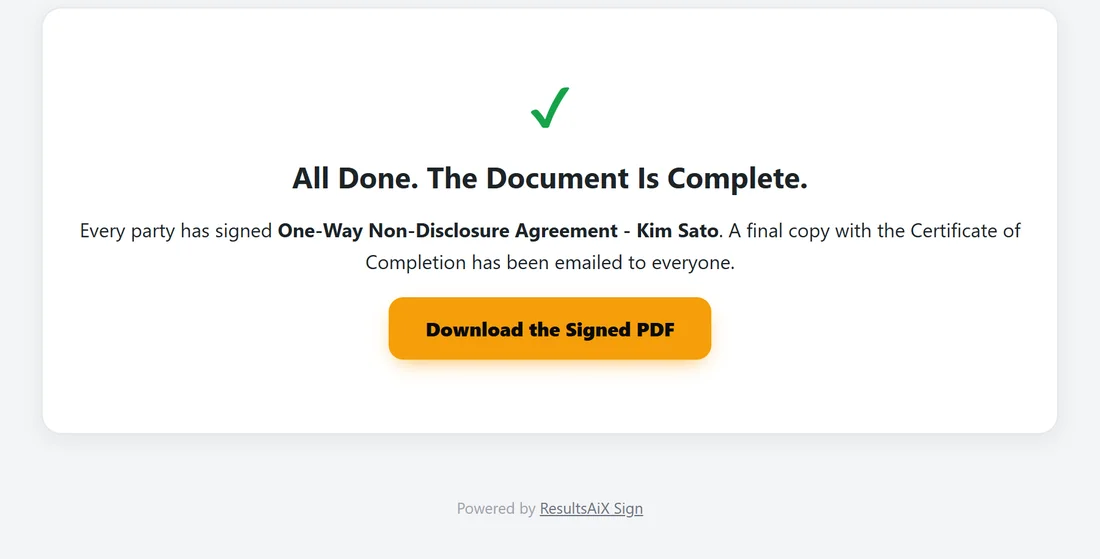
- In the completion email that every signer, you and your CC addresses receive.
- On the Documents tab: the PDF button on the row, or Signed PDF on the document's status page.
- For signers: the Download the Signed PDF button when they open their link again.
What happens, in order:
- The final PDF is built.
- A Certificate of Completion is added at the end.
- The document turns Completed, the file's SHA-256 fingerprint is stored, and the audit trail records All parties signed; document completed and Final document sealed with SHA-256 hash.
- The completion email goes out with the PDF attached.
- Any connected tools are told: WP Sync, ResultsAiX Mailer, and the PRO webhook.
How the final PDF is built:
For template and editor documents, the PDF starts with the title and the full agreement text. Merge fields are already filled, and the signer fields show what each signer entered: names, emails, dates, initials, text and ticked boxes.
For an uploaded PDF, the first page is the Execution Certificate instead. See Uploading Your Own PDF For Signature.
The document pages:
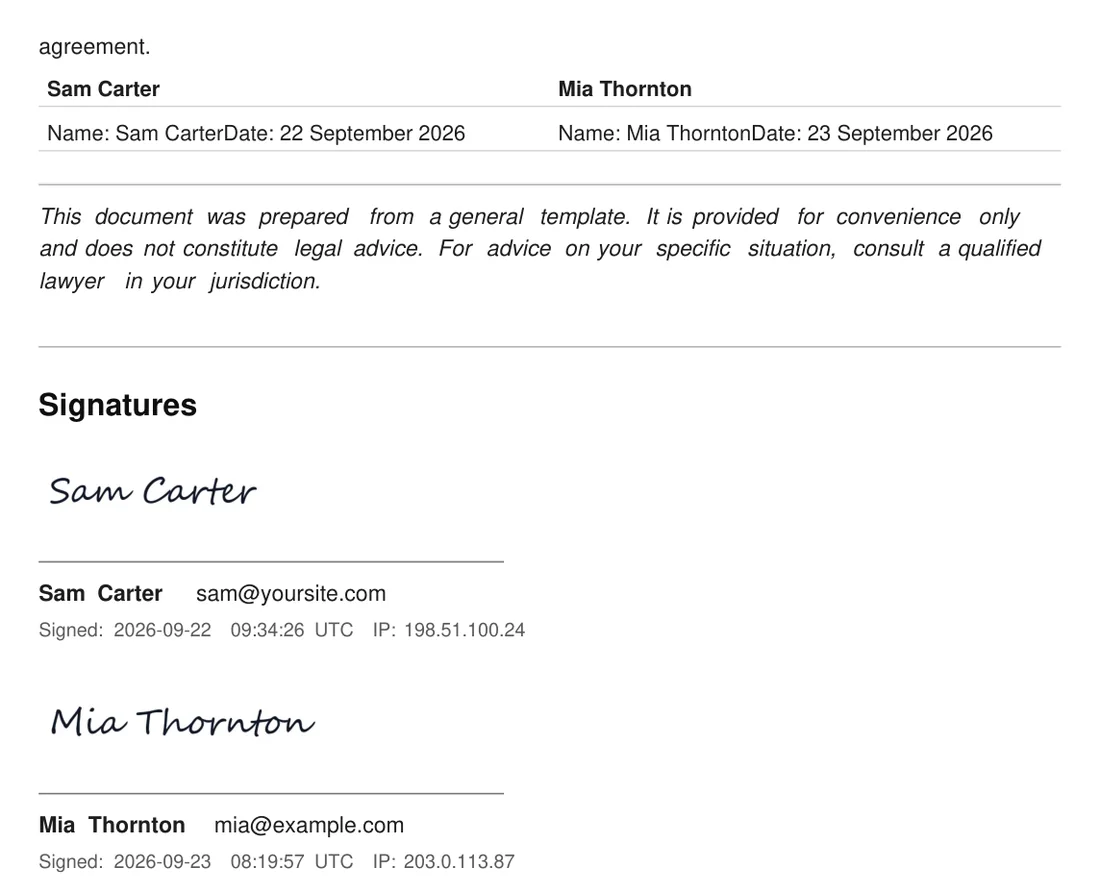
After the text comes a Signatures section. For each signer it shows their signature image above a line, their name and email, and Signed with the time and IP address.
Every page has a footer with ResultsAiX Sign, the document number, your site name and the page number.
The Certificate of Completion:
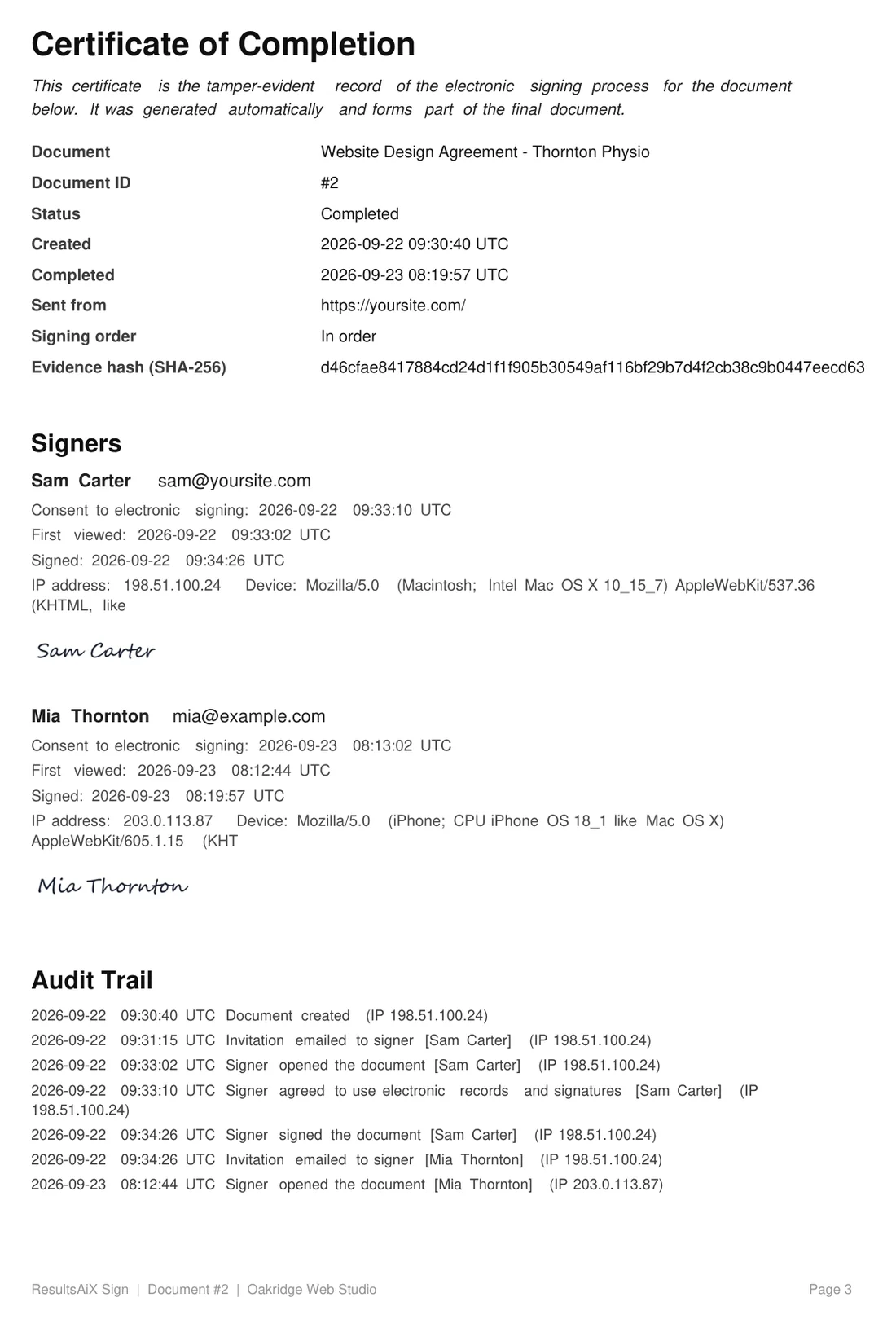
The certificate starts on a new page with a short note that it is the tamper-evident record of the signing process and part of the final document. It lists:
- Document, Document ID, Status, Created and Completed
- Sent from: your site address
- Signing order: In order or All at once
- Original file SHA-256, for uploaded PDFs
- Evidence hash (SHA-256): built from the agreed text, the signer details and the signature images
Then a Signers section with, for each person: name and email, Consent to electronic signing, First viewed, Signed, IP address, Device, and their signature image.
The audit trail and the integrity note:
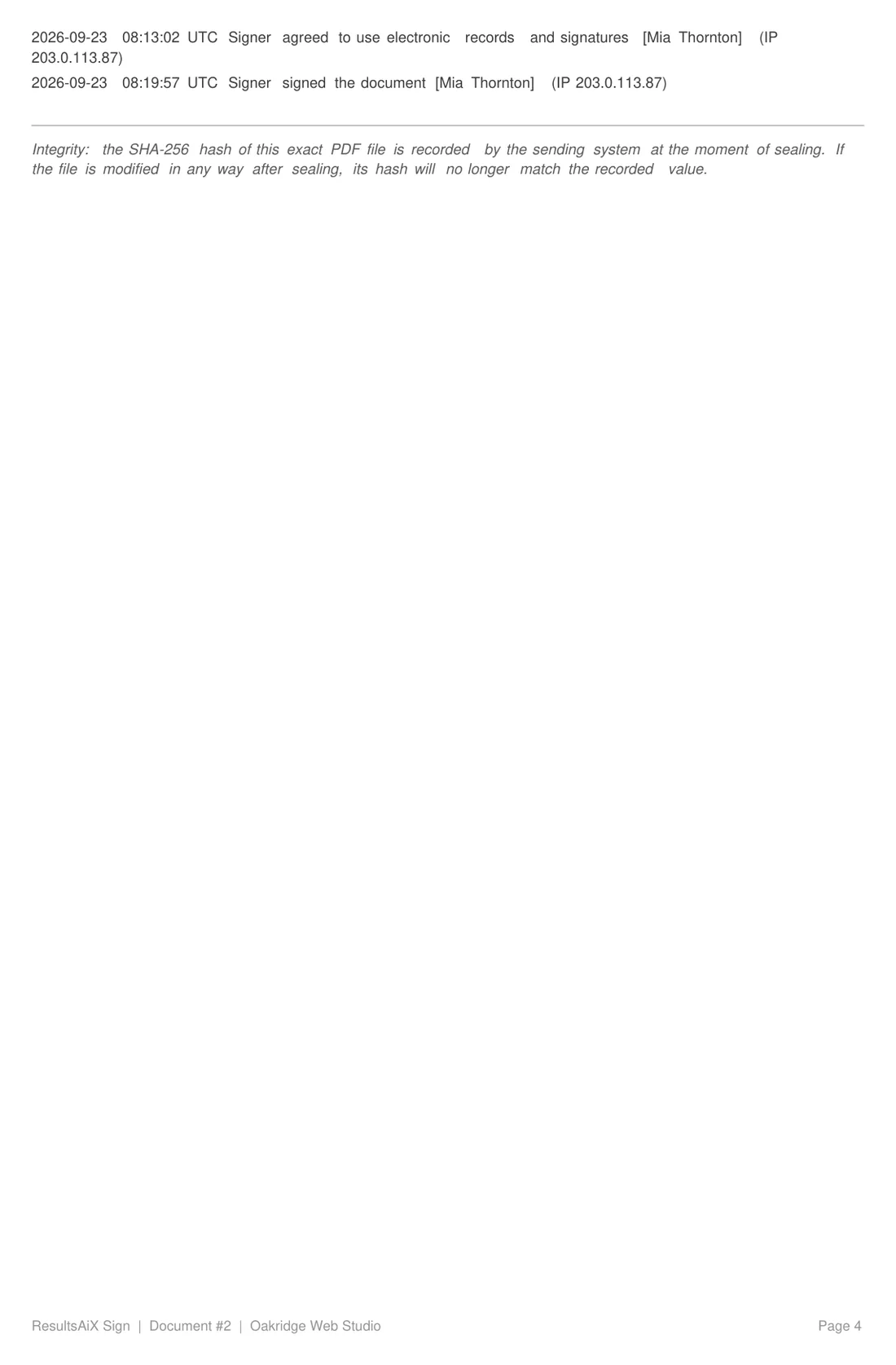
The certificate ends with the full audit trail, oldest first, and a short integrity note: the SHA-256 hash of this exact PDF file is recorded at the moment of sealing, and if the file is changed in any way its hash will no longer match.
Times on the certificate:
Times are printed as year, month, day and time with the label UTC. They come from your WordPress clock, so set your site timezone to UTC under Settings, General to keep them exact. Dates inside the agreement text, such as Date: 23 September 2026, use the date format you chose on the Settings tab.
Who receives it:
- Every signer with an email address
- The WordPress user who created the document
- Every address in CC on completion
Each address receives one copy. The email also prints the SHA-256 fingerprint with a note to keep it with your records.
A real example:
Mia Thornton signed the website agreement at 08:19:57. Within seconds, the PDF was sealed and emailed to Mia, Sam and accounts@yoursite.com. Mia's page showed All Done. The Document Is Complete, and she downloaded her copy on the spot.
Tips:
- Keep the completion email in a safe folder. The attached PDF and the fingerprint in the email belong together.
- Want to check a stored file later? Use Verify Integrity. See Document Integrity And Verify Integrity.
- Signers can download the final PDF again at any time from their own link.