ResultsAiX Sign sends a short, plain email at each important moment. Each one has a single clear button or a short message, and ends with a line saying it was sent securely with ResultsAiX Sign from your site name.
Knowing what each email says helps you answer clients and set your sender details well.
Where they come from:
Every email goes out through WordPress mail from your site. The name and address come from the Sending section of the Settings tab:
- Sender name: shown as the sender and in the subject lines. Blank uses your site name.
- Sender / reply-to email: the From and Reply-To address. If it is blank, WordPress or your mail plugin chooses the From address, so it is best to fill it in.
The invitation:
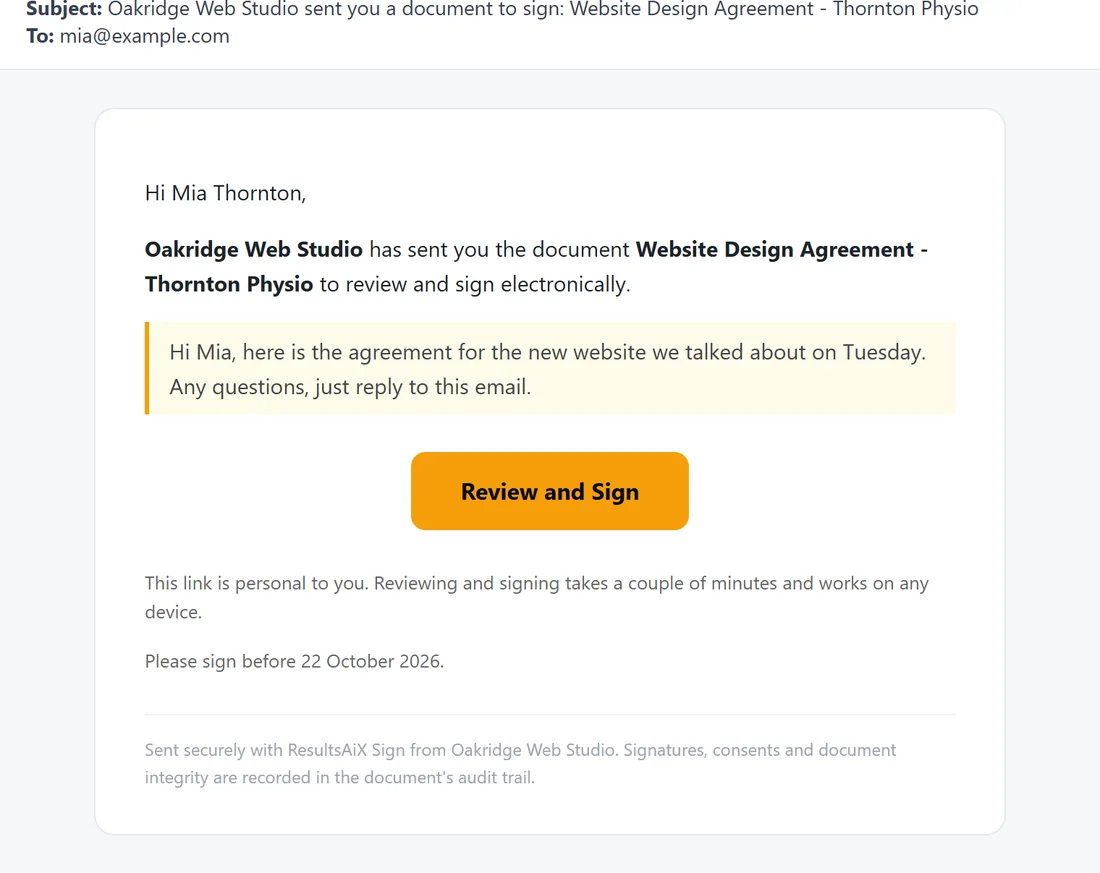
Sent to each signer when it is their turn.
- Subject: your sender name sent you a document to sign: the document title
- A greeting with their name, your sender name and the document title
- Your personal message in a highlighted box
- A Review and Sign button with their private link
- This link is personal to you, plus the signing deadline as Please sign before and the date
The invitation with an access code:
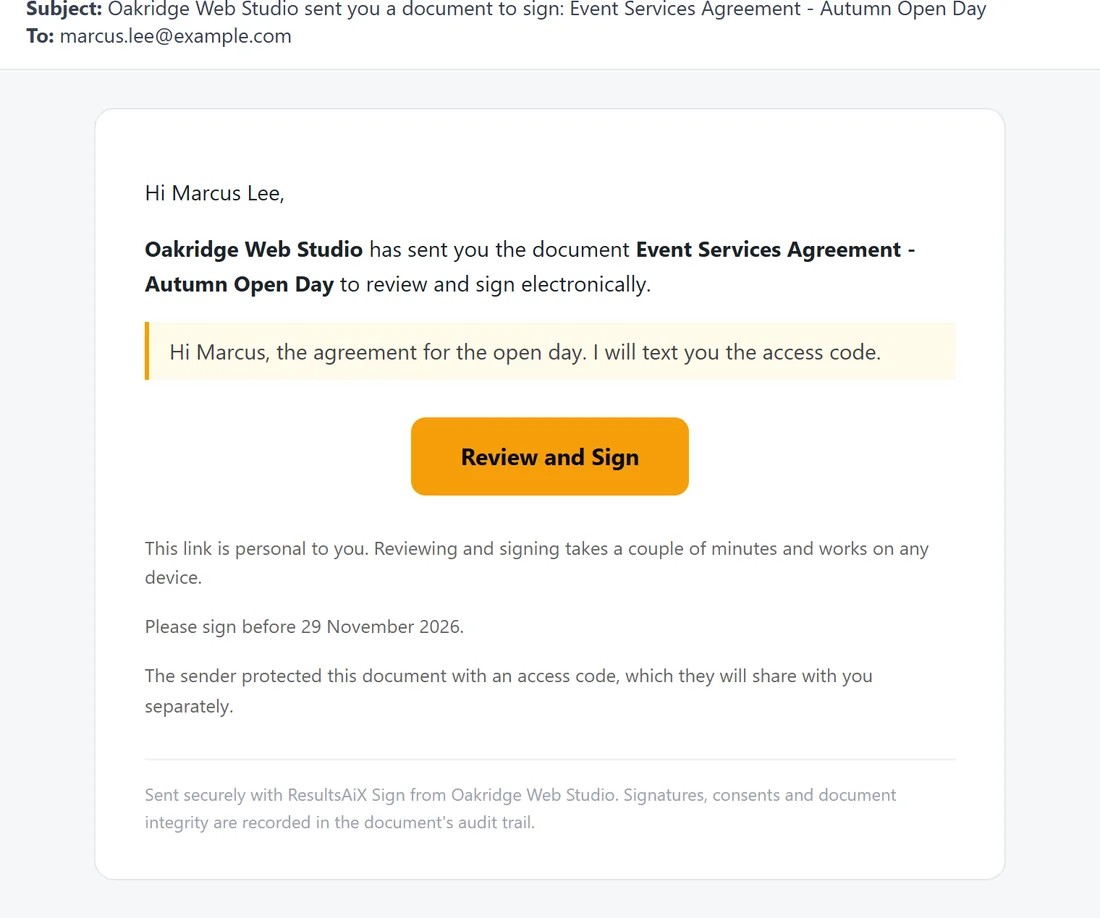
When the signer has an access code, the invitation adds: The sender protected this document with an access code, which they will share with you separately. The code is never in the email.
The reminder, PRO:
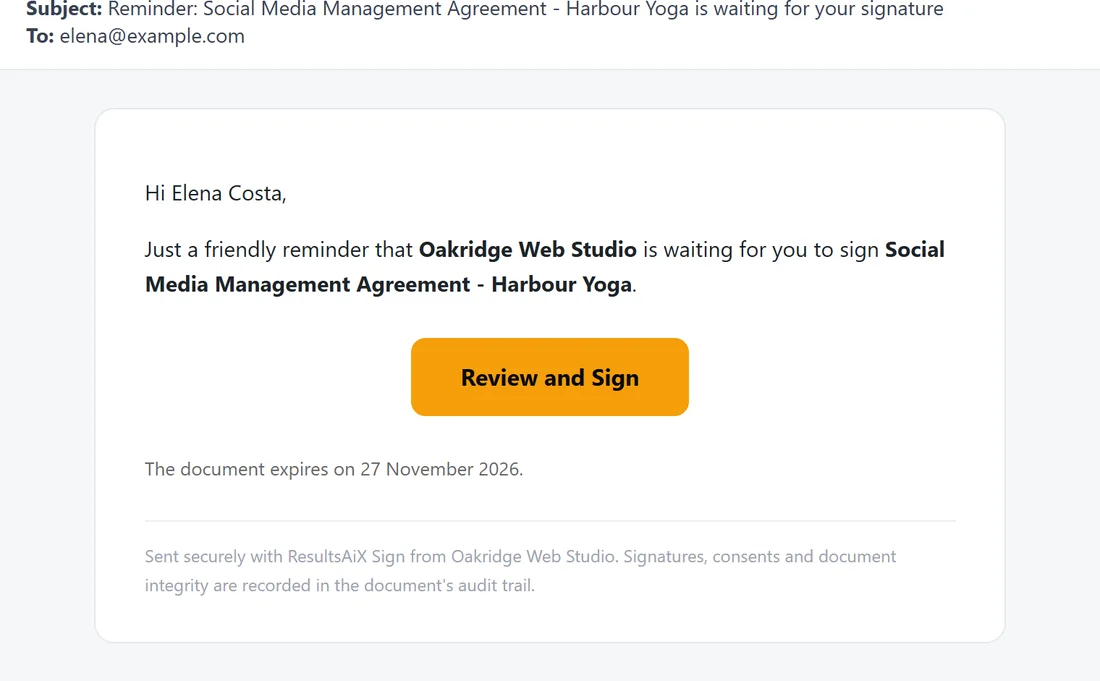
With PRO, signers who have been invited but have not signed get a reminder on the schedule you set in Settings.
- Subject: Reminder: the document title is waiting for your signature
- A friendly reminder that your sender name is waiting, the Review and Sign button, and the expiry date
See Deadlines, Expiry And Chasing Signatures.
The completion email:
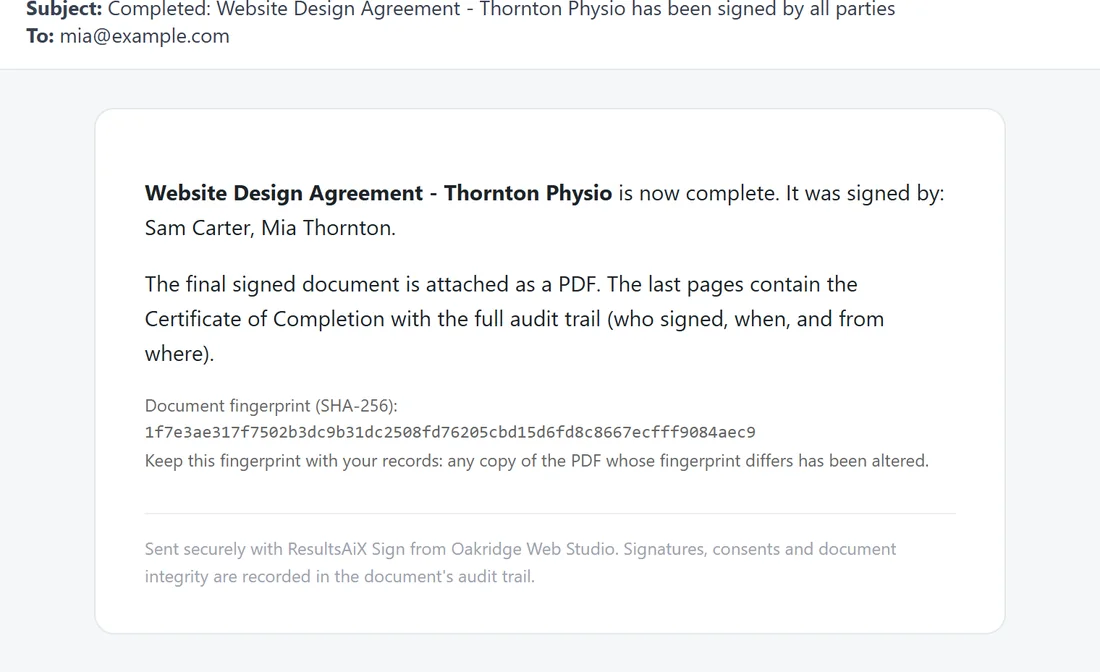
Sent when the last signer signs, to every signer, to the WordPress user who created the document and to every CC address.
- Subject: Completed: the document title has been signed by all parties
- The list of everyone who signed
- The final signed PDF as an attachment, with a note that the last pages hold the Certificate of Completion
- The document fingerprint (SHA-256) with a note to keep it with your records
Each address receives one copy, even if it appears twice.
The decline notice:
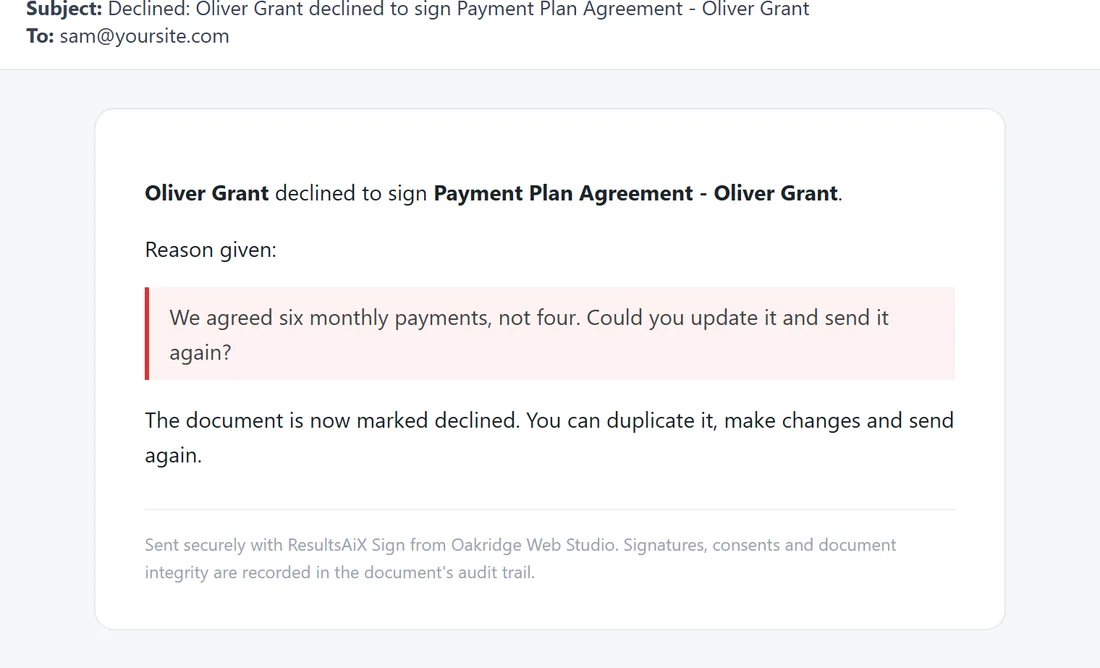
Sent to the WordPress user who created the document when a signer declines.
- Subject: Declined: the signer's name declined to sign the document title
- The reason they gave, if any, in a highlighted box
- A note that the document is now marked declined, and that you can duplicate it, make changes and send again
Who does not get an email:
- A signer whose turn has not come yet, with In order signing
- A signer row with no email address
- CC addresses, until the document completes
A real example:
When Mia Thornton signed the website agreement, three people got the completion email: Mia, Sam (who created the document) and accounts@yoursite.com from the CC box. Each had the sealed PDF attached and the same fingerprint printed in the email.
Tips:
- Use an address on your own domain as the Sender / reply-to email, so replies reach you and the emails are trusted.
- Write the personal message the way you would write to that client. It is the first thing they read.
- Keep the completion email. Its fingerprint matches the sealed PDF.