Field mapping is set inside each destination step of the bridge builder, not once for the whole bridge. One contact can arrive in Slack with a full name, in your email app with a first name only and a custom field, and in a spreadsheet with everything the source sent.
Where to find it:
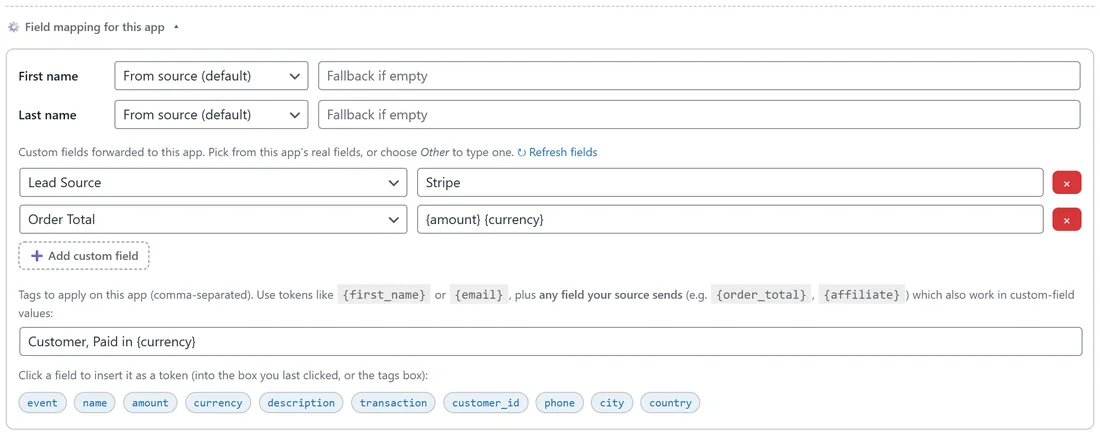
In the builder, open a destination step and click Field mapping for this app. The panel opens with the name rows, the custom fields and the tags box.
First name options:

- From source (default). Use whatever the source gave you.
- Static value. Send the same value for every contact, typed in the box that appears.
- Derive from email. Takes the part of the address before the @, cuts it at the first dot, underscore, hyphen or plus, and capitalises it. An address beginning jane.smith becomes Jane.
- Fallback if empty. A value used only when the result would otherwise be blank.
Last name options:
From source (default), Static value, and Fallback if empty. There is no derive from email for the last name, because an address does not reliably contain one.
Tokens in names:
Static value and Fallback if empty accept tokens in curly braces, such as {submission.contact_person}. The token is replaced with the real value from your source. This helps when a service sends the name under its own label.
Custom fields:
Below the names, click Add custom field. For apps that share their own fields, such as ActiveCampaign, a dropdown lists that app's real fields, with Other to type a name yourself and Refresh fields to re-read them. Other apps show a plain box. The value can be fixed text or a token. See Tags, Custom Fields And Tokens.
Email:
The email address is passed through as the source sent it. It identifies the contact in every destination, so the mapping does not change it.
All fields for record keeping destinations:
Destinations that record whatever they are given, such as Google Sheets and outbound webhooks, receive every simple field the source provided, with the mapped name and email on top. Sensitive keys are removed first, so passwords, secrets, signatures, hashes, API keys and access tokens never land in a sheet.
A real example:
yoursite.com's Website quiz leads to ActiveCampaign bridge receives leads that often have no name. On the ActiveCampaign destination, First name is set to Derive from email with a fallback of there. A lead with the address omar.haddad@example.com arrives as Omar. A lead with no usable address part arrives as there, so the email greeting reads Hi there.
On the same bridge, the Google Sheets Connect destination keeps From source, so the Lead tracker sheet shows the answers just as the quiz sent them.
Checking your mapping:
Click Test on the bridge row. Each destination in the drawer shows the first name, last name, custom fields and tags it would receive.
Older bridges:
Bridges saved before per destination mapping existed still work. Their single bridge mapping applies to every destination, and opening the bridge shows it so you can adjust each one.
Each mode with the same contact:
Take a contact with the email ivy.costa@example.com and no name from the source.
- From source (default): first name stays blank.
- From source with Fallback if empty set to Friend: Friend.
- Static value set to Valued customer: Valued customer.
- Derive from email: Ivy.
- Derive from email with a fallback: Ivy, because the fallback is only used when the result is blank.
Mapping several destinations differently:
On yoursite.com's Free guide squeeze page bridge, Kit has First name From source with Friend as the fallback, so every email opens warmly. The Lead tracker sheet keeps From source with no fallback, so the sheet shows exactly what visitors typed.
Tips:
- Set a fallback on any destination that refuses blank names.
- When a step summary shows mapped, that destination has custom settings.