Every bridge row has a History button, and the details line under the bridge name opens the same thing. Both slide in a Run history drawer for that one bridge, so you can check it without filtering the whole Activity Log.
Opening it:

- Open the Bridges tab.
- Click History on the row, or click the line under the bridge name.
- The drawer opens on the right with the bridge name at the top.
- Close it with the cross, by clicking outside it, or with the Escape key.
What run history shows:
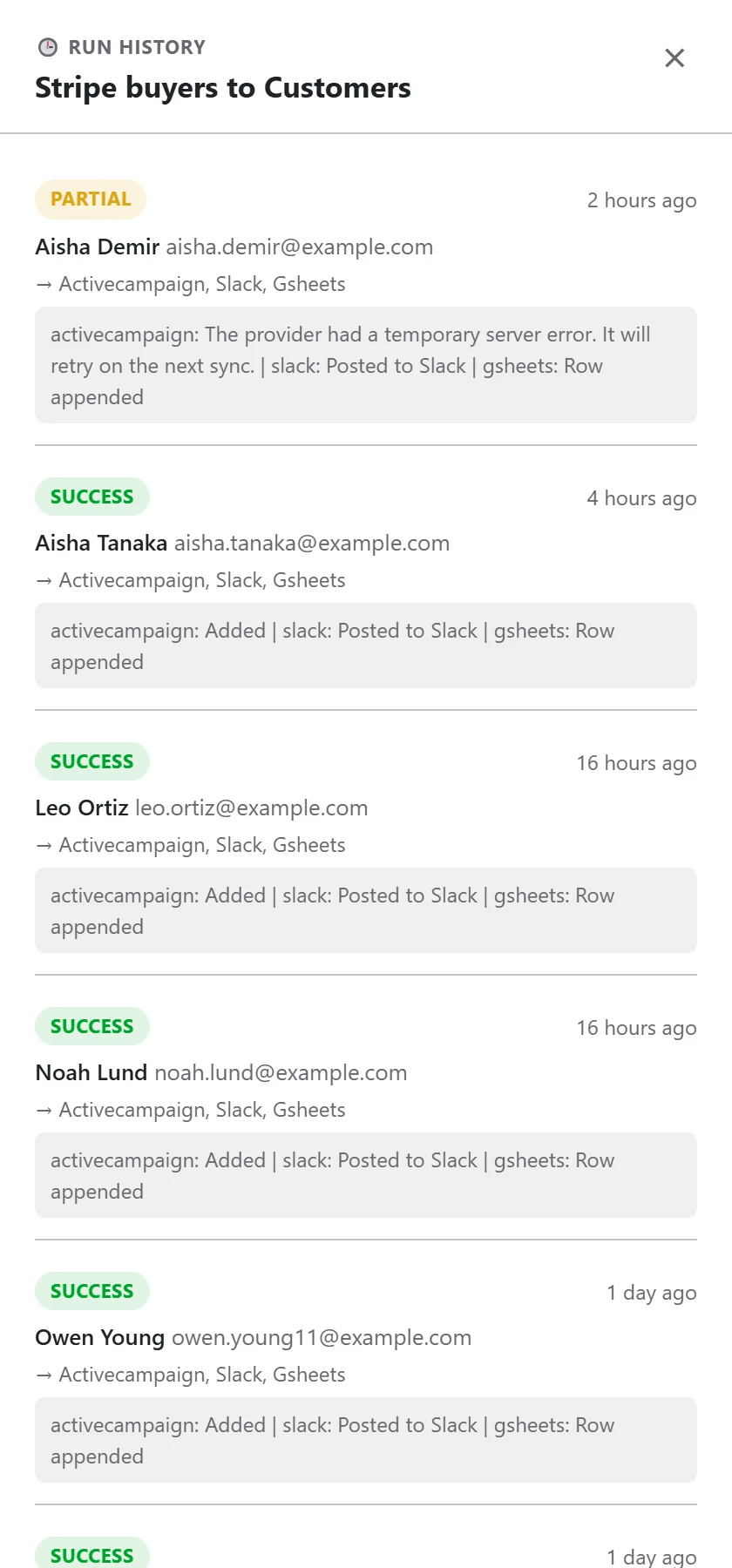
Up to the 40 most recent runs, newest first. Each run shows the following.
- a status badge: SUCCESS, PARTIAL or FAILED,
- how long ago it ran, with the exact time when you hover,
- the contact's name and email,
- the destinations it went to,
- the result from each destination, such as activecampaign: Added | slack: Posted to Slack.
What it answers:
- Has this bridge run since I made it?
- Who was synced, and when?
- Which destinations took the contact, and which did not?
- What did a destination say when it refused?
Reading an empty history:
If the drawer says No runs recorded for this bridge yet, the bridge has not been triggered. That points at the source side. Check that the bridge is enabled, that a new contact arrived after the bridge was made, and, for a push source, that its URL was pasted into the other app.
What to do with a partial or failed run:
Read the destination's message. A message about the connection points to the Connections tab, where Test Connection will confirm it. A message naming a field or list points to the destination step of the bridge. If the cause is still unclear, Diagnostics has the technical detail. See Troubleshooting Failed Syncs.
A real example:
yoursite.com's owner noticed a Partial on Stripe buyers to Customers. History showed activecampaign: The provider had a temporary server error, while Slack and the sheet were fine. Every run after it was a Success, so it was a short blip on ActiveCampaign's side.
Run history and tests:
A dry run writes nothing, so it does not appear here. A live test does appear, marked LIVE TEST (manual).
History or the Activity Log:
- History shows one bridge, the latest 40 runs, in a side drawer you open and close in a click.
- The Activity Log shows everything, with search, filters and pages.
Use History right after building or editing a bridge. Use the Activity Log to look up a person across all bridges.
Statuses in the drawer:
- SUCCESS: every destination accepted the contact, or a filter skipped it as intended.
- PARTIAL: at least one destination did not accept it, or a step is waiting on an email address.
- FAILED: the run could not happen, such as a poll error.
- QUEUED: only a delayed or dripped destination was involved, and it is waiting.
Tips:
- Use History for one bridge and the Activity Log for searching across all of them.
- The run count on the row is a quick health check: if it grows, the bridge is working.