The Connect Pack includes a group of connections that read from plugins already installed on the same WordPress site. There is no API key, no OAuth and no webhook to paste. Activate the other plugin, reload the Connections tab, and its card is ready.
The WordPress sources:
WooCommerce, Easy Digital Downloads, Studiocart, SureCart, LearnDash, LifterLMS, Tutor LMS, MemberPress, Paid Memberships Pro, Wishlist Member, GiveWP and Amelia.
How these cards connect:
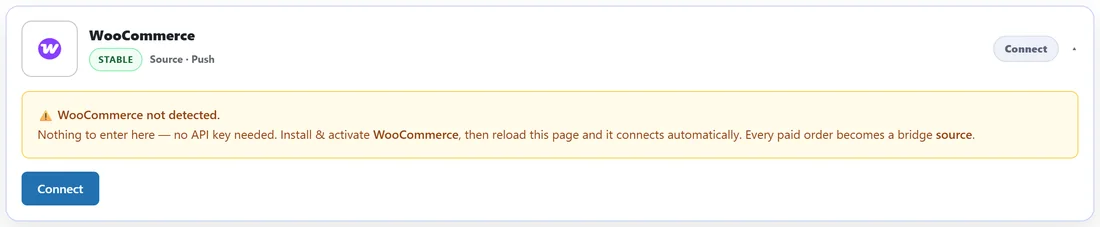
Each card checks whether its plugin is active. If not, it says so and asks you to install and activate it. Once active, the card shows Connected and the plugin appears as a source in the bridge builder.
What WooCommerce can route:
- All paid orders.
- Buyers of one product, listed by name from your store.
- Refunded orders (any product).
- Cancelled orders and subscription cancellations or expirations (any product).
- Failed payments and subscription rebill failures (any product).
With WooCommerce Subscriptions active, subscription cancellations and expirations go to the cancelled events, and rebill failures go to the failed payment events.
No duplicate sends:
Each order is stamped for each event, so an order that moves from processing to completed to refunded fires each event once, rather than syncing the buyer again on every status change.
The other plugins:
- Course and membership plugins fire when somebody enrolls or joins a level.
- GiveWP fires on a donation.
- Amelia fires on a booking.
In each case the contact is delivered instantly, because the plugin is on the same server.
Step by step for a store:
- Activate WooCommerce, then open the Connections tab and check the WooCommerce card says Connected.
- Click Create Bridge. Name it Store buyers to Customers.
- Choose WooCommerce, All paid orders.
- Add your email app's customers list, with the tag Store customer.
- Add Slack, #sales, so the team sees each order.
- Click Create Bridge, then place a test order.
A real example:
A shop like yoursite.com sells printed planners in WooCommerce. One bridge on All paid orders adds every buyer to the email app's Customers list and posts the order in Slack. A second bridge on Refunded orders uses the Remove tag action. A third, on Buyers of the planner, adds a Planner owners tag for a how to use it series.
What each plugin sends:
- Easy Digital Downloads: All completed purchases, Buyers of one download, Refunded purchases and Cancelled purchases.
- LearnDash: All course enrollments, Enrolled in one course, Unenrolled or access revoked, and Course completed.
- MemberPress: All completed transactions, Members of one membership, Refunded transactions, and subscriptions stopped, expired or paused.
- GiveWP: All GiveWP donations, or Donors of one donation form.
- Amelia: All new bookings, Appointments only, or Events only.
- Studiocart, SureCart, LifterLMS, Tutor LMS, Paid Memberships Pro and Wishlist Member: their sales, enrollments or new members, listed the same way in the builder.
Testing a WooCommerce bridge:
- Create a test product.
- Place an order with your own email and mark it paid.
- Open History on the bridge and check each destination.
- Refund the order to see a Refunded orders bridge fire.
Tips:
- Product names come from your store, up to the first 100 published products.
- Test with a real order on a test product, then refund it, to see both bridges fire.