Every row on the Bridges tab has a Test button. It opens a drawer with a dry run, a full simulation of the bridge that writes nothing anywhere. Under it is a box to send one real test contact when you are ready.
Running a dry run:
- Open the Bridges tab.
- Click Test on the bridge row.
- A drawer slides in from the right with the title Test, followed by the bridge name.
- Read it from top to bottom, then close it with the cross or the Escape key.
Where the sample contact comes from:
For a polled source, WP Sync tries to read a recent real contact from the source so the preview reflects your data, and says Using the most recent subscriber found on the source list. For a push source, or when none is available, it uses a made up sample called Jane Sample and says so.
What the dry run shows you:
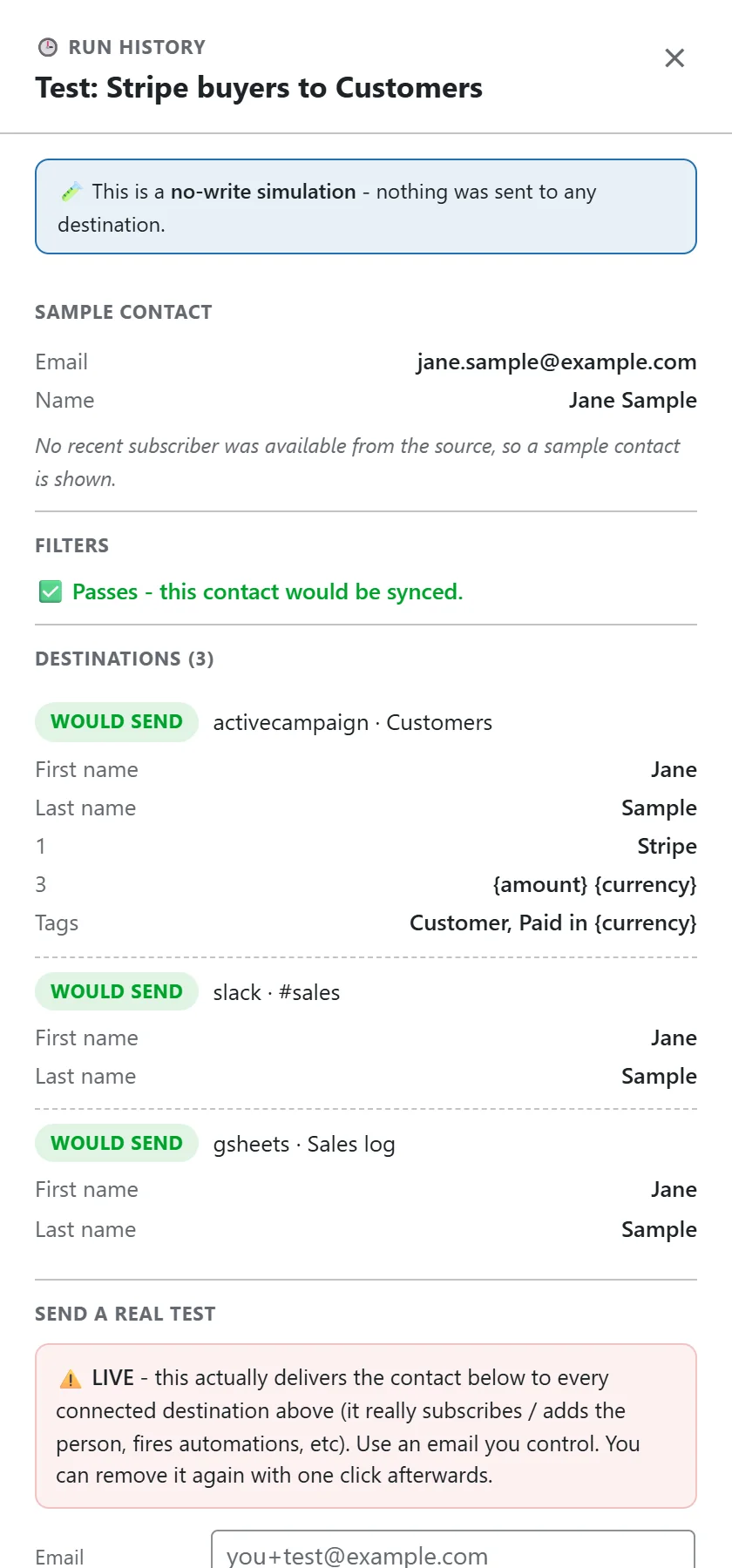
- A banner confirming it is a no-write simulation.
- Sample contact: the email and name used.
- Filters: Passes, or Blocked with each failing condition listed.
- Destinations: each one marked WOULD SEND, WOULD QUEUE with when it would deliver, or SKIP with the reason, such as Destination not connected.
- For each destination, the first name, last name, custom fields and tags after the mapping and tokens.
Why to use it before going live:
A dry run shows at a glance whether a filter is stricter than you meant, whether a destination would get a blank name, and whether a token finds a value.
Sending a real test:
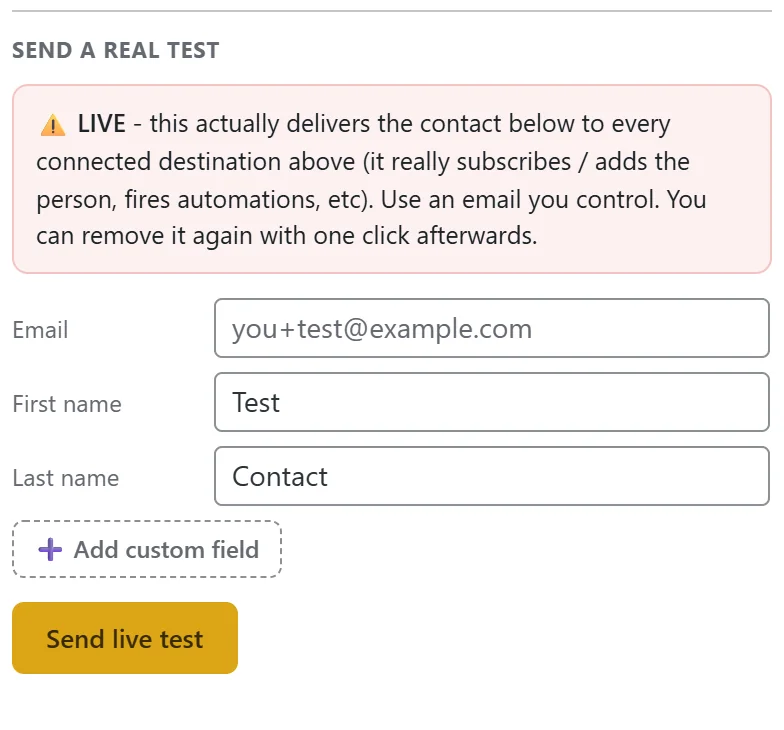
At the bottom of the drawer is Send a real test. Unlike the dry run, this really delivers the contact to every connected destination on the bridge, which may subscribe the person and start an automation in the other app.
- Type an email address you control, for example you+test@example.com.
- Adjust First name and Last name. They start as Test and Contact.
- Click Add custom field to add any field your mapping uses, such as amount or currency.
- Click Send live test and confirm.
- Each destination shows SENT, FAILED or SKIPPED with the app's own message.
Removing the test contact:
When at least one destination received the test, a Remove this test contact button appears. Click it and confirm. Each destination shows REMOVED, or MANUAL where the app has no way to remove by email, so you know to delete that one yourself.
How tests are recorded:
A dry run writes nothing at all. A live test is recorded in the Activity Log marked LIVE TEST (manual) for your records, and it is not counted in the bridge's run totals.
A real example:
Before launch, yoursite.com tested Stripe buyers to Customers. The dry run showed {amount} {currency} left as typed, because the sample has no payment. The owner sent a live test to owner+test@example.com with custom fields amount set to 49.00 and currency set to USD. ActiveCampaign received the tag Paid in USD and Order Total 49.00 USD, Slack posted the message and the sheet gained a row. Then Remove this test contact cleaned up ActiveCampaign.
The full confidence check:
- Click Test and check the preview.
- Send a live test to your own address.
- Add a genuine contact in the source app, or make a real test purchase.
- For a polled source click Run Sync Now.
- Open History on the row and read each destination's result.
How picked fields appear in the preview:
A custom field you picked from the app's own field list is stored by that app's field number, which is what the app needs. The preview lists it under that number. On yoursite.com's ActiveCampaign destination, 1 is Lead Source and 3 is Order Total.
Reading SKIP in a dry run:
- Destination not connected: the app's card has lost its connection. Reconnect it on the Connections tab.
- Same as source list (loop guard): the destination points at the list the bridge reads. Choose another list.
Testing before you build the real thing:
Clone an existing bridge, change its destination to a test list in your email app, and use Send live test on the clone. When you are happy, delete the clone and make the same change on the real bridge.
Tips:
- Use plus addressing, such as you+wpsync@example.com, so test contacts are easy to find later.
- Run the dry run again after any change to filters or mapping.