Two of the built in connections deserve a closer look, because both work in both directions and both run on servers you control. Mautic is a marketing automation platform you host yourself. ResultsAiX Mailer runs inside your own WordPress site.
Connecting Mautic:
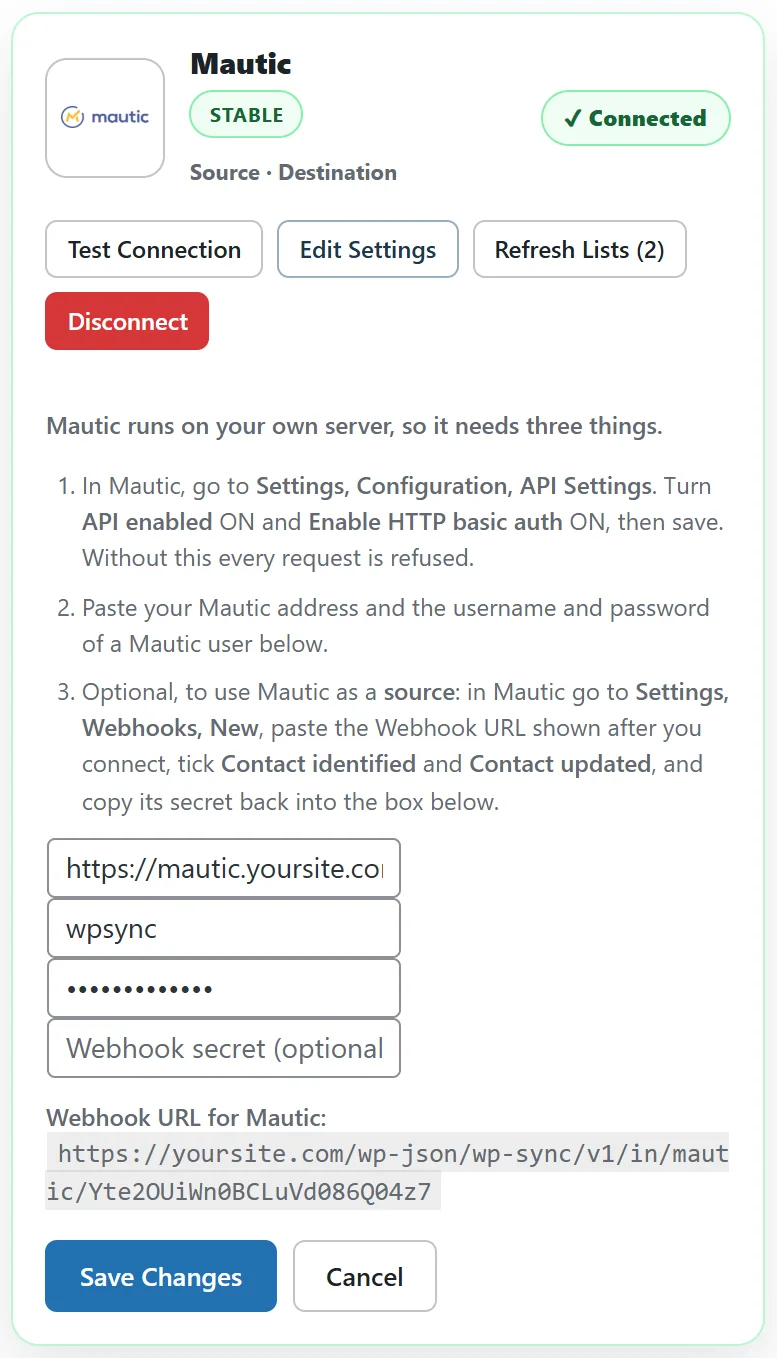
Mautic needs three things, and its card lists them in order.
- In Mautic, go to Settings, Configuration, API Settings. Turn API enabled on and Enable HTTP basic auth on, then save. Mautic refuses every request until both are on.
- On the Mautic card in WP Sync, paste your Mautic address, for example https://mautic.yoursite.com, and the username and password of a Mautic user.
- Click Connect. The card turns green and Refresh Lists shows your segments.
Using Mautic as a source:
Mautic tells WP Sync about new and changed contacts through its own webhooks, so they arrive instantly rather than on a timer.
- After connecting, click Edit Settings on the Mautic card and copy the Webhook URL for Mautic.
- In Mautic go to Settings, Webhooks, and add a new webhook.
- Paste the URL, tick Contact identified and Contact updated, and save.
- Copy the webhook secret Mautic shows into the Webhook secret box on the card, then click Save Changes.
Mautic as a destination:
Mautic calls its lists segments, and those are what the bridge builder offers. WP Sync creates or updates the contact in Mautic and adds it to the segment you chose.
ResultsAiX Mailer:
ResultsAiX Mailer is the ResultsAiX email platform that runs inside WordPress. Because it lives on the same site, there is nothing to paste. Install and activate the Mailer and its card appears connected in the ResultsAiX Connections section at the top of the Connections tab. Your Mailer lists then appear in the bridge builder.
- As a source, a bridge watches a Mailer list for new subscribers and sends them anywhere.
- As a destination, any source can pour subscribers into a Mailer list. Somebody who is already on the list simply counts as a success.
- If somebody unsubscribed or bounced in the Mailer, WP Sync does not add them back.
Synced contacts arrive quietly:
By default, a contact WP Sync adds to the Mailer can receive your broadcasts but never starts an automation, a welcome flow or a double opt in. That keeps a catch up of thousands of old contacts from sending each of them a welcome email.
Letting contacts start automations:
On a Mailer destination in the bridge builder there is an Automations control. Click it to open three options.
- Let new contacts from this bridge start automations. Off by default. Tick it for fresh sign ups who expect a welcome.
- Let backfilled contacts start automations. Off by default, and separate on purpose. When you tick it, the control reminds you that a backfill catches up everybody already on the source list.
- Also enroll every synced contact in. A list of your Mailer automations. Pick one and every contact this destination delivers is enrolled in it on purpose, even a quiet one. The Mailer still blocks anyone who is already active in that automation.
The collapsed control shows your choice at a glance, for example new contacts, backfill only or off.
A real example:
yoursite.com sells a course and uses the Mailer for its email. A bridge from Stripe adds buyers to the Mailer list Customers. On that destination, the owner ticks Let new contacts from this bridge start automations and picks the Course onboarding automation under Also enroll every synced contact in. Every new buyer starts onboarding the moment they pay.
Reacting to what the Mailer does:
The Connect Pack has a ResultsAiX Mailer Events card that turns things happening in the Mailer into bridge triggers, such as a tag being added or a link being clicked. See Event Sources That React To What Happens.
Mautic examples:
- Mailchimp to Mautic: new newsletter subscribers become Mautic contacts in your Newsletter segment.
- Mautic to Slack: each new identified contact posts in #new-leads, instantly through Mautic's webhook.
- Mautic to Brevo: a segment of customers copied to Brevo for transactional email.
yoursite.com keeps a paused bridge, Mautic newsletter to Brevo (copy), ready for the day it moves its customer emails.
Mailer examples:
- Calendly to the Mailer: booked calls go on a Discovery list, with Let new contacts from this bridge start automations ticked for a reminder sequence.
- The Mailer to Kit: a Mailer list copied to a partner's Kit account.
- Webinars to the Mailer: no shows enrolled in a replay automation with Also enroll every synced contact in.
Checking the Automations setting at a glance:
When the Automations control is closed, a short note next to it shows the current choice: off, new contacts, backfill only, or new plus backfill.
Mautic and HTTP basic auth:
WP Sync talks to Mautic with the username and password you enter, which is why Mautic's Enable HTTP basic auth setting must be on. Use a Mautic user made for WP Sync, so you can change its password without touching your own login.
Tips:
- Keep the Mailer's own double opt in setting in mind when you choose a list.
- Use Backfill on a Mailer destination with the backfill box left off, and old contacts arrive quietly.