WP Sync is sold as a core plugin plus two optional packs. Each one is its own product with its own licence key, and each key is activated in its own place. This article shows where to see and manage each key.
Three products, three keys:
- WP Sync core. Activated on the Activate WP Sync card the first time you open the plugin. It turns on the bridge engine and all 39 built in email apps.
- Pro Pack. Its own plugin, activated with its own key on the Add-ons tab.
- Connect Pack. Its own plugin, activated with its own key on the Add-ons tab.
What the License panel shows:
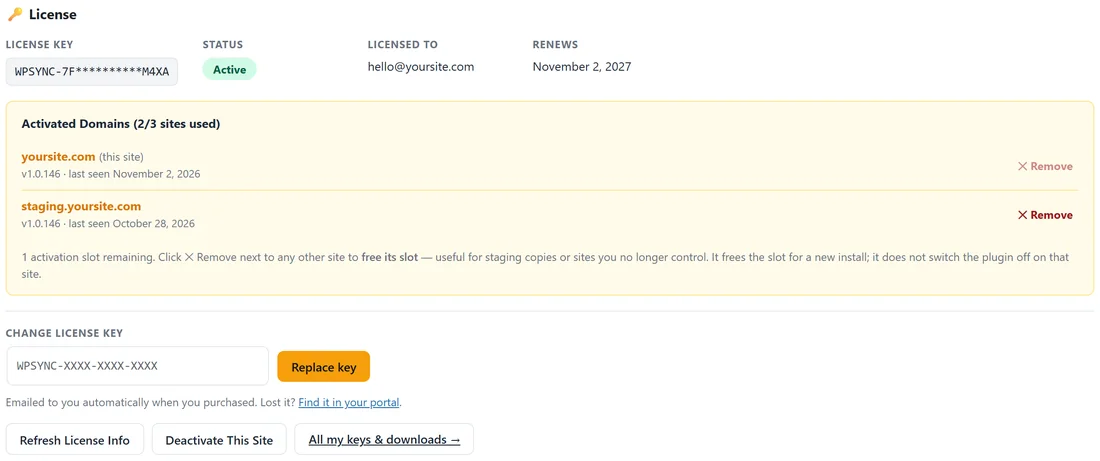
Open Settings. The License panel at the top shows the following.
- License Key, with most characters masked.
- Status, a green Active pill when the key is valid.
- Licensed To, the email the key belongs to.
- Renews, the renewal date of the key.
- Activated Domains, with a count such as 2/3 sites used. Each domain shows the plugin version it runs and when it was last seen. The current site is marked (this site).
Under the list a line tells you how many activation slots remain.
Freeing a slot from another site:
Every other site in Activated Domains has a Remove button. Use it for a staging copy or a site you no longer control. Remove frees that slot for a new install. It does not switch the plugin off on that other site.
Moving the plugin to another site:
- On the old site, open Settings and click Deactivate This Site.
- Install WP Sync on the new site and activate it with the same key.
If the old site is already gone, use Remove next to its domain from the new site's Settings instead.
Changing your key:
Under the domain list is a Change license key box. Paste a new key and click Replace key. The stored key is never shown in full, and an empty box means no change.
The other buttons:
- Refresh License Info asks the licence server for the latest details right away.
- All my keys and downloads opens your account portal.
WP Sync also checks the licence with the licence server once a day on its own, so the panel stays current without you doing anything.
Where the pack keys live:
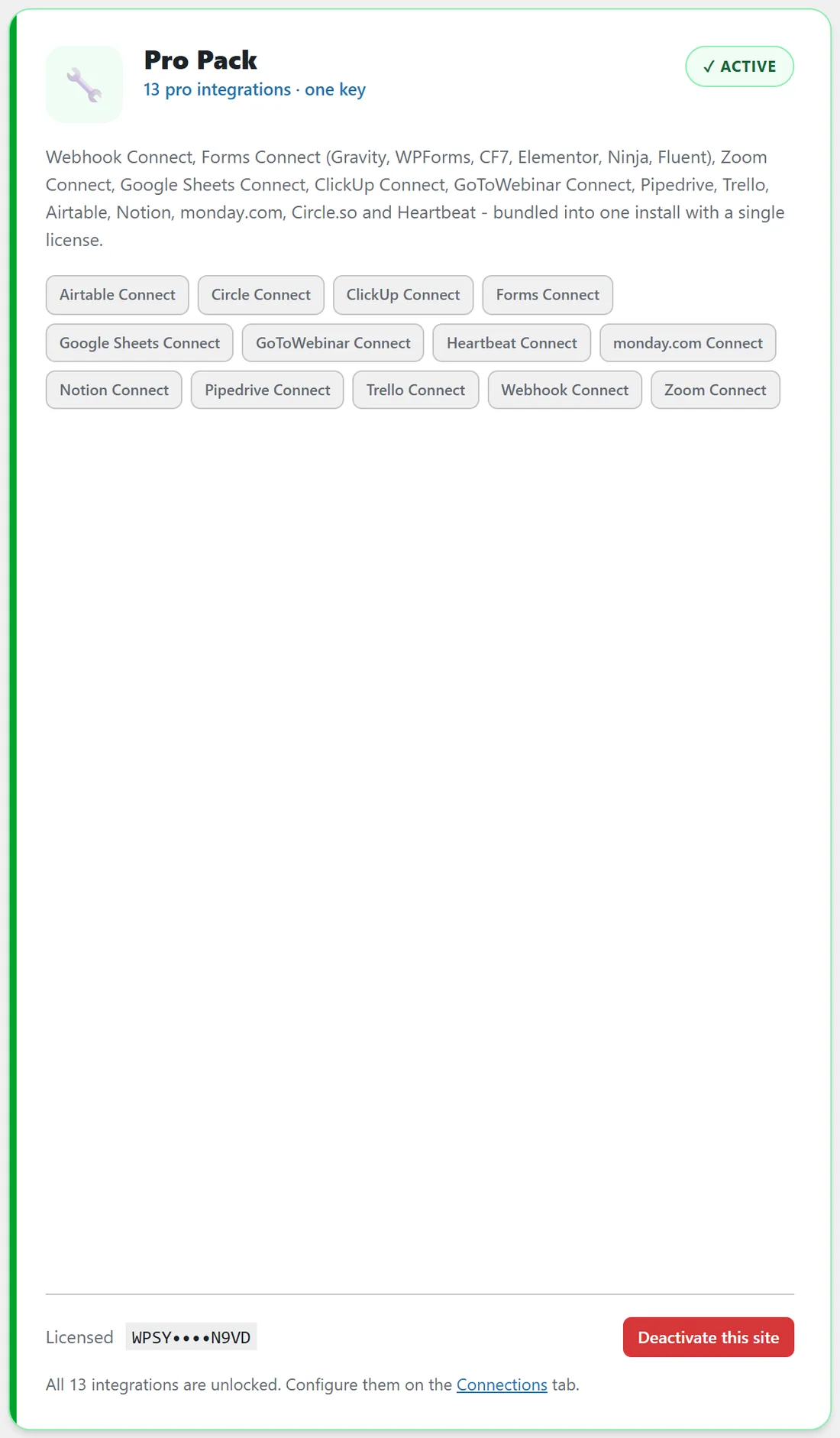
Open the Add-ons tab. Each pack card shows a Licensed line with its masked key and a Deactivate this site button. Use that button before moving a pack to another site, the same way as for the core key.
A real example:
yoursite.com runs WP Sync on its live site and on staging.yoursite.com for testing. The License panel reads 2/3 sites used. When the owner retires the staging copy, they click Remove next to staging.yoursite.com and the panel shows two free slots.
How the slot count works:
The number after the slash in Activated Domains, such as 2/3, comes from your key on the licence server. The first number is how many sites use it now. When a site is removed or deactivated, its slot is free for the next install straight away.
Keys shared with other plugins:
If your key also covers other plugins, the panel may add a line saying the key is in use on other sites for your other plugins. Those sites do not use a WP Sync slot, so they are listed separately from the count.
Where each licence shows its state:
- Core: Settings, License panel, and Diagnostics, System Diagnostics, License Status.
- Pro Pack and Connect Pack: their cards on the Add-ons tab, with an Active pill or Needs key.
- Everything together: the Add-ons tab counter, such as 177/177 Integrations Unlocked.
A tidy routine for agencies:
- Keep one row in your notes per site with the key used.
- Before handing a site to a client, decide whether it keeps your key or theirs.
- Use Remove on Settings for any site you no longer look after.
Tips:
- Keep the licensed email current, because it is where key emails go.
- Before you clone a site, decide whether the copy needs WP Sync at all, so you do not use a slot by accident.