Most bridges move people. A bridge can also move content. The Connect Pack has one source and seven destinations built for it, so a new blog post can be announced in your team chat and on your social channels without lifting a finger.
The RSS Feed source:
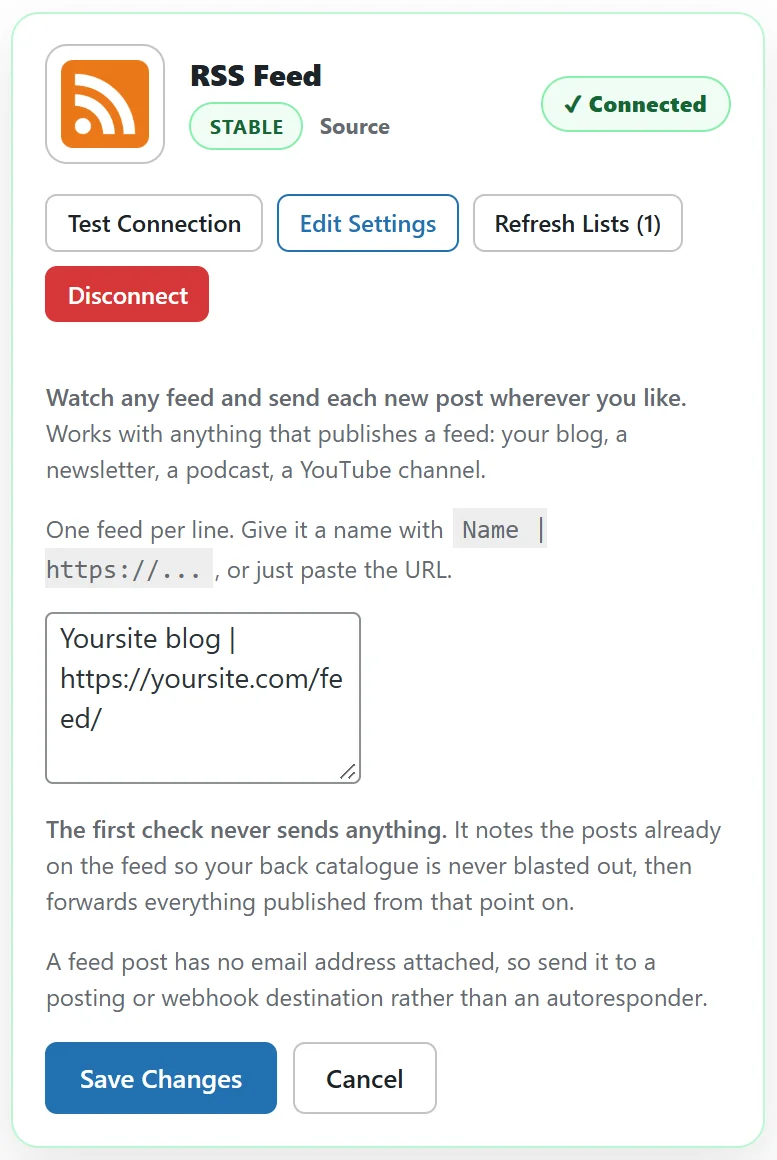
Enter one or more feeds on the RSS Feed card, one per line. Give a feed a name with Name | https://..., or just paste the address. RSS 2.0, RSS 1.0 and Atom feeds are understood. Each new item becomes a story carrying a title, a link, the content, an excerpt, the author and an image where the feed has one.
Two behaviours protect you:
- The first check of a feed records what is already there and sends nothing, so your back catalogue is never posted to your audience.
- After that, only genuinely new items go through, each one only once, and no more than 25 items are taken from a feed in a single check.
The RSS Feed source is polled on the same five minute schedule as other polled sources.
The posting destinations:
- Slack Post publishes a composed message to a Slack channel. One channel per line as Channel name | webhook URL.
- Discord Post publishes to a Discord channel. Messages are trimmed to Discord's length limit.
- Telegram Post publishes to a chat, group or channel through your bot. Messages are trimmed to Telegram's length limit.
- Facebook Page Post publishes to your Facebook Page. It reuses the Meta connection from the Facebook Lead Ads card, and the Page access token needs permission to manage posts.
- Instagram Post publishes an image post to an Instagram Business or Creator account. Instagram needs an image, so an item without one is skipped with a plain note. The image must be a public JPEG.
- Bluesky posts with your handle and an app password, not your account password. Posts are trimmed to 300 characters, and a web address shows as readable text.
- Mastodon posts to any Mastodon server using your server address and an access token.
The message template:
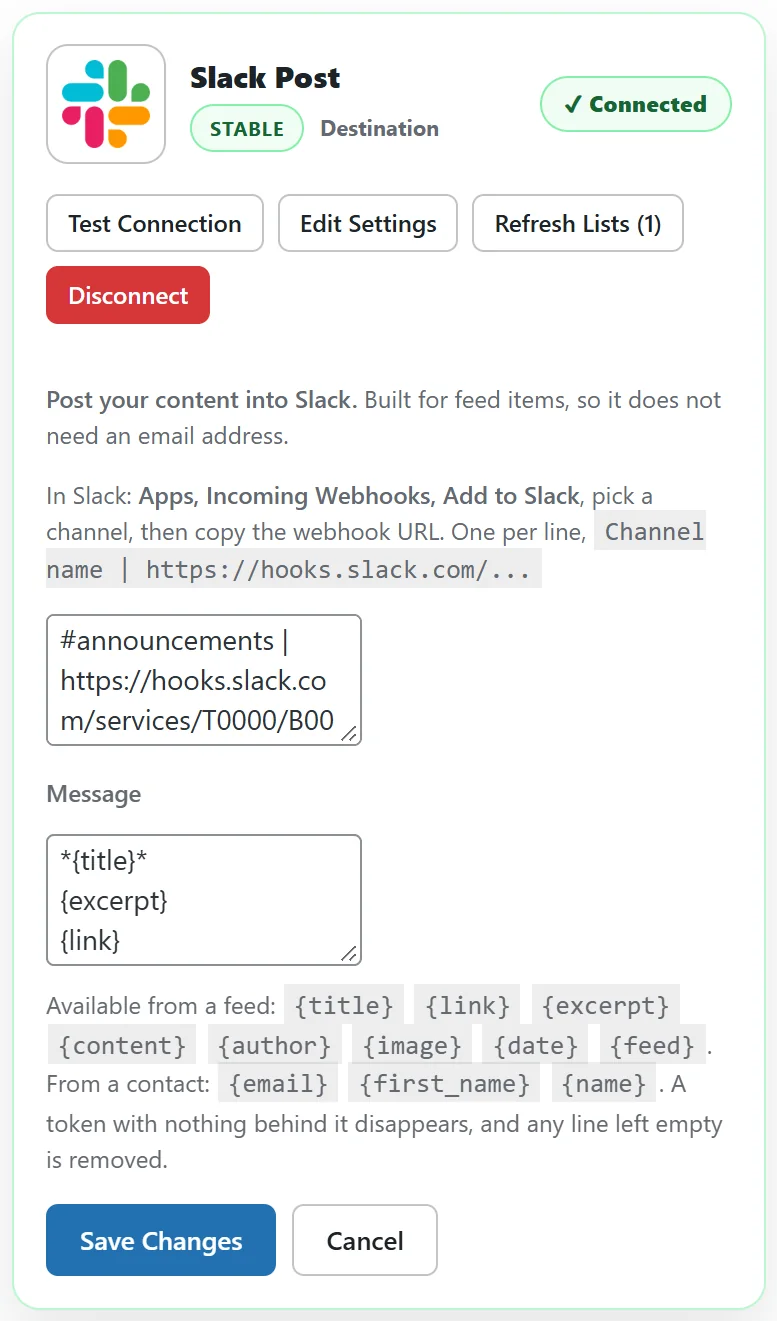
Each posting card has a Message box that uses tokens in curly braces, such as {title}, {excerpt} and {link}. Each card starts with a sensible default, which you can edit. Any other field the source sends can be used as a token too.
Setting it up step by step:
- On the Connections tab, open RSS Feed and enter your feed, for example Yoursite blog | https://yoursite.com/feed/. Click Connect.
- Open Slack Post, add your channel line and adjust the message if you like. Click Connect.
- Open Bluesky, enter your handle and an app password. Click Connect.
- Go to Bridges, click Create Bridge, and pick RSS Feed as the source with Yoursite blog as the list.
- Add Slack Post as the first destination and Bluesky as the second.
- Click Create Bridge.
The next time the feed is checked, it notes what is already there. Every post after that is announced in both places.
Who acts on a story:
Content destinations publish it. Outbound webhooks and Google Sheets record it too. Destinations that need a real person, such as autoresponders and CRMs, leave stories alone because a story has no email address.
A real example:
yoursite.com's bridge New blog posts to Slack and Bluesky has run fifteen times in a month. Each new article went to #announcements in Slack and to the yoursite.com Bluesky account within five minutes of going live.
Tokens for the message:
A story from the RSS Feed carries these fields, each usable as a token in a posting card's Message box.
- {title}: the post title.
- {link}: the address of the post.
- {excerpt}: a short summary.
- {content}: the post text.
- {author}: the author, when the feed has one.
- An image, where the feed has one, used by Instagram Post.
Slack Post starts with the title in bold, then the excerpt, then the link.
Feeds worth trying:
- Your own blog feed, such as https://yoursite.com/feed/.
- A podcast feed, to announce each new episode.
- A newsletter archive feed.
- A video channel feed.
Connecting the posting cards:
- Slack Post: in Slack, add an Incoming Webhook to the channel, then paste a line such as #announcements | the webhook address.
- Discord Post: in the Discord channel's settings, create a webhook and paste its address.
- Telegram Post: create a bot with Telegram's BotFather, add it to your channel, then paste the bot token and chat ID.
- Facebook Page Post: connect the Facebook Lead Ads card first, then use a Page token that can manage posts.
- Bluesky: your handle, such as yoursite.com, and an app password made in Bluesky's settings.
- Mastodon: your server address and an access token from your Mastodon settings.
Click Test Connection on each card before building the bridge.
Tips:
- Add a delay to one destination to stagger posts, for example Bluesky two hours after Slack.
- Keep the Bluesky message short, since it is trimmed to 300 characters.