Each destination step in the builder has a Delay / drip control, closed by default. Leave it alone and the destination fires right away. Open it to hold contacts for a while, or until a set moment.
Where to find it:
- Open the bridge with Edit.
- Open the destination step.
- Click Delay / drip. The panel opens with a Wait line and a Drip line.
Wait for:
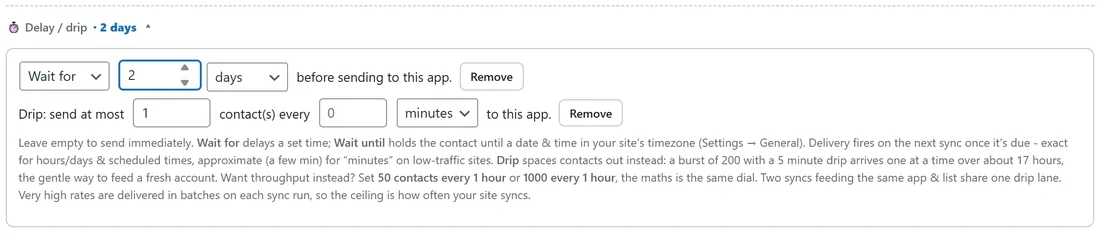
Choose Wait for, type a number and pick minutes, hours or days. Each contact is held for that long after it arrives, then delivered. The longest delay is 90 days.
Wait until:
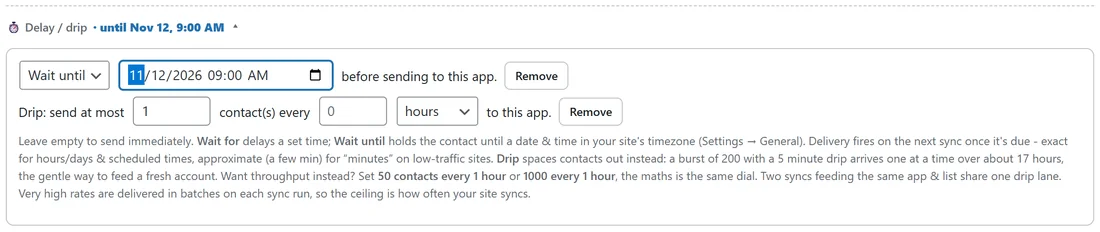
Choose Wait until and pick a date and time. Every contact is held until that moment. The time is read in your site's timezone, set under Settings, General in WordPress. This suits a launch: collect sign ups all week and release them all at 9:00 on launch day.
Removing a delay:
Click Remove on the Wait line, then Update Bridge.
How delivery happens:
A delayed destination is put in a queue instead of being delivered right away. The five minute check delivers everything that has come due, using exactly the same mapping, action and logging as an immediate delivery. Delivery fires on the first check after the time arrives.
How accurate it is:
Delays in hours or days, and set dates, land on time. A delay in minutes is close but can run a few minutes over on a quiet site, because it waits for the next check.
Seeing delays at a glance:
- In the builder, the closed Delay / drip button shows the setting, such as 2 days, and the step summary carries a stopwatch tag.
- On the Bridges tab, the row shows a stopwatch chip such as 2 days delay.
Waiting contacts and the queue:

Any bridge with contacts waiting shows a count, such as 4 queued, with two buttons.
- Deliver now sends the contacts that were waiting when you clicked. Anything arriving later keeps its normal timing.
- Discard drops the waiting contacts without sending them. A later Backfill can still reach those people.
Changing or removing a delay only affects new contacts, so use Deliver now to send a backlog early. A paused bridge holds its queue until you enable it again.
How the Activity Log shows it:
When the only thing a run did was queue a contact, the row reads Queued until it delivers, then a Success row is written. Each contact is counted once, when it is delivered.
A real example:
yoursite.com's WarriorPlus buyers to Kit bridge has two destinations. The first adds the buyer to Kit's Buyers form at once. The second adds the tag Review request after a two day delay, which starts Kit's review email once the buyer has had time to use the product. Today four buyers are waiting, shown as 4 queued on the row.
A delay or a drip:
A delay holds every contact for the same time, so a burst stays a burst, just later. To space contacts out one after another, use a drip. See Drip Delivery For Warming Up A New Account.
Ideas for delays:
- A review request two days after purchase.
- A Slack summary at the start of the working day with Wait until.
- A follow up tag a week after a webinar registration.
- A launch list released at a set hour.
Testing a delay:
Click Test on the bridge row. A delayed destination shows WOULD QUEUE with when it would deliver, such as in 2 days.
Delays and the bridge's own timing:
A delay starts counting when the contact reaches the bridge. For a polled source that is the five minute check that found them, and for a push source it is the moment of the event.
Queued contacts and editing:
Contacts already waiting keep the time they were given. If you change Wait for from 2 days to 1 day, new contacts wait 1 day, and the ones already waiting still deliver on their original time unless you click Deliver now.
Wait until in a different timezone:
The time you pick is read in your site's timezone. If your audience is elsewhere, convert the time first, or change the site timezone under Settings, General before you plan the release.
Tips:
- Backfill skips a fixed delay, so catch up contacts go now. A drip is kept.
- Use a delay on a Slack message to land it during working hours with Wait until.