Filters live in the Filters and options step of the bridge builder. Leave them empty and every contact is sent on. Add one or more conditions and only contacts matching all of them are relayed.
Adding a condition:
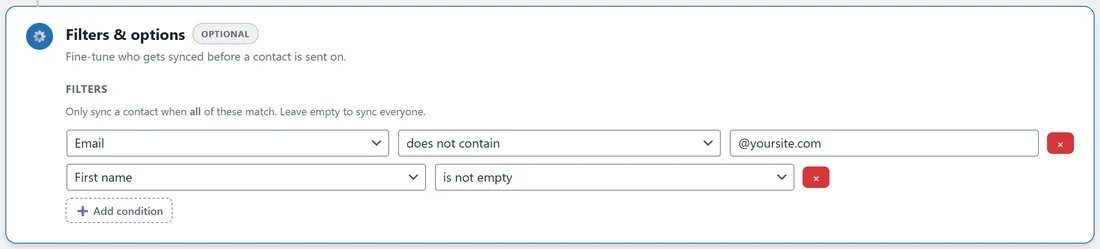
- Open the bridge with Edit.
- In Filters and options, click Add condition.
- Choose the field: Email, First name, Last name or Full name.
- Choose the operator.
- Type the value, unless the operator is is empty or is not empty.
- Add more conditions the same way, then click Update Bridge.
Each condition row has a red cross to remove it.
The eight operators:
- contains
- does not contain
- equals
- does not equal
- starts with
- ends with
- is empty
- is not empty
Matching ignores capital letters, so Gmail and gmail are the same.
How the logic works:
All conditions are combined with AND. Every condition must pass for the contact to be relayed. For an either or rule, build two bridges, one for each case.
What happens to a filtered contact:
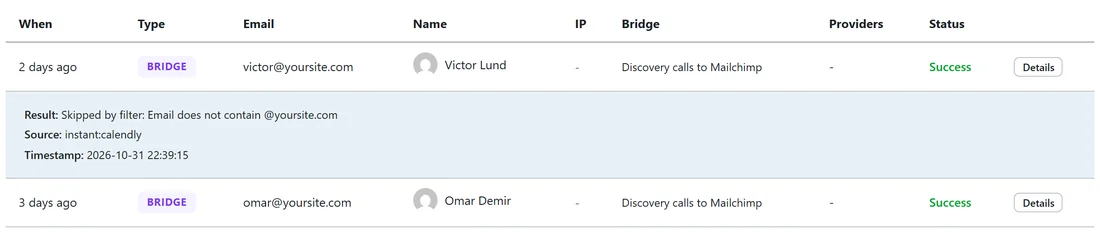
It is not sent to any destination. It is still recorded in the Activity Log with the note Skipped by filter, followed by the condition that stopped it. A bridge that seems quiet may simply be filtering as intended, and the log tells you at once.
Spotting filters at a glance:
A bridge with conditions shows a target badge with the number of conditions next to its name on the Bridges tab. The same badge sits on the arrow of the flow preview in the builder.
A real example:
yoursite.com's team books test calls in Calendly while trying new meeting types. Its Discovery calls to Mailchimp bridge has the condition Email does not contain @yoursite.com. Real prospects go to Mailchimp and Slack. Team test bookings show in the Activity Log as Skipped by filter, and never reach the list.
Checking a filter before going live:
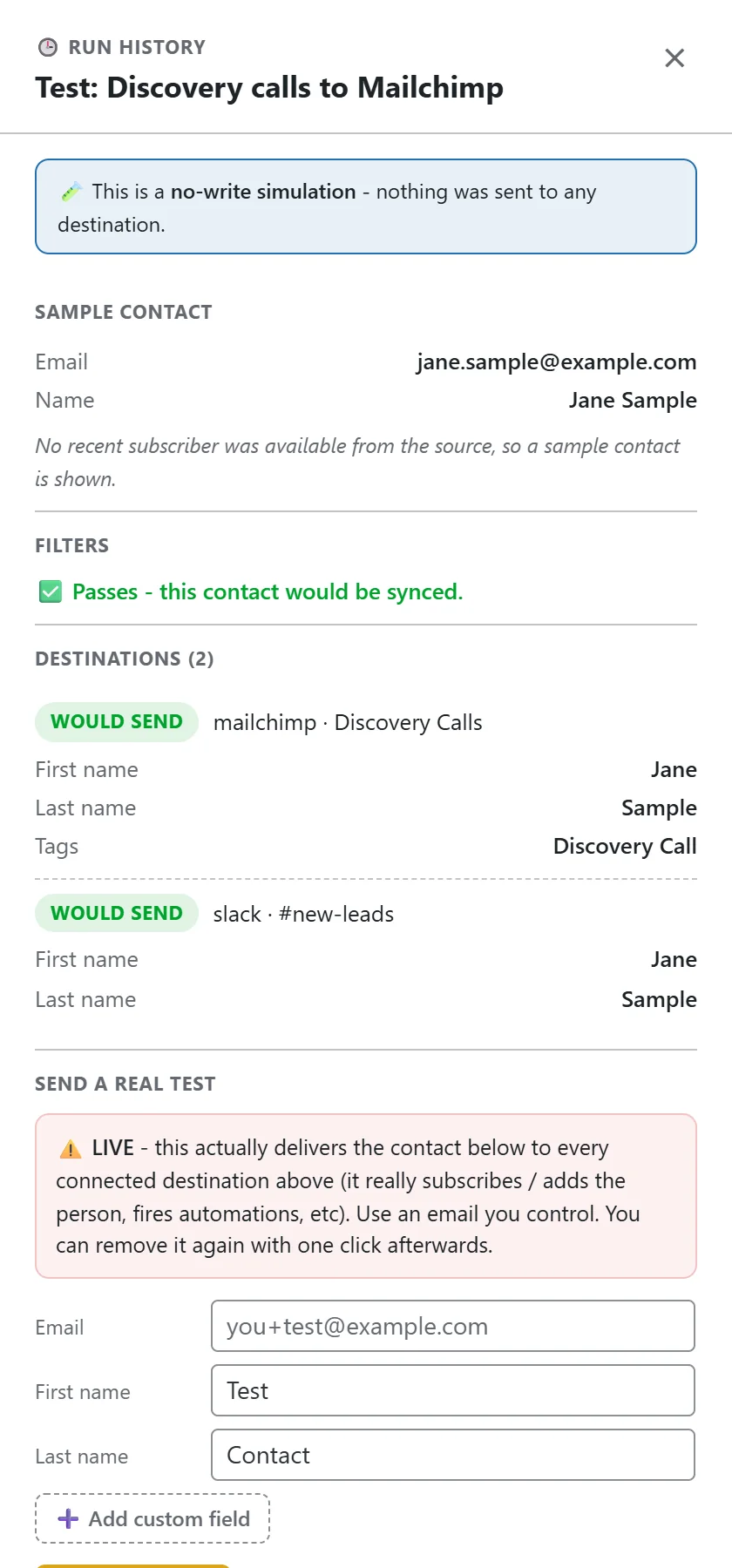
Click Test on the bridge row. Under Filters, the drawer says Passes or Blocked, and for a blocked contact it names each condition that failed.
Useful filters:
- Email does not contain your own domain, to keep team tests out.
- Email ends with .edu, to send students to their own list.
- First name is not empty, for a destination that needs a name.
- Full name does not contain test.
Editing and removing conditions:
Open the bridge with Edit. The Filters and options step shows the saved conditions. Change a field, operator or value, or click the red cross on a row, then click Update Bridge. The filter badge on the Bridges tab updates straight away.
Filters and opt in forms:
Filters work on every source, including form opt ins and push sources. A form entry stopped by a filter is logged as an OPTIN row with Skipped by filter, and the visitor still lands on the thank you page.
Examples worked through:
- Keep a partner list clean. Condition: Email does not contain @yoursite.com.
- Only people who gave a name. Condition: First name is not empty.
- Leave out obvious test entries. Condition: Full name does not contain test.
- A list just for one email provider. Condition: Email ends with @example.com.
- Two conditions together. Email does not contain @yoursite.com and First name is not empty: both must be true.
Tips:
- For a destination that needs a name, a Fallback in the field mapping is often kinder than a filter, because the contact still gets through. See Field Mapping Per Destination.
- To route by product or amount, pick a source list that already narrows it, such as Buyers of one product.