ADs uses your own AI keys, so you pay each provider directly at their own prices, usually cents. One key is enough to start. You can add several and ADs falls back to the next one if a provider fails.
Where to find it:
Open Settings, Settings and AI keys. Two cards matter here: AI Providers and AI budget and spend. Click a card's heading to open it.
Adding a writing provider:
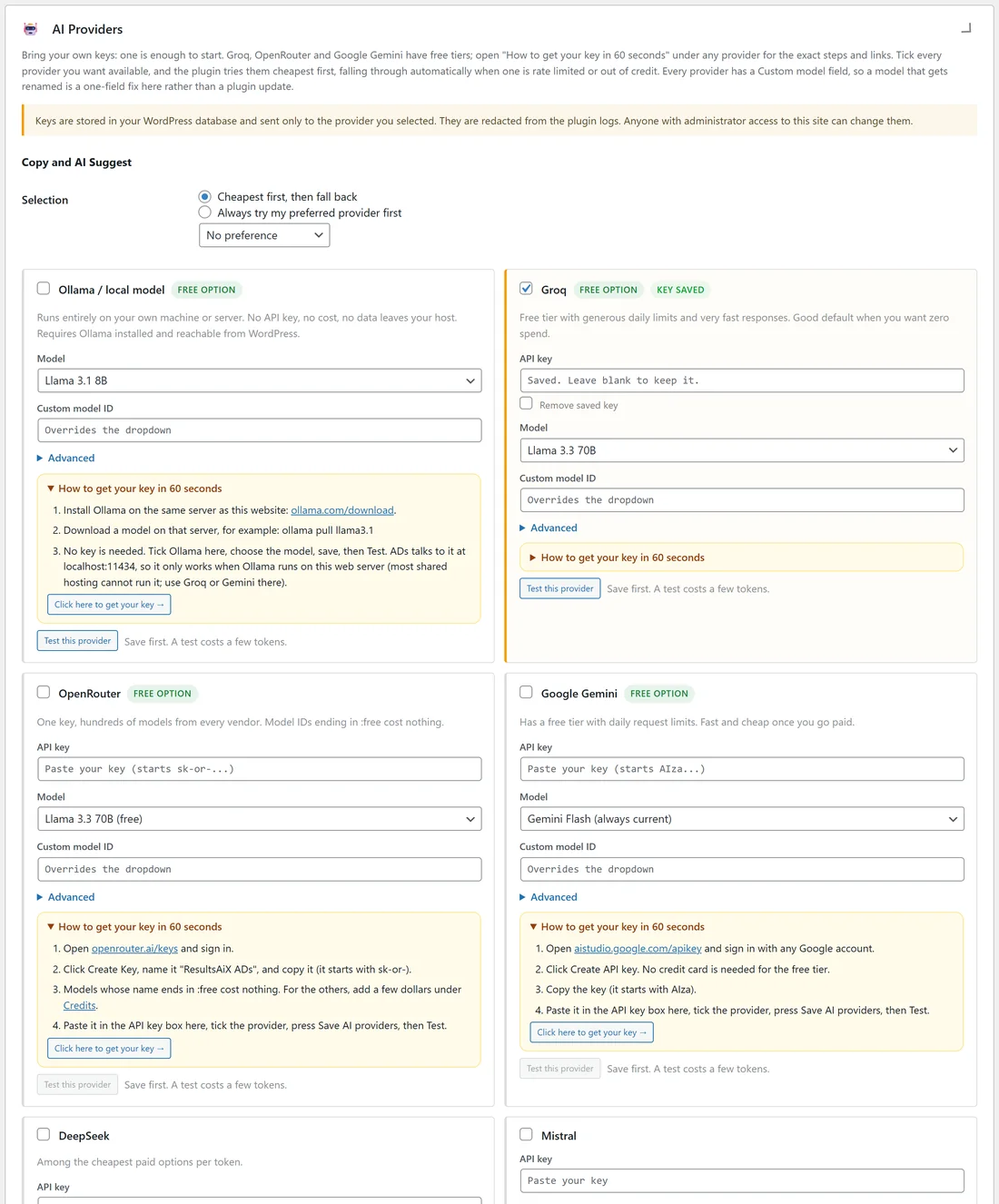
- Open AI Providers. Under Copy and AI Suggest, each provider has its own box.
- Tick the provider you want to use.
- Open How to get your key in 60 seconds under that provider. It gives the exact steps and a Click here to get your key button.
- Paste the key into API key and choose a Model.
- Press Save AI providers at the bottom of the card.
- Press Test this provider in that provider's box. A test costs a few tokens.
The providers for writing are Ollama (a model on your own server, no key), Groq, OpenRouter, Google Gemini, DeepSeek, Mistral, OpenAI, xAI Grok and Anthropic Claude. Groq, OpenRouter and Google Gemini have free options. A saved key shows a KEY SAVED pill; the box shows Saved, leave blank to keep it, and Remove saved key deletes it.
Choosing how ADs picks a provider:
- Cheapest first, then fall back: ADs tries the cheapest ticked provider and moves on if it fails.
- Always try my preferred provider first: choose the one in the list underneath.
Adding an image engine:
Further down the same card, Ad creative images lists the picture engines: Cloudflare Workers AI, Together AI, Nebius AI Studio, Hugging Face, AI Horde, fal.ai and OpenAI. Cloudflare Workers AI has the most useful free tier. OpenAI is the strongest when a picture needs words in it. Tick one, paste its key, save, then press Test this engine (it makes one small picture).
Under each provider, Advanced has a Custom API address for people who send AI requests through their own gateway. Leave it empty to connect directly. Custom model ID lets you type a model the list does not have yet.
Your AI budget:
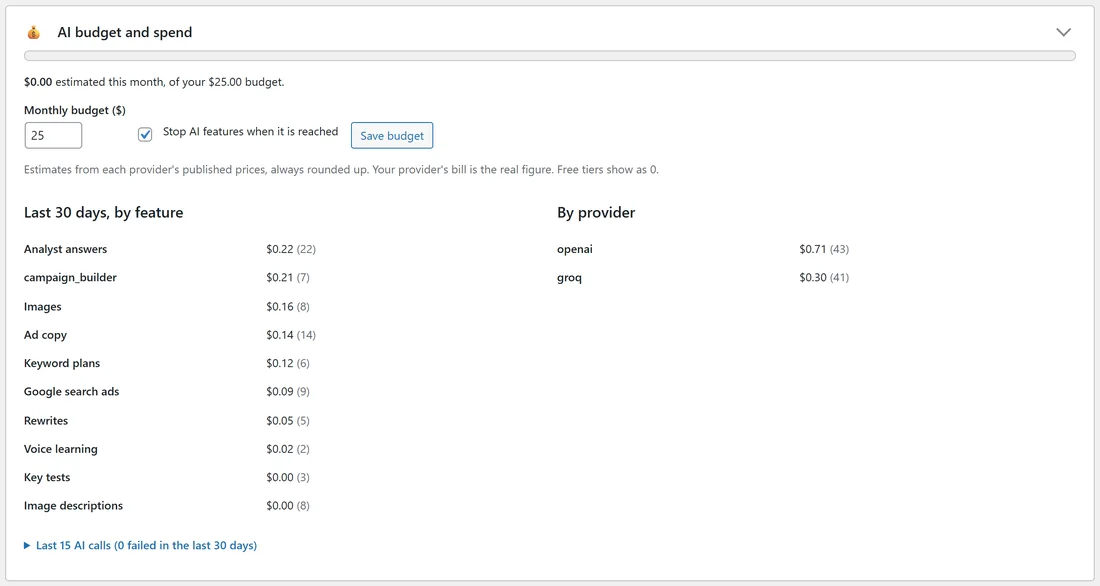
- Open AI budget and spend.
- Type a Monthly budget ($).
- Tick Stop AI features when it is reached for a hard stop.
- Press Save budget.
The card then shows what you spent this month against your budget, the last 30 days by feature (Ad copy, Rewrites, Google search ads, Keyword plans, Images, Image descriptions, Analyst answers, Voice learning, Key tests and campaign builds) and by provider, and a list of the last 15 AI calls with their cost and result. Costs are estimates from each provider's published prices, always rounded up. Free tiers show as 0.
A real example:
yoursite.com uses Groq (free tier, Llama 3.3 70B) and OpenAI (GPT-4o mini) for writing, and OpenAI for pictures. With a $25.00 monthly budget and the hard stop ticked, the card showed about $1 spent across 30 days: analyst answers, campaign builds, pictures and ad copy were the biggest lines.
Tips:
- Picture costs are always shown before anything is made, on the Images tab and in each ad's Picture panel.
- If a provider says no, ADs shows the provider's own words, so you can see whether it is the key, the credit or the model. The same message is in Logs.
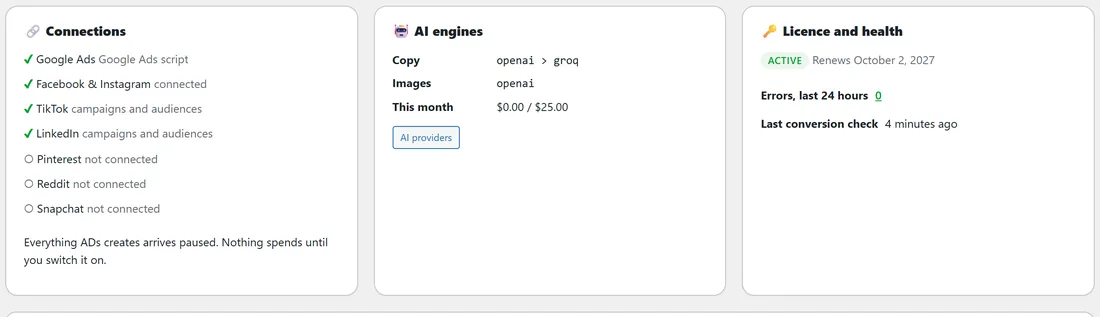
- The Dashboard's AI engines card shows your providers in order and this month's AI spend against your budget.