Three small cards at the bottom of Settings control where alerts go, how ADs looks, and how your site is identified to the licence server.
Where to find it:
Open Settings, Settings and AI keys. Scroll to Appearance, Notifications and Install Fingerprint.
Notifications:
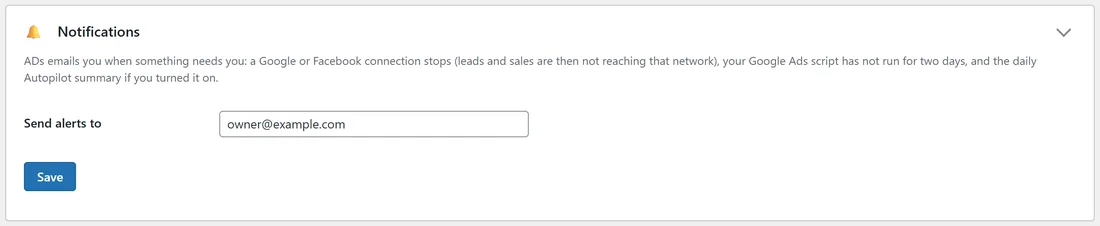
ADs emails you when something needs you:
- A Google or Facebook connection stops, so leads and sales are not reaching that network.
- Your Google Ads script has not run for two days.
- The daily Autopilot summary, if you turned it on (Autopilot settings).
Type the address in Send alerts to and press Save. Empty sends alerts to the site's admin email.
Appearance:
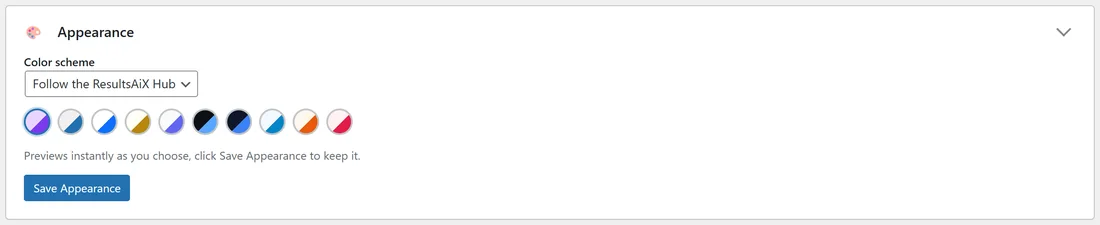
Choose a Color scheme: Follow the ResultsAiX Hub, WordPress Native, Clean White, Ivory Cream, Snow Light, Developer Dark, Midnight Blue, Ocean Blue, Sunset Warm or Rose Pink. It previews instantly as you choose. Press Save Appearance to keep it.
Install Fingerprint:
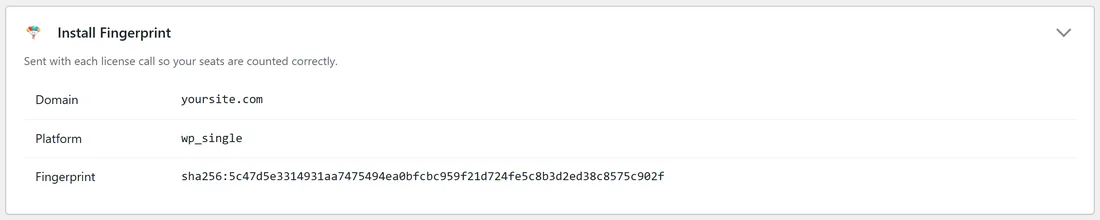
Sent with each licence call so your sites are counted correctly. It shows the Domain, the Platform and the Fingerprint. Nothing to set here; support may ask you for it.
A real example:
The owner of yoursite.com sends alerts to owner@example.com, follows the ResultsAiX Hub's colour scheme so every ResultsAiX plugin looks the same, and checked that the fingerprint shows yoursite.com after moving from staging.
Tips:
- Use an address you read every day for alerts. A stopped connection is quickest to fix the same day.
- See Installing And Your Licence for the licence itself.