ResultsAiX ADs installs like any WordPress plugin. Your licence key unlocks every screen, and the Licence panel on Settings shows its status and renewal date.
Installing:
- In WordPress, open Plugins, Add New Plugin, Upload Plugin.
- Choose the ResultsAiX ADs zip file and press Install Now.
- Press Activate Plugin. A ResultsAiX ADs item appears in your admin menu.
The first time you open it without a licence, ADs takes you straight to Settings, where the key goes.
Activating your licence:
- Open Settings, Settings and AI keys.
- In the License panel, paste your key into Activate your license key. It is emailed to you when you buy.
- Press Activate. The Status changes to Active and Renews shows the date.
Once the licence is active, ADs opens the Setup Wizard the first time. You can close it and come back any time. See The Setup Wizard, Step By Step.
What the License panel shows:
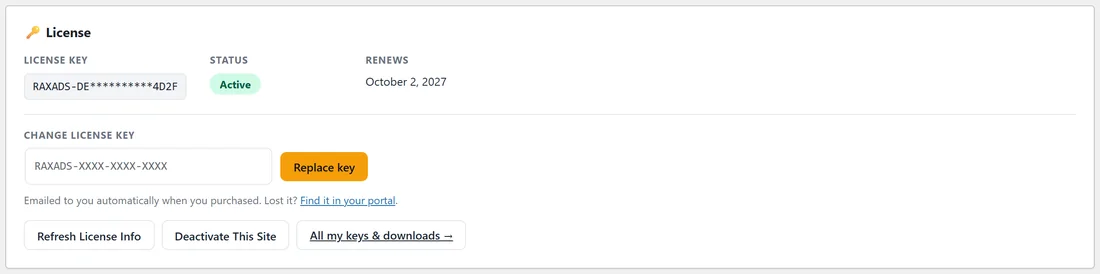
- License Key, with most characters hidden.
- Status, a green Active pill when the key is valid.
- Renews, the date your licence renews.
- Change License Key: paste another key and press Replace key.
- Refresh License Info asks the licence server for the latest details straight away.
- Activated Domains, when your key has them, lists the sites using the key with a count such as 1/3 sites used.
- Deactivate This Site frees this site's slot, for example before you move ADs to a new domain.
- All my keys & downloads opens your account portal.
ADs also checks the licence with the licence server once a day on its own.
What needs a licence:
Settings, Diagnostics, Training and Resources always open, so you can enter your key and get help. Every other screen shows a padlock in the menu until the licence is active.
Moving to another site:
- On the old site, open Settings and press Deactivate This Site.
- Install ADs on the new site and activate it with the same key.
A real example:
yoursite.com runs ADs on its live site. The License panel shows Active and Renews October 2, 2027. When the owner set up a staging copy for testing, they activated the same key there, then pressed Deactivate This Site on the staging copy when they were done.
Tips:
- Every campaign ADs creates arrives paused, on every network, so installing and exploring never spends anything.
- If the panel ever shows a different status, press Refresh License Info first.
- Your licence key is in your purchase email and in your account portal (All my keys & downloads).