Connecting Facebook and Instagram takes one access token from your own Meta business, made once in about ten minutes. Nothing passes through anyone else's server.
Where to find it:
Open Networks, Facebook & Instagram. It has four steps; the first two connect you.
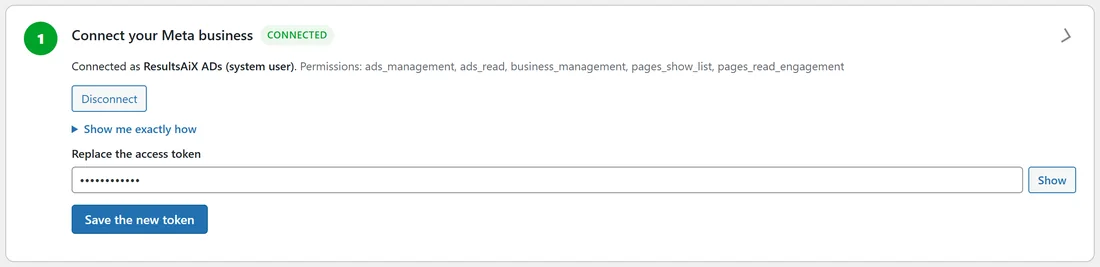
- Connect your Meta business:
Open Show me exactly how for the steps with links:
- In Meta for Developers, My Apps, click Create app. Call it "ResultsAiX ADs", choose the use case Create & manage ads with Marketing API, and connect it to your business portfolio.
- Open Business Settings, System users. Click Add, name it "ResultsAiX ADs" and give it the Admin role.
- With that system user selected, click Assign assets and give it full control of your ad account, your Facebook Page and your pixel (Meta also calls it a dataset).
- Click Generate token, choose the app, and set Token expiration to Never. Tick ads_management, ads_read, business_management, pages_show_list and pages_read_engagement.
- Meta shows the token once. Copy all of it, paste it into System user access token and press Connect.
Your own app working with your own business's ad account needs no App Review and no business verification.
When connected, the step shows Connected as, with the token's name and its permissions. Disconnect removes it, and Replace the access token with Save the new token swaps in a new one.
- Choose the ad account, Page and pixel:
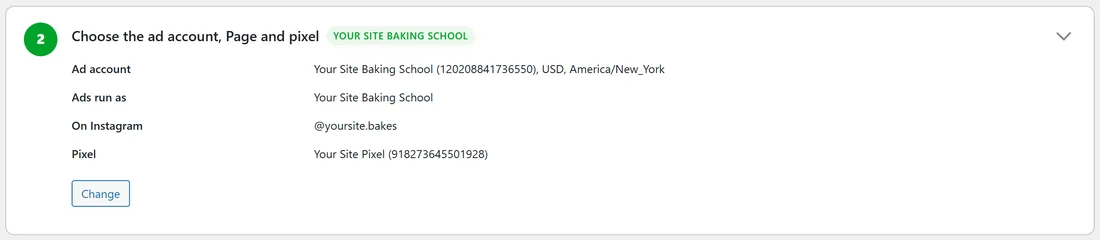
Choose your Ad account, your Facebook Page, your Instagram account and your Pixel. Once saved, the step shows them:
- Ad account, with its id, currency and time zone.
- Ads run as: your Facebook Page.
- On Instagram: the Instagram account linked to your Page. With none linked, Instagram ads run as your Page.
- Pixel.
Press Change to pick another.
Ads shown in the European Union:
Meta asks every ad shown in the EU to name who benefits from it and who pays for it (the Digital Services Act). Fill in Who benefits from the ads and Who pays for the ads in step 3 and press Save. ADs fills them from your ad account; change them if they differ.
A real example:
The owner of yoursite.com made a system user called "ResultsAiX ADs", gave it the Your Site Baking School ad account, Page and pixel, and pasted a never-expiring token. Step 2 now reads: Ad account Your Site Baking School, USD, America/New_York; Ads run as Your Site Baking School; On Instagram @yoursite.bakes; Pixel Your Site Pixel.
Tips:
- Choose Never for the token's expiry, so the connection keeps working.
- Next, switch on step 3. See Sending Leads And Sales Back To Meta.
- If a token ever stops working, a banner on every admin screen tells you, with Meta's words. Paste a new one with Replace the access token.