
Every ADs screen has the same menu bar along the top. A few items open a screen straight away; the others drop down a short list.
The bar along the top:
- Dashboard: your ad results with charts, Autopilot's findings, your campaigns and what ADs found on your site.
- Build with AI (the orange button): plan and build a campaign by talking to the AI.
- AI Chat: every conversation with the AI, saved.
- Campaigns (drop down): All campaigns, New campaign, Images, Your Voice and Compliance.
- Results: reports for every network or just one, with charts and CSV downloads.
- Networks (drop down): Google Ads, Facebook & Instagram, TikTok, LinkedIn, Pinterest, Reddit, Snapchat, and Audiences and tags.
- Settings (drop down): Settings and AI keys, Diagnostics and Logs.
- Help (drop down): Training, Resources and Support.
Opening a drop down:
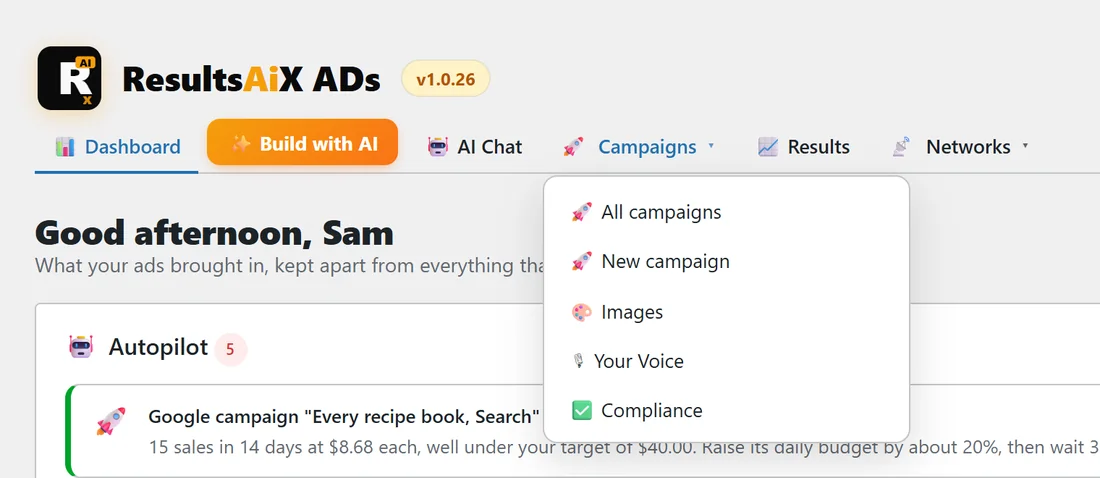
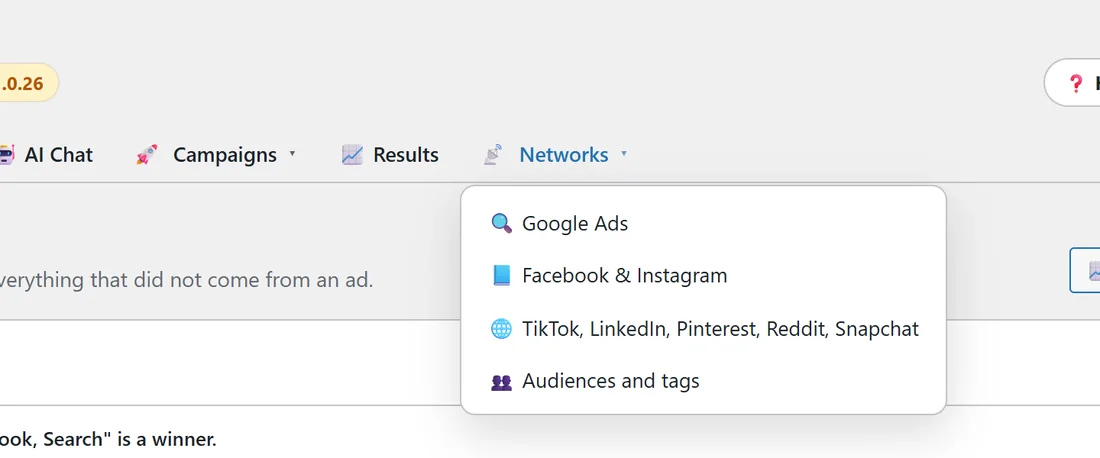
- Click Campaigns, Networks, Settings or Help.
- Click the item you want. The menu closes when you click anywhere else or press Escape.
The menu item for the screen you are on is underlined, and its group is highlighted.
Above the menu:
- The version chip shows which version of ADs you run.
- Help / Training opens the Training page at the part about the screen you are on.
The Ask your ads button:
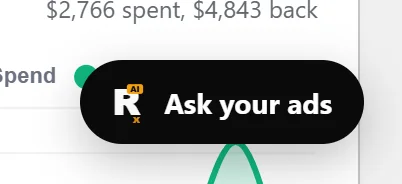
A black Ask your ads button sits at the bottom right of every ADs screen. It opens the analyst, which answers questions from your own leads, sales and spend. See Ask Your Ads: The Analyst.
A real example:
To check last week's sales, the owner of yoursite.com clicks Results. To add a new recipe book to the book campaign, they click Campaigns, All campaigns and open Every recipe book, Search. To connect Pinterest later, they click Networks, TikTok, LinkedIn, Pinterest, Reddit, Snapchat.
Tips:
- A padlock next to a menu item means the licence is not active yet. See Installing And Your Licence.
- Bookmark the screens you use most; every screen has its own address in WordPress.