Once a campaign is in Google Ads, its campaign screen shows Your campaign in Google Ads now, read from Google. You can run the day to day from here without opening Google Ads.
Where to find it:
Open the campaign. Your campaign in Google Ads now sits at the top of the Google Search campaign section, and again at the top of the Google: Gmail, YouTube, Discover and Display section when you have one.
What it shows:
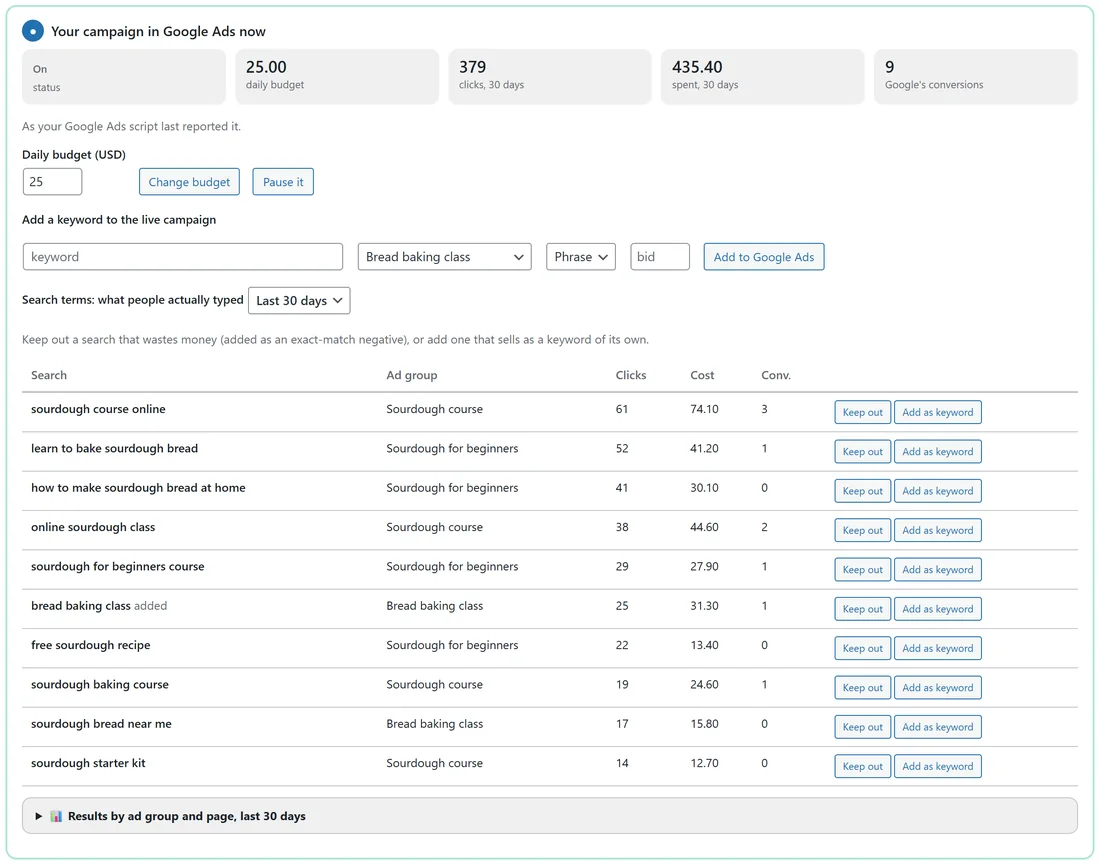
- Status: On or Paused.
- Daily budget.
- The last 30 days: clicks (views too for Gmail and YouTube), spend, and Google's conversions.
- Where the numbers came from, for example "As your Google Ads script last reported it".
Switching it on or pausing it:
- Switch it on: ADs asks first, because that starts spending.
- Pause it: stops the campaign straight away with the direct connection, or on the script's next run.
Changing the budget:
- Type the new Daily budget.
- Press Change budget.
Adding a keyword to the live campaign:
- Type the keyword.
- Choose the ad group and the match type (Phrase, Exact or Broad).
- Optional: type your own bid.
- Press Add to Google Ads.
Search terms:
Search terms: what people actually typed before clicking your ad, for the Last 7 days, Last 30 days or Last 90 days, with the ad group, clicks, cost and conversions.
- Keep out adds a search as an exact-match negative, so it never shows your ad again. Use it for searches that waste money, such as "free sourdough recipe".
- Add as keyword bids on a search that sells as a keyword of its own.
A small word next to a search, such as added, is Google's own status for it.
Results by ad group and page:
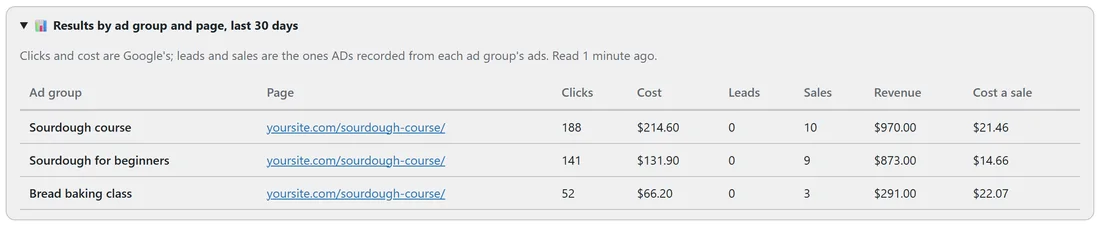
Open Results by ad group and page, last 30 days. For each ad group: its page, clicks and cost from Google, and the leads, sales and revenue ADs recorded from that ad group's ads, with the cost of a sale. The best seller is first. With the Google Ads script this needs version 4 or later.
Gmail, YouTube and Display:
The same panel lets you change the bidding, its target or its cost per click. Where Google only allows that on a new campaign, ADs offers a copy with the new bidding and pauses the old one once the copy exists. See Gmail, YouTube, Discover And Display Campaigns.
How changes reach Google:
With the direct connection, every change happens in Google Ads straight away. With the Google Ads script, the panel shows what the script last reported, and your changes wait for its next hourly run (or press Run on the script in Google Ads). The panel only ever changes the campaign ADs created, in the Google Ads account it was created in.
A real example:
The course campaign of yoursite.com is On at $25 a day, with 379 clicks, $435 spent and 9 Google conversions in 30 days. In the search terms, "free sourdough recipe" had 22 clicks and no sales, so the owner pressed Keep out. "sourdough for beginners course" sold, so they pressed Add as keyword. Results by ad group and page showed Sourdough course as the best seller.
Tips:
- Read the search terms once a week. A few Keep out clicks save a lot of budget.
- To change several things at once, such as countries, bidding or ads, use Update Google Ads. See Updating A Campaign Already In Google Ads.