Once a Google Search campaign is in Google Ads, you keep working on it in ADs. Change anything on the screen, check exactly what will change, and send only the differences.
Where to find it:
Open the campaign. In the Google Search campaign section, section C is now Settings, and updating Google Ads.
What you can change:
The budget, bidding and max cost per click, countries and places, languages, audiences, the ad schedule, search partners, keywords (add them, untick them, change bids), negatives, new ad groups, an ad group's page, and an ad's words.
Step by step:
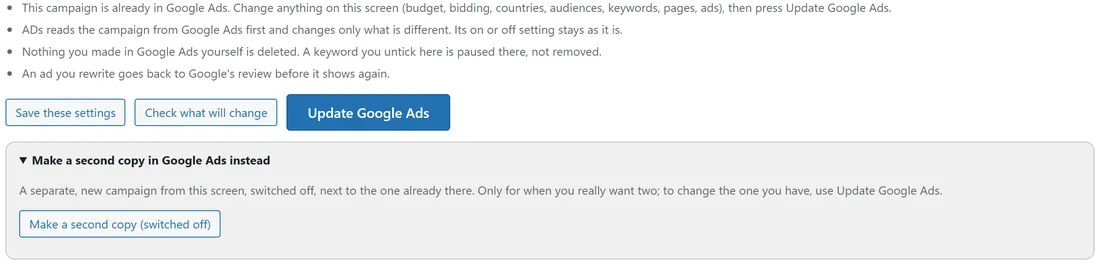
- Change what you want on the screen.
- Press Check what will change. ADs saves the screen, reads the campaign from Google Ads and lists every change, for example "Daily budget: $20.00 to $25.00" or "Keywords: 3 added, 1 paused".
- Press Update Google Ads. ADs asks first, then sends only what is different, all in one go. If Google refuses any part, nothing changes and you see which part and Google's words.
Save these settings keeps your changes in ADs without sending anything.
What it always keeps:
- Anything you made in Google Ads yourself (ad groups, keywords and audiences ADs does not know) stays as it is, and the screen says how many.
- A keyword you untick in ADs is paused in Google Ads, not removed. A keyword paused in Google Ads stays paused.
- The campaign's on or off setting stays as it is. Use Your campaign in Google Ads now for that.
- Sitelinks, callouts, images and dates stay as they are in Google Ads.
An ad you rewrite goes back to Google's review before it shows again.
With the Google Ads script:
With the direct connection the update happens at once. With the Google Ads script, the script reads the campaign on its next run (within the hour, or press Run on the script in Google Ads) and makes only the changes. The screen shows Update waiting for your Google Ads script, then Google Ads updated with what changed. This needs the Google Ads script version 4 or later: copy it again from the Google Ads tab if the tab says a newer script is ready.
Two campaigns side by side:
Make a second copy in Google Ads instead, folded under the buttons, creates a separate, new campaign from this screen, switched off, next to the one already there. Use it only when you really want two; to change the one you have, use Update Google Ads.
Gmail, YouTube, Discover and Display:
For these campaigns, the budget, the bidding and switching on or off change from ADs (see Managing Your Live Google Campaign). Their words, pictures and audiences change in Google Ads itself, or try new ones as a second copy.
A real example:
The owner of yoursite.com raised the course campaign's budget from $25 to $30, added "sourdough masterclass" to the Sourdough course ad group and unticked "sourdough class". Check what will change listed the budget and "Keywords: 1 added, 1 paused". Update Google Ads waited for the script, and an hour later the screen showed Google Ads updated.
Tips:
- Always press Check what will change first. It is free and changes nothing.
- Make several changes, then update once.
- To add one keyword without the whole update, use Add a keyword to the live campaign. See Managing Your Live Google Campaign.