The 🤖 AI Analyst is part of the Pro Tools add-on. It reads your own tracking data, gives every link that matters a verdict and answers questions in plain English. It only ever reads your data. It cannot change, delete or export anything.
What You Need:
A key from one AI provider. The Analyst works with Anthropic (Claude), Google (Gemini) and OpenAI, and one key is enough. You pay your provider directly for what you use, and Google AI Studio has a free tier, so Gemini is an easy way to try it. The key is stored only on your site and is never shown back to you.
Where To Find It:

Click 💰 Sales & Reports, then 🤖 AI Analyst. Until a key is saved, the header shows Add a key below to activate.
Setting It Up Step By Step:
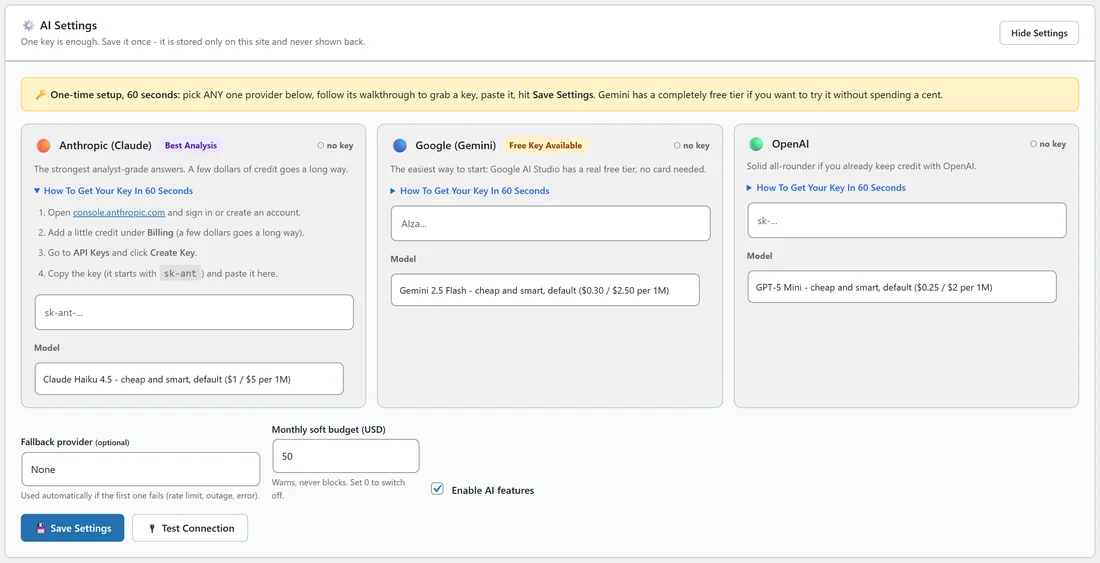
- In ⚙️ AI Settings, pick one provider card.
- Open How To Get Your Key In 60 Seconds on that card. It walks you through the provider's own site and tells you what the key starts with, for example sk-ant for Anthropic.
- Paste the key into the card.
- Click 💾 Save Settings. The card then shows the key as saved.
- Click 🔌 Test Connection to check it works.
Other Settings On The Card:
- Model: each provider has a smaller, low cost default and larger, more capable options. The default is a good place to start.
- Fallback provider (optional): a second provider used automatically if the first one fails, for example during an outage. It needs its own key.
- Monthly soft budget (USD): a warning when your estimated spend for the last 30 days passes this amount. It never blocks anything, and 0 switches it off.
- Enable AI features: untick it to switch the whole feature off.
Analyze My Traffic:

- In 📈 Analyze My Traffic, choose a range: Last 7 days, Last 30 days, Last 90 days, Last 365 days, This month, Last month, All time or Custom range.
- Click 🚀 Run Analysis. It takes about 15 to 60 seconds.
The Analyst is given a summary worked out on your own site. For each of your busiest links that means clicks, conversions, revenue, refunds and Tier 1 share, plus ad cost and profit or loss where you set a cost per click. It also gets your traffic sources by Sub-ID and any sales that arrived without a tracked click.
The Report:
- The Headline: the single most important thing in the data.
- Link Verdicts: one line per link that matters. SCALE means profitable, buy more. KEEP means working, leave it alone. WATCH means warning signs, which it names. KILL means losing money or dead weight. Links with too little data are skipped.
- What Is Making Money: the patterns behind the winners.
- What Is Wasting Money: where money or traffic is lost, with the numbers.
- Do This Next: five numbered actions, most valuable first.
Ask Your Data Anything:
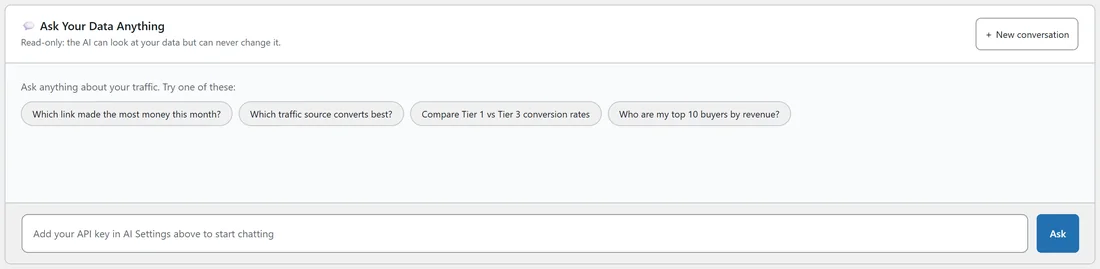
💬 Ask Your Data Anything is a chat. Type a question and click Ask, or start from a suggestion such as Which link made the most money this month?, Which traffic source converts best? or Compare Tier 1 vs Tier 3 conversion rates. The Analyst works out each answer by running read only queries on your tracking tables, so every figure comes from your live data. Conversations are saved, + New conversation starts a fresh one, and earlier ones can be reopened or deleted.
With The Audience Vault:
When the Audience Vault add-on is installed, its visitor tables join the data the Analyst can read, so it can answer questions about people too, such as Who are my top 10 buyers by revenue?
What Is Kept Safe:
Every query the Analyst writes is checked before it runs. It must be a single read only query on the tracker's own tables, and the number of rows returned is limited. Your WordPress users and settings are not available to it. Your question, the summary and the query results are sent to the AI provider you chose, so pick a provider you are happy to share your traffic numbers with.
Watching The Cost:

📊 AI usage lists every AI call the tab has made: Total Jobs, Last 30 Days, Spend (30D) and Errors (30D), then the ten most recent calls with type, status, model, cost, duration and time. Costs are estimates from published prices. Your provider's own dashboard is the real bill.
A Real Example:
The owner of yoursite.com pastes a Gemini key, saves, and runs an analysis on Last 30 days. They then ask Which traffic source converts best? in the chat, and the Analyst answers from the Sub-ID and UTM data on the site, with the numbers it used.
Good Questions To Ask:
- Which link had the best EPC last month, and which Sub-ID drove it?
- Which countries convert below Tier 1 on the course link?
- How many sales arrived with no tracked click this month?
- Which links have clicks but no conversions in the last 30 days?
- With the Audience Vault: who bought more than once?
Tips:
- Set a cost per click on paid links first, so the verdicts include profit and loss. See Cost Per Click And Profit Tracking With Pro Tools.
- Ask follow up questions in the same conversation to go deeper on one link.