Two things quietly spoil tracking data: your own testing and low quality traffic. Both are handled from Settings, along with tools for keeping your database tidy.
Where To Find It:
Click ⚙️ Settings, then ⚙️ Settings in the menu, and scroll to the 🛡️ IP Blocking, 🪲 Debug Tools and ⚠️ Danger Zone cards near the bottom.
Blocking Your Own IP:

Click 🛡️ Block My Own IP in the 🛡️ IP Blocking card. The address you are browsing from is added to the blocked list, so your own visits stop being counted. Do this on day one, before you start clicking your own links to test them.
Blocking Any Other IP:
With the Pro Tools add-on, 🛡️ IP Activity Log lists every visit with a Block button on each row, so you can exclude an address the moment you spot it. See IP Activity Log With Pro Tools.
The Blocked List:
The 🛡️ IP Blocking card lists every Blocked IP with an Unblock action beside it. Unblocking takes effect at once.
What Blocking Does:
Blocked visitors are still sent to the destination exactly as normal. Their clicks are simply not recorded. Nobody hits a wall or knows they were left out, and your reports stay clean. Known bots and search engine crawlers are skipped the same way automatically.
If Your IP Changes:
Many home connections change address from time to time. If your own clicks start showing again, click 🛡️ Block My Own IP again to add the new address.
The IPN Debug Log:

🪲 Debug Tools has 🟢 Enable IPN Debug Log. It writes every incoming WarriorPlus and JVZoo notification to a log file in the plugin folder, and adds a View IPN Debug Log viewer and a Clear Log button. Switch it on while you check a particular setup and switch it off again afterwards, because the log grows quickly with live traffic.
Clearing Old Click Data:
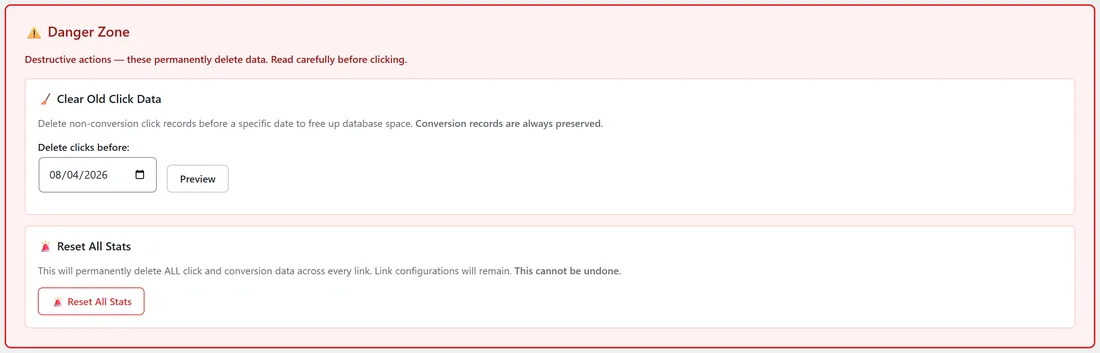
🧹 Clear Old Click Data frees database space on busy sites.
- Pick a date in Delete clicks before.
- Click Preview to see how many rows would be removed.
- Confirm to delete non converting clicks before that date.
Conversion records are always kept, so your revenue history stays complete.
Resetting All Stats:
🚨 Reset All Stats deletes every click and conversion across every link, while keeping the links themselves. Export your links and clicks first if there is any chance you will want the history. See Exporting Your Data.
A Real Example:
The owner of yoursite.com clicks 🛡️ Block My Own IP before testing the new Black Friday link, and their office address 203.0.113.24 appears in the blocked list. A year later the database holds a lot of old clicks, so they export all clicks, preview a clear up to the start of last year, and confirm. Every sale and lead from that period stays on the reports.
Tips:
- Your own test clicks on a single link can be cleared with Reset Stats for This Link on that link's Stats page.
- Blocked addresses apply to every link at once.