Share Live Stats is part of the Pro Tools add-on. It creates a public page with the clean, live traffic figures for one link, so you can send a solo ad buyer or a client proof instead of a screenshot. The page reads your real numbers each time it loads, so they can refresh it and watch their clicks arrive.
Where To Find It:
Open a link's 📊 Stats page and click 📡 Share Live Stats in the heading.
Creating A Share Link Step By Step:
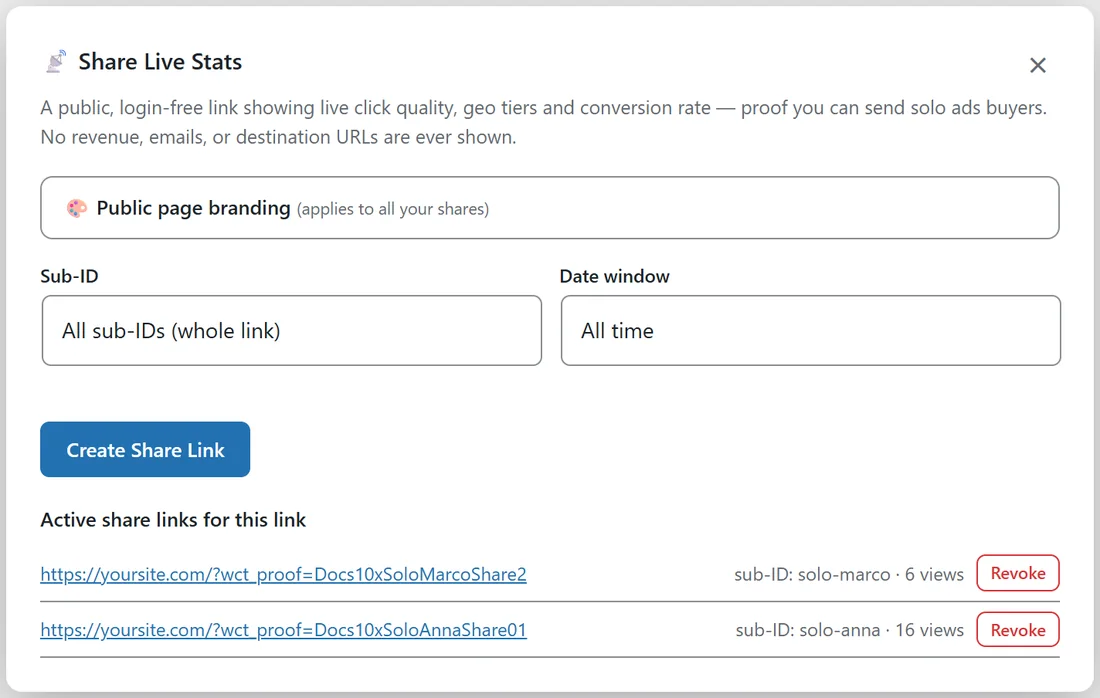
- Click 📡 Share Live Stats. The window opens.
- Open 🎨 Public page branding (applies to all your shares) and enter Your name / business and an optional Logo URL. Branding applies to all of your share links.
- Choose a Sub-ID, or All sub-IDs (whole link). A share for one buyer's Sub-ID shows only their traffic.
- Choose a Date window: All time or Custom range.
- Click Create Share Link and copy the link.
Active share links for this link lists every share with its Sub-ID and number of views.
What The Buyer Sees:
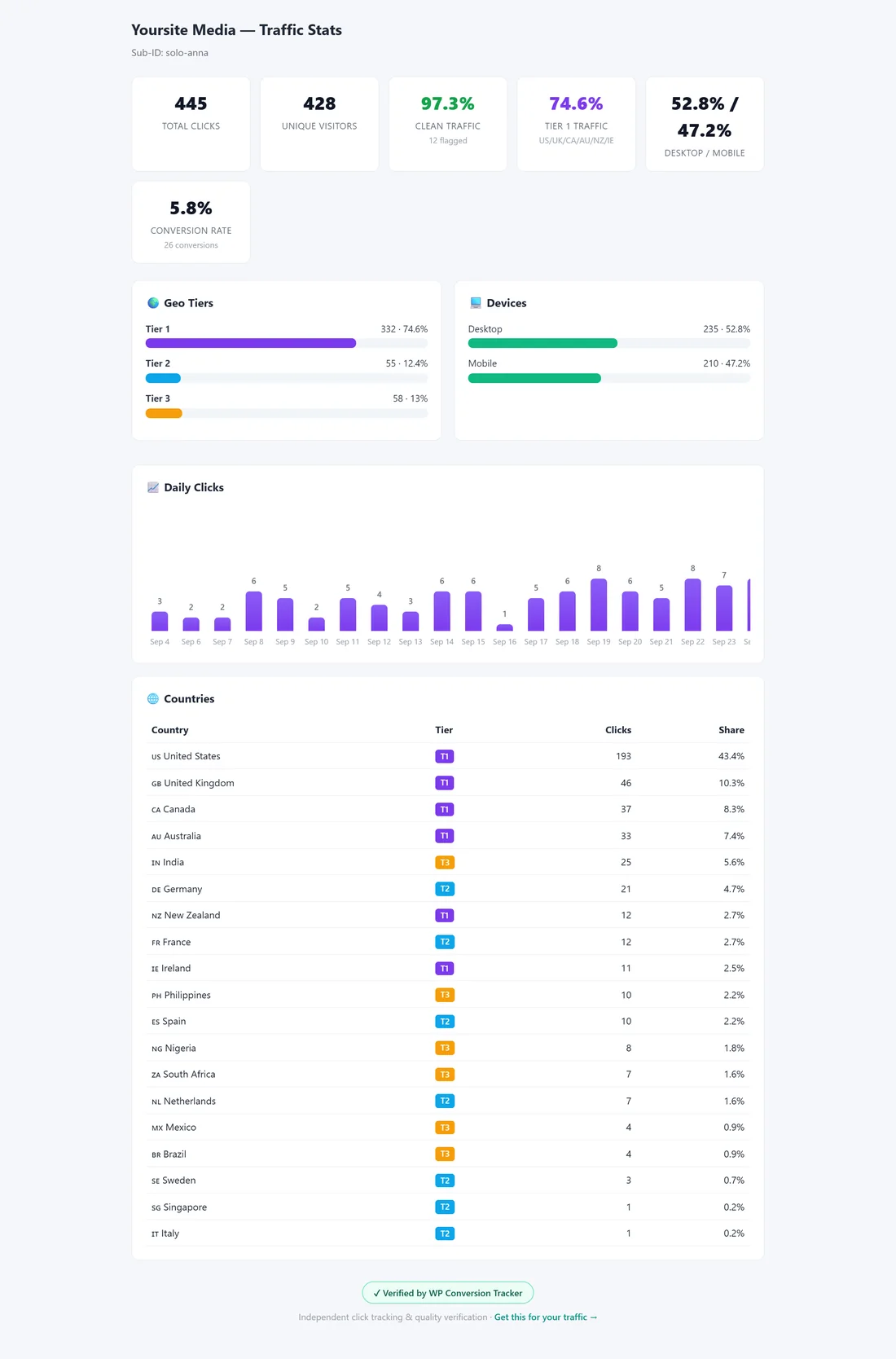
- Total Clicks and Unique Visitors.
- Clean Traffic: the share of clicks from real browsers, with the number flagged.
- Tier 1 Traffic: the share from the US, UK, CA, AU, NZ and IE.
- Desktop / Mobile and the Conversion Rate.
- Geo Tiers, Devices, a Daily Clicks chart and a Countries table.
A small ✓ Verified by WP Conversion Tracker badge sits at the bottom.
What Stays Private:
The page never shows your revenue, buyer emails or other personal details, your destination URLs, your link names or any of your other links. Search engines are asked not to index it.
Revoking A Share:
Click Revoke next to a share in the window. The page stops working at once and shows a message that the stats link is no longer available. Each page's figures refresh at most once a minute, so a widely shared link cannot slow your site down.
A Real Example:
yoursite.com buys solo ads from two vendors and shares one link per vendor Sub-ID. The owner creates a share for solo-anna with the branding Yoursite Media and sends it to the vendor, who sees 445 clicks, 97.3% clean traffic and 74.6% Tier 1 for their own Sub-ID, with no revenue or emails shown. A second share covers solo-marco. When the campaign ends, both are revoked.
What To Send With The Link:
- One line saying which Sub-ID and dates the page covers.
- A note that the numbers update live, about once a minute.
- When you plan to revoke the link, for example a week after delivery ends.
Tips:
- Create one share per buyer Sub-ID so each buyer sees only their own traffic.
- The share's Clean and Tier 1 numbers come from the same rules as the Traffic Quality report. See Traffic Quality Report With Pro Tools.