Every part of a tracking link can be changed after it goes live. Most changes are completely safe and keep all of the link's history. One change, the slug, needs a little care once the link is out in the world.
Where To Find It:
- Click 🔗 Links, then 🔗 All Links.
- Find the link, using Search links... if the list is long.
- Click ✏️ Edit on its row. The ✏️ Edit Link form opens at the top of the page, filled in with the link's current settings.
Editing Step By Step:
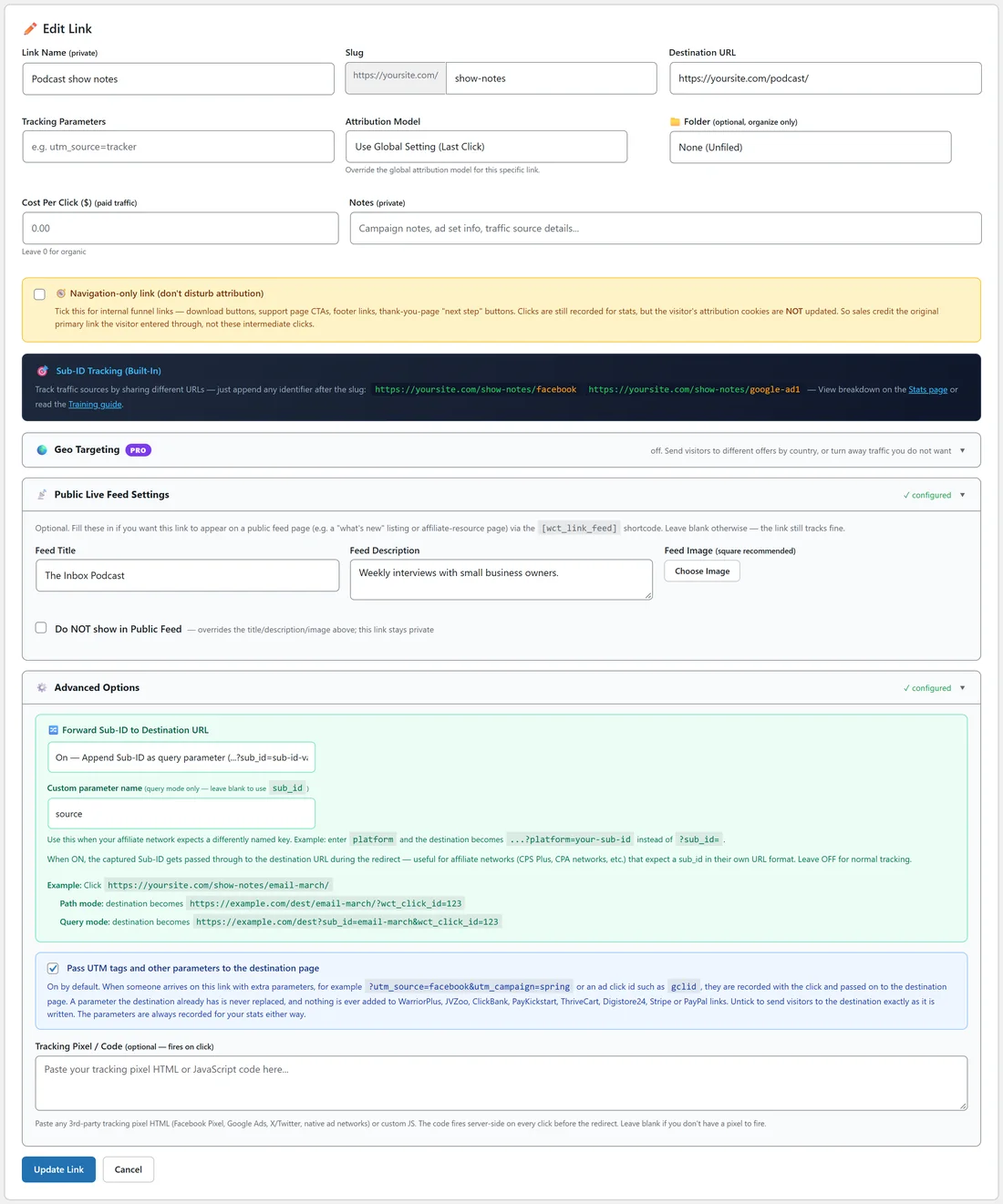
- Change any field you need.
- Open a fold-out panel, such as ⚙️ Advanced Options, if the setting you want lives there. A panel that already has settings shows ✓ configured on its title bar.
- Click Update Link to save, or Cancel to leave without changing anything.
What You Can Change:
- Link Name, Slug, Destination URL and Tracking Parameters.
- Attribution Model for this link.
- 📁 Folder.
- Cost Per Click ($) and Notes, with Pro Tools.
- The 🧭 Navigation-only link box.
- 🌍 Geo Targeting rules, with Pro Tools.
- Feed Title, Feed Description, Feed Image and Do NOT show in Public Feed.
- 🔀 Forward Sub-ID to Destination URL, the Pass UTM tags and other parameters box, and Tracking Pixel / Code.
Changes That Are Always Safe:
- Destination URL. This is one of the best things about running your own tracker. The address you shared never changes, so you can point an old promotion at a new offer and every past click stays on the same link.
- Tracking Parameters, the feed fields, the pixel, the folder and the name.
- Attribution, forwarding and geo settings. They apply to clicks and sales from the moment you save.
Keep The Slug Once A Link Is Shared:
The slug is the part of the address people already have in emails, ads, videos and partner pages. If you change it, those old addresses no longer match this link. Once a link has been shared, leave its slug as it is. If you want a new address, create a new link instead and leave the old one running.
When A Slug Is Already Taken:

The plugin never saves two links with the same slug, so an existing link can never be overwritten by accident. If you type a slug that is in use, the form comes back with a short message naming the slug and offering a free one, such as webinar-2. Click the suggested slug to drop it into the Slug box, or type a different one.
Deleting Versus Editing:
🗑️ Delete removes the link together with every click and conversion recorded on it, after you confirm. If you simply want to stop using a link, change its destination or tick Do NOT show in Public Feed instead. The history stays and old visitors still land somewhere useful.
A Real Example:
yoursite.com ran Podcast show notes, slug show-notes, pointing at the podcast page. The podcast now sends people to a new episode archive. The owner clicks ✏️ Edit, changes the Destination URL to the archive, sets 🔀 Forward Sub-ID to Destination URL to the query parameter option with the name source, and clicks Update Link. Old show notes still work, and the archive page receives ?source=ep12 so it knows which episode sent each listener.
Moving A Link To A New Offer Step By Step:
- Click ✏️ Edit on the link.
- Replace the Destination URL with the new page.
- Update the Feed Title and Feed Description if the link is in your public feed.
- Update Cost Per Click if the traffic now costs something different.
- Click Update Link.
- Open the tracking link in a private window to check where it lands.
Clicks and sales from before the change stay on the link, so its Stats page now shows both offers over time. Use a Custom range on the Stats page to compare the weeks before and after.
Retiring A Link:
When a promotion ends, point the link at your current best offer or your free resources page, and tick Do NOT show in Public Feed. People who find the old address in an email still land somewhere useful, and the history stays for your reports.
Tips:
- To file many links into folders, edit each one and pick the folder, or use + Create new folder... right in the form.
- Clicks you made yourself while testing can be cleared per link with Reset Stats for This Link at the bottom of the link's Stats page. See Per-Link Stats And Printable Reports.
- See Creating And Managing Tracking Links for what every field does.