Geo Targeting is part of the Pro Tools add-on. It lets one tracking link treat visitors differently by country: send UK visitors to a UK offer, turn away countries you cannot sell to, or let only your best markets through. Links without a rule behave exactly as before.
Where To Find It:
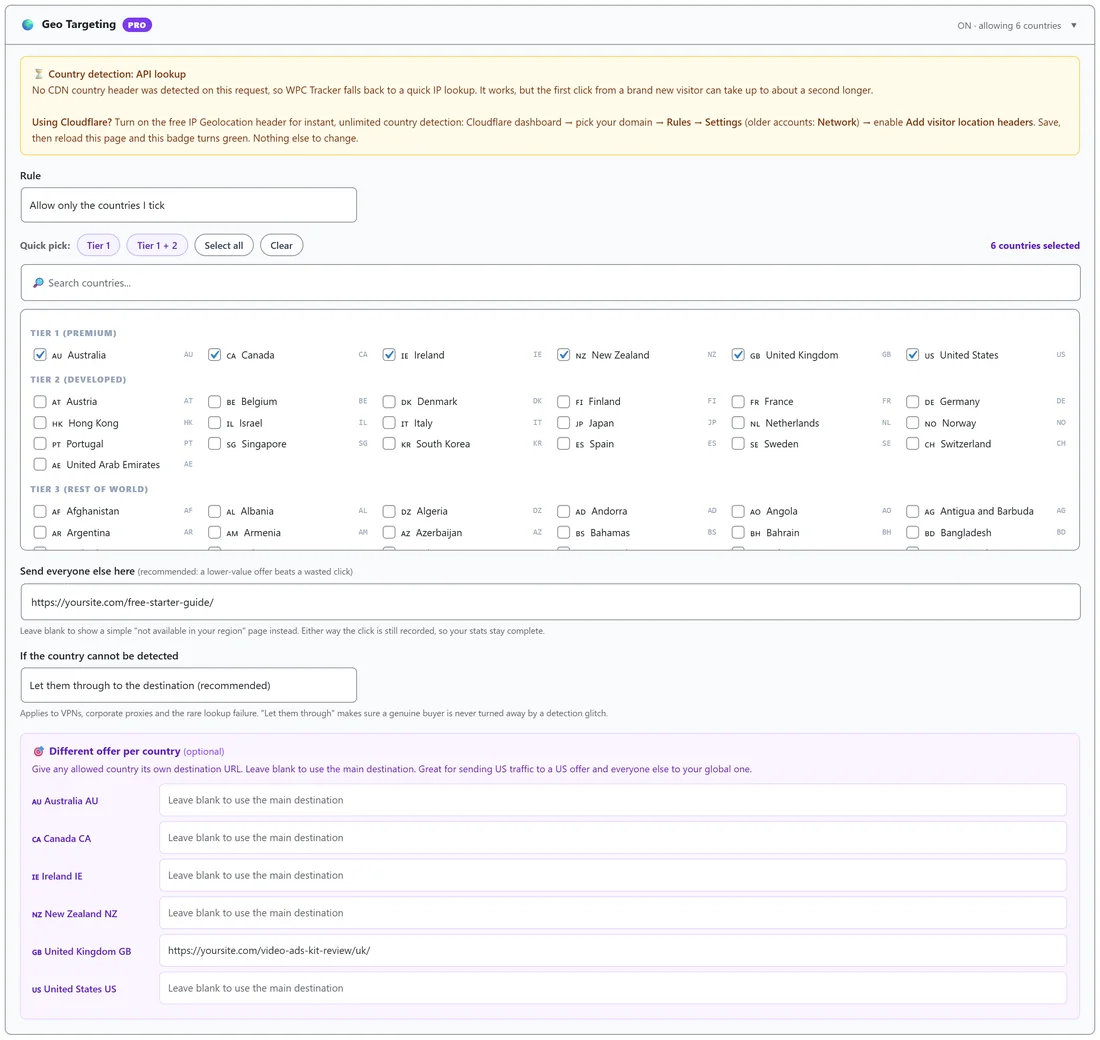
Open ➕ Create Link, or click ✏️ Edit on a link, and open the 🌍 Geo Targeting PRO panel, the first fold-out panel on the form. When a rule is active, its title bar reads ON with the count, for example ON · allowing 6 countries.
Choosing A Rule:
- Off. Send everyone to the destination (default).
- Allow only the countries I tick: visitors from other countries are turned away.
- Block the countries I tick (everyone else passes): visitors from those countries are turned away.
Ticking Countries:
The list is grouped into Tier 1 (premium), Tier 2 (developed) and Tier 3 (rest of world). Use the search box to find a country, or the Quick pick buttons: Tier 1, Tier 1 + 2, Select all and Clear. Tier 1 is the US, UK, Canada, Australia, New Zealand and Ireland, the same tiers the Traffic Quality report and the AI Analyst use.
Where Turned Away Visitors Go:
Type a URL in Send everyone else here. A lower value offer beats a wasted click. Leave it blank and turned away visitors see a simple page saying the offer is not available in their region. Either way the click is still recorded, so your stats stay complete.
A Different Offer Per Country:
Once you have ticked countries, 🎯 Different offer per country (optional) lists them. Give any allowed country its own destination URL, and leave a row blank to use the main destination.
When The Country Cannot Be Detected:
VPNs, company networks and the odd failed lookup can hide a visitor's country. If the country cannot be detected offers Let them through to the destination (recommended), the default, or Treat them as non-matching. Letting them through means a real buyer is never turned away by a detection glitch.
How The Country Is Found:
The tracker tries the fastest source first. If your CDN sends the visitor's country with each request, it is used instantly. Otherwise it uses a cache of recent lookups, and only then a quick IP lookup. A badge at the top of the panel shows which one your site is using. If the lookup service is unavailable for a moment, lookups pause for five minutes and those visitors count as unknown, so redirects are never held up.
Turning On Cloudflare's Country Header:
On Cloudflare, switch on the visitor location headers: in the Cloudflare dashboard, pick your domain, open Rules, then Settings, or Network on older accounts, and enable Add visitor location headers. Save, reload the panel, and the badge turns green.
Setting It Up Step By Step:
- Open the link's 🌍 Geo Targeting PRO panel.
- Choose Allow only the countries I tick.
- Click Tier 1 under Quick pick.
- Type a fallback offer in Send everyone else here.
- Add any per country destinations.
- Click Update Link.
Order Of Rules:
Geo Targeting runs first. It decides whether the visitor gets through and which destination applies, and then any split test on the link picks the variant.
Seeing What Your Rules Did:
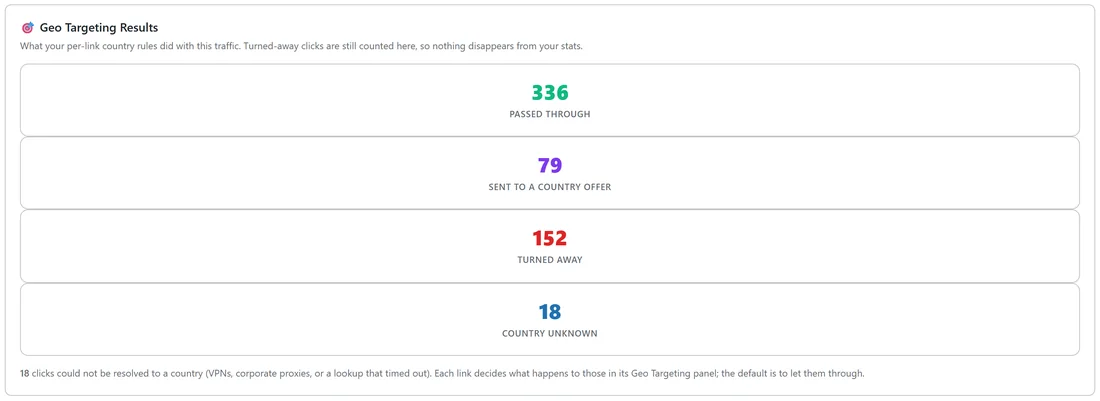
The 📊 Traffic Quality report shows a 🎯 Geo Targeting Results section with Passed Through, Sent To A Country Offer, Turned Away and Country Unknown counts. See Traffic Quality Report With Pro Tools.
A Real Example:
yoursite.com promotes the Video Ads Kit, which only ships to Tier 1 countries. The link allows Tier 1 only, sends UK visitors to a UK review page, and sends everyone else to the free starter guide. Over the last 30 days Traffic Quality shows 336 passed through, 79 sent to the UK offer, 152 turned away to the guide and 18 of unknown country, all still counted in the link's stats.
Rules For Common Situations:
- An offer that only sells in a few countries: Allow, tick those countries, and set a fallback offer.
- Traffic you cannot sell to at all: Block, tick those countries, and leave the rest open.
- One country with its own version of an offer: Allow or Block as needed, then set that country's destination under Different offer per country.
- Paid traffic with a country mix you are not sure about: leave Geo Targeting off for a week and read the Traffic Quality country table first.
Tips:
- Start with Allow and Tier 1 for offers that only sell in a few countries.
- Check Traffic Quality's country table first to see where a link's clicks really come from.