The 📱 QR Codes add-on turns any tracking link into a QR code. The code points at your tracking link rather than the destination, so every scan is recorded as a click and appears in the same reports as the rest of your traffic.
Where To Find It:
Click 🔗 Links, then 📱 QR Codes.
Making A Code Step By Step:
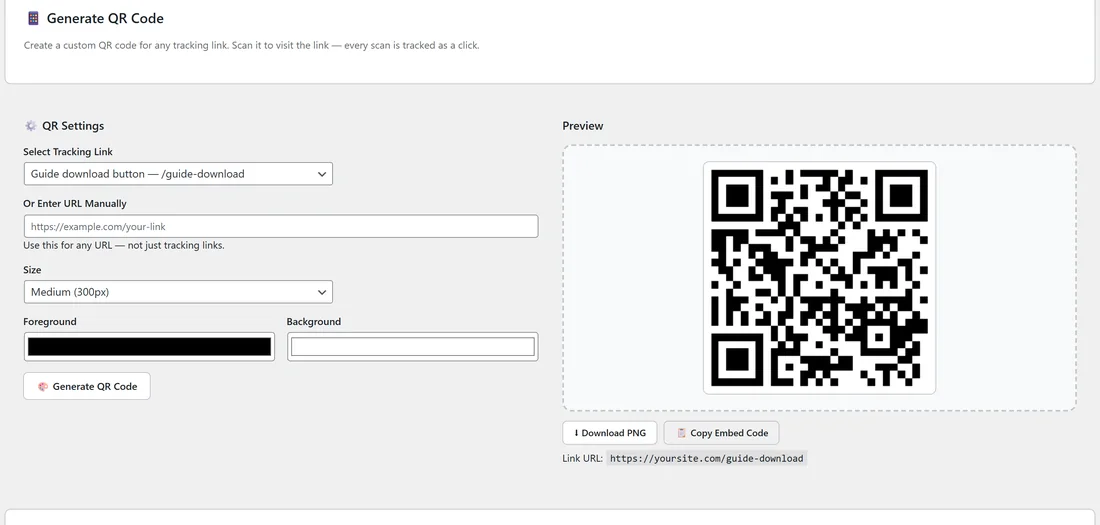
- In ⚙️ QR Settings, choose a link under Select Tracking Link. The list shows each link's name and slug. To make a code for any other address, use Or Enter URL Manually instead.
- Choose a Size: Small (200px), Medium (300px), Large (500px) or Print (1000px).
- Set the Foreground and Background colours.
- Click 🎨 Generate QR Code. The code appears in the Preview with its Link URL underneath.
- Click ⬇ Download PNG to save the image, or 📋 Copy Embed Code to paste it into a page.
Quick QR For Every Link:
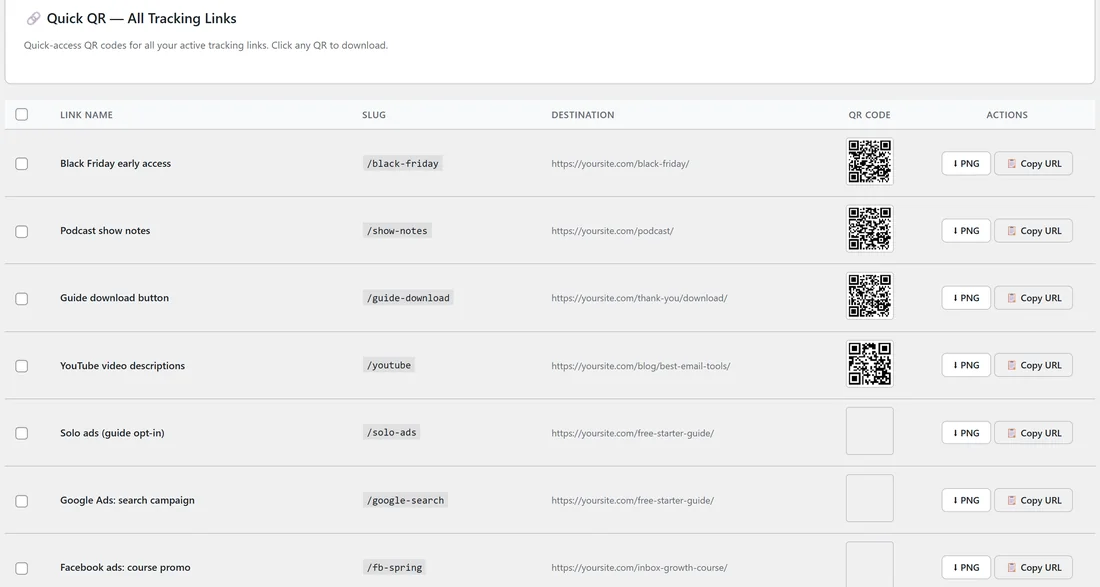
🔗 Quick QR, All Tracking Links lists all of your links with their slug, destination and code. Each row has ⬇ PNG and 📋 Copy URL. Tick several rows and click ⬇ Download Selected as PNGs to get a batch of codes at once.
The Shortcode:
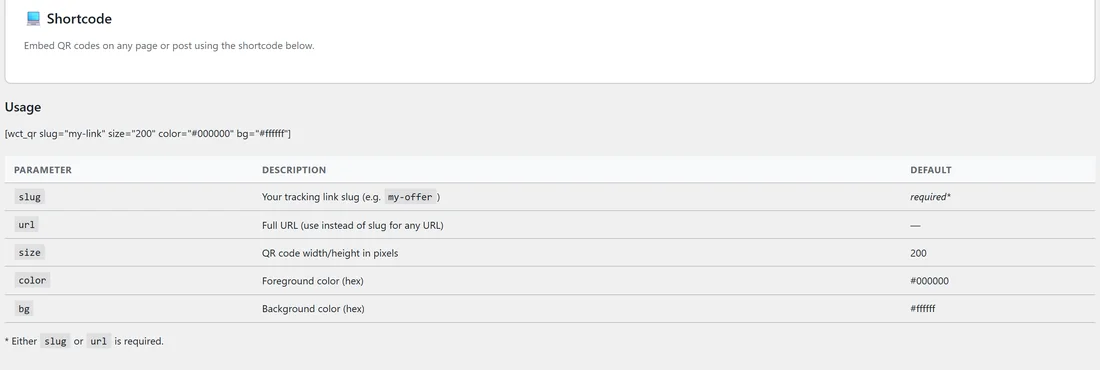
Show a QR code on any page or post with [wct_qr]. The 💻 Shortcode card lists the parameters:
- slug: your tracking link's slug, for example starter-guide. Either slug or url is needed.
- url: a full address, used instead of slug for any other link.
- size: width and height in pixels. Defaults to 200.
- color: the foreground colour as a hex value. Defaults to #000000.
- bg: the background colour as a hex value. Defaults to #ffffff.
Example: [wct_qr slug="starter-guide" size="200" color="#000000" bg="#ffffff"]
How The Tracking Works:
- Someone scans the code with a phone camera.
- The phone opens your tracking link.
- The scan is recorded as a click, with the phone's device and country, and the visitor is sent to the destination.
Using Sub-IDs With QR Codes:
A QR code simply holds an address, so it can hold a Sub-ID too. Choose Or Enter URL Manually and enter yoursite.com/starter-guide/flyer-nov for a flyer and yoursite.com/starter-guide/booth-a for an event stand. The link's Sub ID Breakdown then shows which piece of print or which place produced the scans. The 💡 How QR Tracking Works card shows the same tip.
A Real Example:
yoursite.com prints a postcard for a local business event. The owner makes a Print (1000px) code for yoursite.com/starter-guide/expo-card and puts it on the back of the card. After the event, the starter guide's Stats page shows how many people scanned the card, how many opted in, and that almost all of them were on mobile.
Getting Good Results:
- Use Print (1000px) for anything going to a printer, so the code stays sharp.
- Keep strong contrast between foreground and background. Dark on light scans most reliably.
- Test the printed code with more than one phone before a large print run.
Ideas For Offline Placements:
- Flyers and postcards, one Sub-ID per print run.
- Event stands and slides, one Sub-ID per event.
- Product packaging and inserts, linking to a bonus or review page.
- Business cards, linking to your free resources feed.
Tips:
- QR scans count as normal clicks, so Geo Targeting, split tests and Share Live Stats all work on them.
- See Sub-ID Tracking For Traffic Sources for naming ideas.