WP Conversion Tracker AI runs on a licence key. Until a key is active on a site, the WPC Tracker menu shows only the activation screen, and other admin pages show a short notice with an Activate now link. Once the key is active, every screen and every add-on you have installed opens up.
Activating On A New Site:
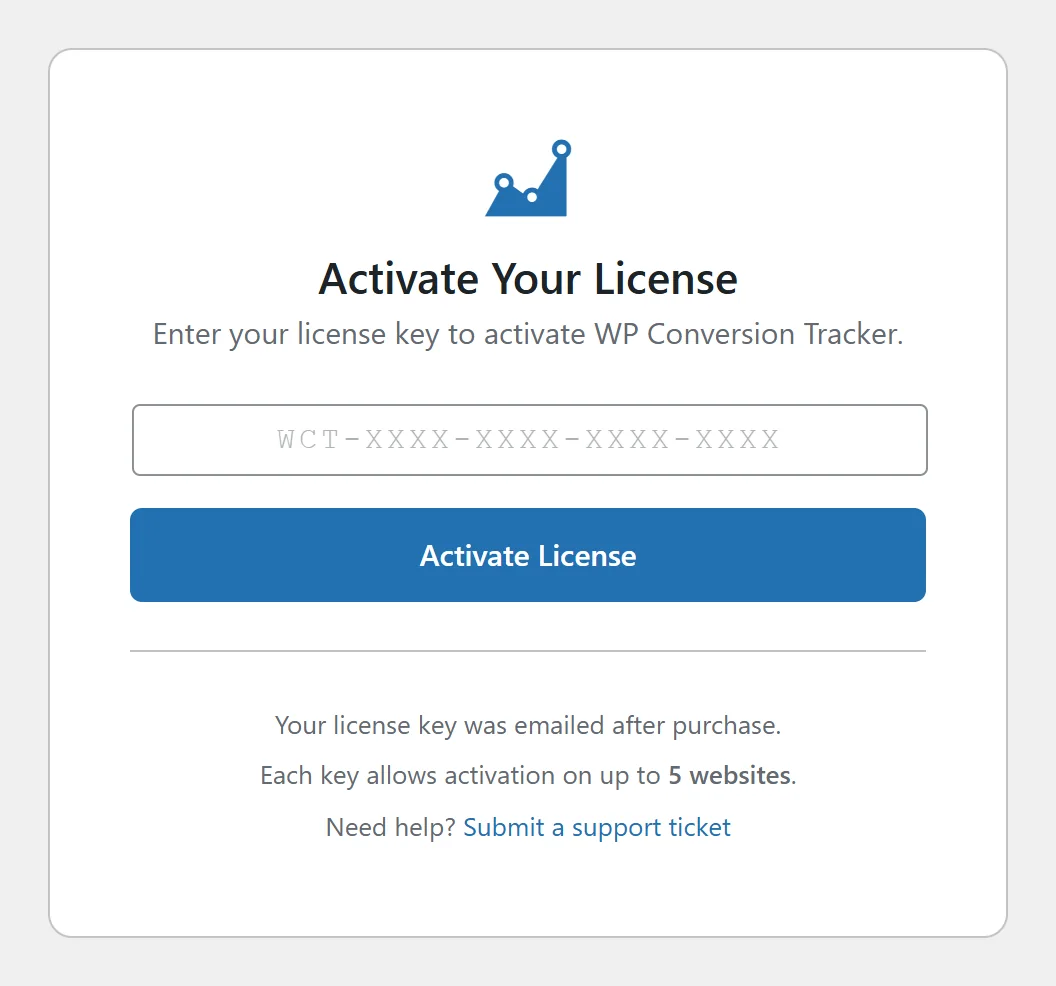
- Install and activate the plugin from the WordPress Plugins screen.
- Click WPC Tracker in the WordPress menu. The Activate Your License card opens.
- Paste your licence key into the box. Keys look like WCT-XXXX-XXXX-XXXX-XXXX and are in the email you received with your purchase.
- Click Activate License. The plugin checks the key with the licence server and registers this site against it.
- The full menu appears, and on a first install the Setup Wizard opens. See Setup Wizard Walkthrough.
Under the button, the card reminds you that the key was emailed after purchase and links to Submit a support ticket if you need a hand.
Where To See Your Licence:
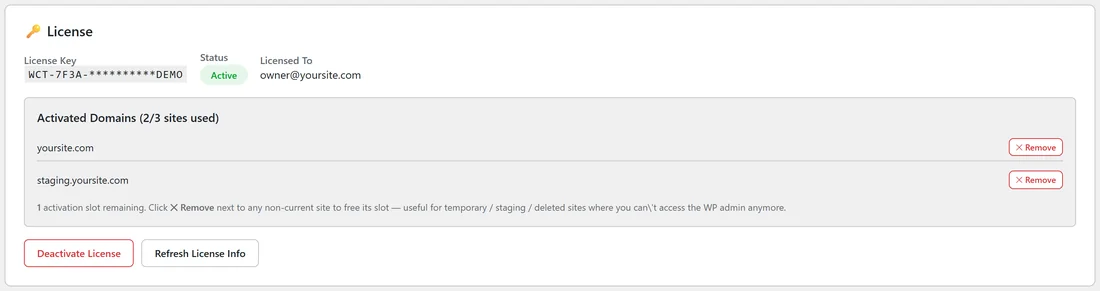
Click ⚙️ Settings, then ⚙️ Settings in the menu. The 🔑 License card near the top shows:
- License Key: your key, with the middle hidden, for example WCT-7F3A-**********DEMO.
- Status: Active when the key is working on this site.
- Licensed To: the email address the licence belongs to.
- Activated Domains: every site using the key, with a count such as 2/3 sites used and a line saying how many activation slots are still free.
Freeing Up A Site Slot:
You can move your key to a new site at any time.
- On the site you no longer need, open ⚙️ Settings and click Deactivate License. Its slot is released straight away.
- If that site is gone, or you can no longer log in to it, open Settings on any other site that uses the key. Click ✕ Remove next to the old domain in the Activated Domains list and confirm.
- Activate the key on the new site as usual.
Removing works well for staging copies, test sites and sites that have been taken down.
Refreshing The Licence Details:
If the Activated Domains list looks out of date, for example after you removed a site from another dashboard, click Refresh License Info. The card reloads the details from the licence server.
A Real Example:
yoursite.com has a three site key. It is active on yoursite.com and on staging.yoursite.com, so the card reads 2/3 sites used and 1 activation slot remaining. When the staging copy is retired, the owner clicks ✕ Remove next to staging.yoursite.com on the live site, and the slot is free for a new client site.
If Activation Does Not Go Through:
- Check that the whole key was pasted, with no space at the start or end.
- Your site needs to be able to make outbound HTTPS requests to reach the licence server. If your host limits this, ask them to allow it.
- If every slot is in use, free one as described above, then try again.
Moving A Site To A New Domain:
- On the old site, click Deactivate License in the 🔑 License card, if the old site is still running.
- Move the site to its new domain.
- Open WPC Tracker on the new domain and paste your key into Activate Your License.
- Check the Activated Domains list. The new domain is listed, and the old one is gone or can be removed with ✕ Remove.
Your links, clicks and conversions move with the site's database, so nothing needs to be set up again.
Staging And Test Copies:
A staging copy uses a site slot while its licence is active. When you finish testing, remove it with ✕ Remove from the live site, so the slot is free for the next project.
Tips:
- Add-ons use your WP Conversion Tracker licence, so there is no separate key to enter for them.
- The [wct_link_feed] shortcode keeps showing your public link feed even if the licence server cannot be reached for a moment, so visitors never see raw shortcode text. See Public Link Feed And Shortcode.
- To check for a new version straight away, use 🔄 Check For Updates Now in the Plugin Updates card on the same screen. See Auto-Updater And Update Notices.