When a link does not redirect or a list looks empty, the 🩺 Diagnostics screen is the place to start. It runs real checks on your live site, and each card is marked green when all is well, with clear next steps when something needs attention.
Where To Find It:
Click ⚙️ Settings, then 🩺 Diagnostics.
Database Tables:
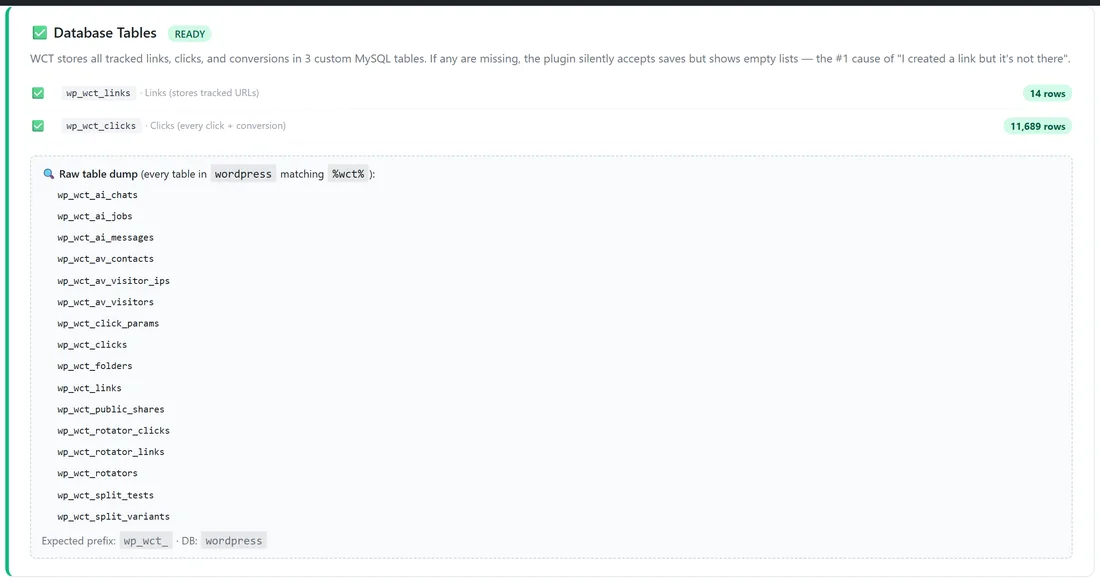
The first card confirms that the plugin's tables exist and shows how many rows each holds, for example wp_wct_links with 14 rows and wp_wct_clicks with thousands. The header reads READY when all is well. A 🔍 Raw table dump lists every table on your site whose name contains wct, including the ones add-ons create. If a table is ever missing, the card offers 🔧 Force Re-install Tables Now, which rebuilds them in place and reports the result. Deactivating and reactivating the plugin on the Plugins screen does the same job.
Plugin Compatibility:

This card scans for link and redirect plugins that can answer your tracking addresses before the tracker does: PrettyLinks, PrettyLinks Pro, ThirstyAffiliates, YOURLS Link Creator, Link Whisper, Redirection and Simple 301 Redirects. When one is active, the card explains the clash and lets you set a Slug Prefix right there. When there are none it reads NO CONFLICTS. See Slug Prefix To Avoid Link Plugin Conflicts.
URL Resolution Test:
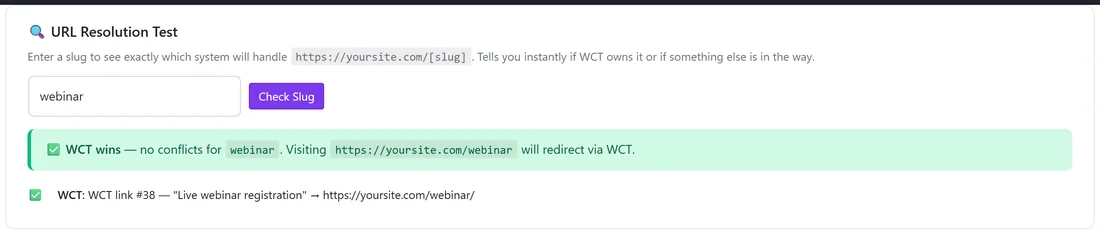
- Type a slug into the 🔍 URL Resolution Test box, for example webinar.
- Click Check Slug.
- Read the result. WCT wins means the tracker handles that address, and the card names the link and where it redirects. If nothing claims the slug, or something else does, the card says so.
It is the quickest way to see why one particular address behaves the way it does.
Cloudflare Diagnostic:

This card detects whether your site sits behind Cloudflare. When it does not, it says Cloudflare not detected and nothing more is needed. When it does, it shows what it found and walks you through two rules, each with a 📋 Copy button for the expression:
- Rule 1, a WAF Skip rule. In Cloudflare go to Security, then WAF, then Custom rules, paste the expression, set the action to Skip, tick every skip these checks box and place the rule at position 1.
- Rule 2, a cache bypass rule. In Cloudflare go to Caching, then Cache Rules, paste the expression and set the action to Bypass cache, so a webhook never gets a cached reply.
- To check, open Cloudflare, then Security, then Events, trigger a test sale, and confirm the request shows Action: skip.
These rules keep WarriorPlus, JVZoo and Stripe notifications, Audience Vault visitor pings and plugin update downloads flowing smoothly.
Environment:
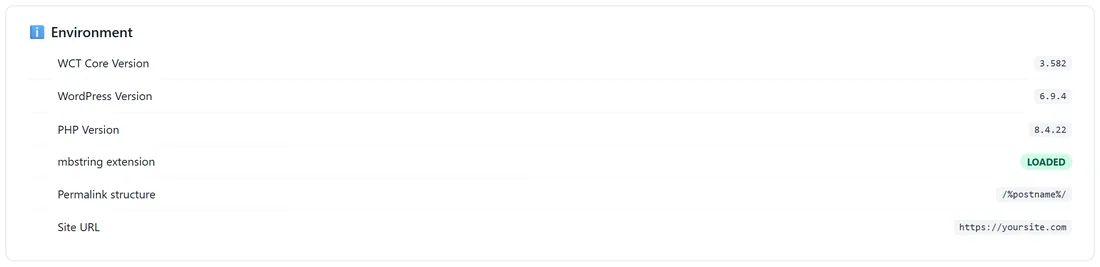
ℹ️ Environment lists your WCT Core Version, WordPress Version, PHP Version, whether the mbstring extension is LOADED, your Permalink structure and your Site URL. Tracking links need pretty permalinks. If links ever show a not found page, go to WordPress Settings, then Permalinks, and click Save Changes to refresh WordPress's address rules. The Plain permalink setting does not work with tracking links.
A Real Example:
After moving yoursite.com to a new host, the owner opens 🩺 Diagnostics. Database Tables reads READY with all rows in place, Plugin Compatibility shows NO CONFLICTS, and the URL Resolution Test for webinar confirms the tracker handles it and redirects to yoursite.com/webinar/. The Environment card shows /%postname%/ permalinks, so everything is ready for the next newsletter.
A Five Minute Health Check:
- Database Tables reads READY.
- Plugin Compatibility reads NO CONFLICTS, or a Slug Prefix is set.
- The URL Resolution Test for your most important slug names your link.
- The Cloudflare card shows either not detected or your two rules in place.
- The Environment card shows pretty permalinks.
Tips:
- Run Diagnostics after a move, a new caching plugin or a new security service.
- If you add Cloudflare later, come back here for the two rules.
- See FAQ And Troubleshooting for calm, step by step answers to the most common questions.