All of your tracking data belongs to you and can be taken out at any time. There are three places to export, each for a different job.
Whole Site Exports:

- Click ⚙️ Settings, then ⚙️ Settings in the menu, and scroll to 📥 Export Data.
- Click 📊 Export All Links for every link with its stats: clicks, unique clicks, leads, sales and revenue.
- Click 🖱️ Export All Clicks for every single click with its IP address, country, referring page, browser, conversion status and time.
Both download CSV files that open in Excel, Google Sheets, Numbers or any spreadsheet app.
Filtered Conversion Exports:

💰 Conversions has its own 📊 Export CSV and 📄 Export PDF buttons above the list. Both use the filters you have set on screen. If you filtered to Sales Only on one link for last month, that is exactly what you get.
- The CSV includes every column and the raw details of each conversion, with no row limit.
- The PDF opens a printable report in a new tab. Use your browser's print window and choose Save as PDF.
Per Link Reports:
Each link's 📊 Stats page has 📄 Save as PDF, a printable report for that one link over the range you have chosen. It is the one to send a client or a partner, because it covers a single link without showing the rest of your account. See Per-Link Stats And Printable Reports.
Masking Buyer Emails:
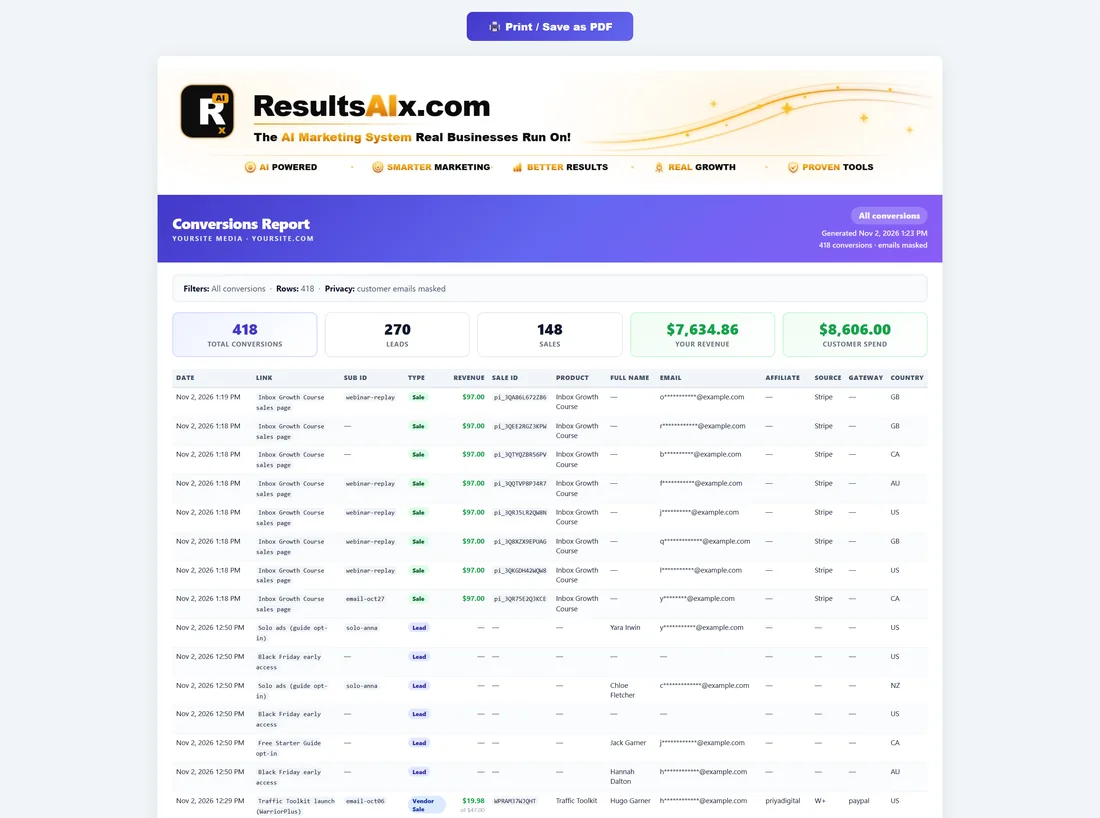
Beside the Conversions export buttons, tick Mask emails before exporting. Buyer emails are then shortened, for example j*****@example.com, in both the CSV and the PDF. Use it whenever you share a report with someone who does not need buyer contact details. The per link PDF report always shows buyer emails partly masked.
Sub-IDs In Your Exports:
Sub-IDs are included in the exports, which is what makes spreadsheet analysis worthwhile. If you join several values with underscores on paid traffic, such as keyword_adgroup_device, split the Sub-ID column on the underscore and you can sort by each part. See Dynamic Sub-IDs For Paid Ad Platforms.
A Real Example:
At the end of the month, the owner of yoursite.com filters 💰 Conversions to Sales Only and Last 30 Days, ticks Mask emails, and clicks 📄 Export PDF to send their accountant a clean sales report. Then they untick Mask emails and click 📊 Export CSV for their own records.
Before Clearing Old Data:
⚠️ Danger Zone in Settings can delete old non converting clicks to save database space. Run 🖱️ Export All Clicks first if you might want that raw history later. See IP Blocking And Data Cleanup.
Working With A CSV Step By Step:
- Open the downloaded file in your spreadsheet app.
- Freeze the top row so the column names stay in view.
- Sort or filter by the Sub-ID, link or date columns.
- For combined Sub-IDs, use your spreadsheet's split text to columns tool with the underscore as the separator.
- Build a pivot table by link or source to total clicks, leads and revenue.
Tips:
- Exports are created on the spot, so they always reflect the latest data.
- The read only API lets another site you own look up a customer without exporting anything. See API Keys For Other Sites.