Once you run more than a handful of links, the All Links list gets long. The 📁 Folders screen lets you group links by campaign, product or client and see how each group performs, all without changing a single link.
What Folders Are For:
Folders are for organising only. Putting a link in a folder changes nothing about where it sends people, what it records or how it gets credit for sales. It only changes how links are grouped in your admin.
Where To Find It:
Click 🔗 Links, then 📁 Folders.
Creating A Folder:
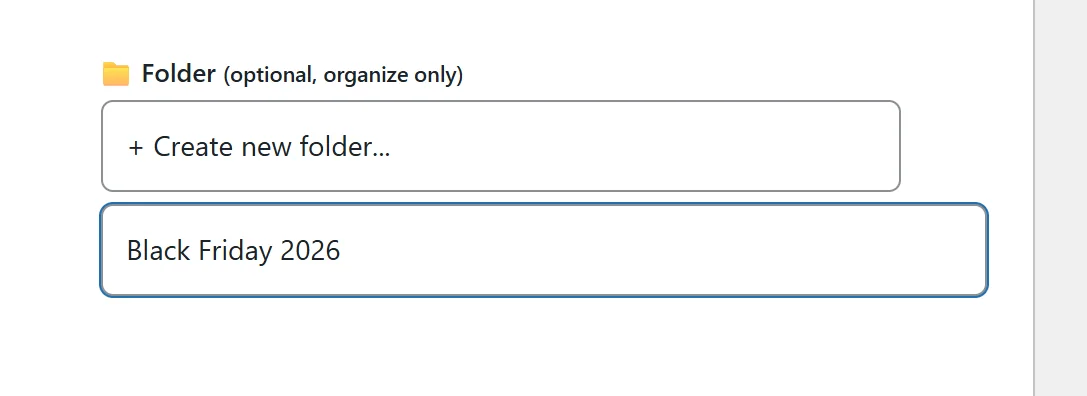
There are two ways to make one.
- On the 📁 Folders screen, type a name into the box at the top and click ➕ Create Folder. Folder names must be different from each other, so reusing a name you already have shows a message instead of making a second folder.
- On the Create Link or Edit Link form, open 📁 Folder (optional, organize only), choose + Create new folder..., and type the name in the box that appears. The folder is made and the link goes into it when you save.
What The Folders Screen Shows:
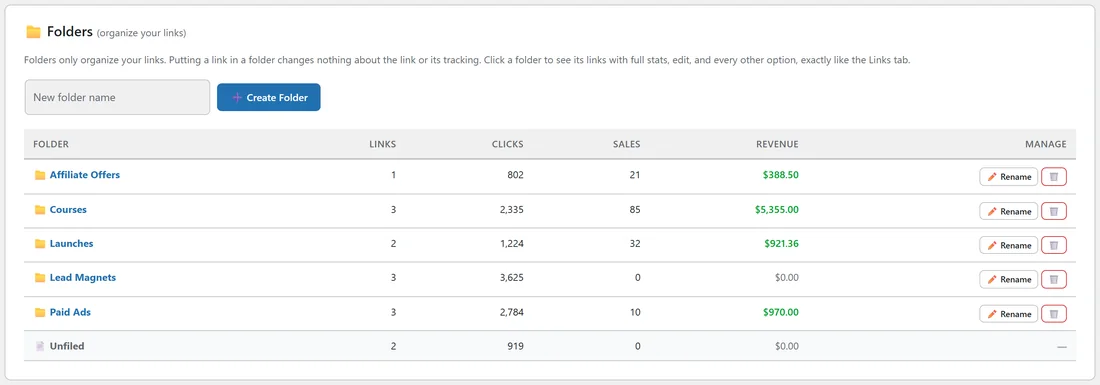
Each row is one folder, with totals worked out from every link inside it:
- Folder: the folder name. Click it to see its links with full stats, exactly like the All Links list, with every button and option.
- Links: how many links are in the folder.
- Clicks, Sales and Revenue: the totals for all of those links together.
- Manage: ✏️ Rename and 🗑️ to delete the folder.
A last row, 📄 Unfiled, groups every link that is not in a folder yet.
Moving A Link Into A Folder:
- Click ✏️ Edit on the link in the All Links list.
- Choose the folder in 📁 Folder (optional, organize only), or None (Unfiled) to take it out.
- Click Update Link.
Renaming And Deleting:
- ✏️ Rename changes the folder's name. The links inside are not touched.
- 🗑️ deletes the folder only. Every link that was inside simply becomes Unfiled. No link, click or conversion is ever deleted by a folder action.
Filtering By Folder:
On the All Links list, open 🔍 Filters and use the 📁 Folder drop-down to show one folder, or Unfiled (no folder). The filter appears once you have at least one folder.
A Real Example:
yoursite.com files its fourteen links into five folders: Lead Magnets, Courses, Launches, Paid Ads and Affiliate Offers. The Folders screen shows at a glance that Courses brought in the most revenue, while Lead Magnets has thousands of clicks and no sales, which is expected for free opt-ins. Before Black Friday the owner makes a new folder straight from the Create Link form with + Create new folder... and files the early access link into it.
A Naming Pattern That Works:
- One folder per campaign, product or client.
- Use Sub-IDs, not folders, for traffic sources. A Sub-ID gives you a source breakdown inside a single link, so you do not need a separate link for every place you share it. See Sub-ID Tracking For Traffic Sources.
Folder Ideas For Different Businesses:
- Course creators: one folder per course, plus Lead Magnets and Webinars.
- Affiliate marketers: one folder per network, such as WarriorPlus, JVZoo and ClickBank, or one per launch.
- Agencies: one folder per client, so each client's totals are one click away.
- Paid traffic: a Paid Ads folder holding every link with a cost per click, so the folder shows your total spend side of the business.
Folders and Sub-IDs work together: the folder groups the offers, and the Sub-IDs inside each link show the sources.
Tips:
- Unfiled is a normal state, and every link starts there.
- Folder totals follow the same numbers as the All Links list, so you can compare a whole campaign without exporting anything.