The ⚙️ Settings screen holds the site wide settings. Everything here applies to all links unless a link has its own override.
Where To Find It:
Click ⚙️ Settings, then ⚙️ Settings in the menu. 🩺 Diagnostics sits in the same menu group.
The Tools Card:

At the top, 🛠 Tools offers 🪄 Re-run Setup Wizard and 🍪 Reset Attribution Cookies for your own browser. A Direct URL fold-out gives the reset address for bookmarks and helpers. Re-running the wizard never deletes anything. See Setup Wizard Walkthrough.
License And Plugin Updates:

🔑 License shows your key, status, licensed email and activated sites. See License Activation And Management. 🔄 Plugin Updates has 🔄 Check For Updates Now. See Auto-Updater And Update Notices.
General Settings:
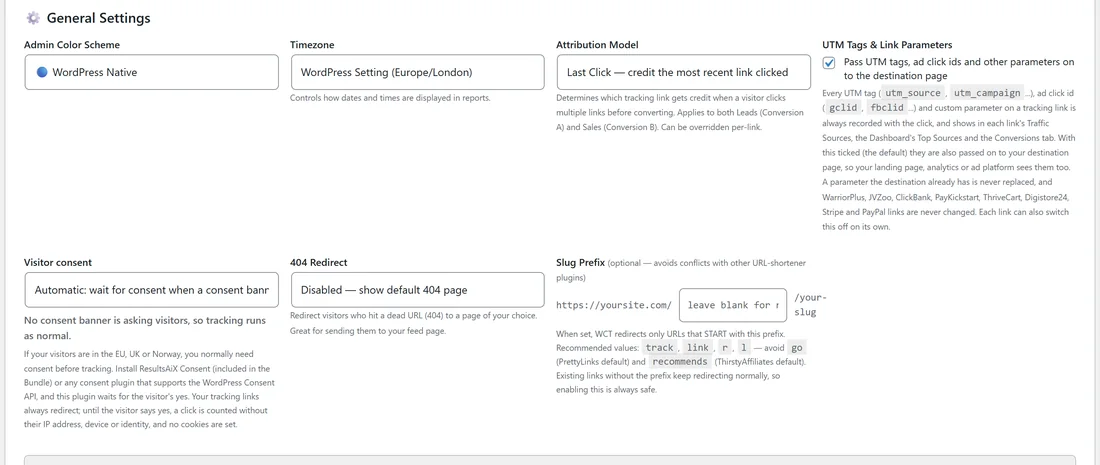
- Admin Color Scheme: nine looks for the plugin's screens: Clean White, Ivory Cream, Snow Light, WordPress Native, Developer Dark, Midnight Blue, Ocean Blue, Sunset Warm and Rosé Pink. WordPress Native is the default.
- Timezone: WordPress Setting, which uses your site's timezone, UTC, or any timezone in the list. It controls how dates and times show in every report, so if your days look shifted, check this first.
- Attribution Model: Last Click or First Click for leads and sales across the site. Each link can override it. See Attribution Models And Navigation-Only Links.
- UTM Tags & Link Parameters: the Pass UTM tags, ad click ids and other parameters on to the destination page box. Parameters are always recorded. With it ticked, the default, they are also passed on. See UTM Tags And Custom Parameters.
- Visitor consent: Automatic, wait for consent when a consent banner on this site is asking visitors, or Off, always track. A line under it says whether a consent banner is asking right now. See Visitor Consent For EU And UK Visitors.
- 404 Redirect: Disabled, show default 404 page, Homepage, any page on your site, or Custom URL. It sends visitors who hit a dead address somewhere useful, such as your feed page.
- Slug Prefix: an optional prefix such as track, so your links live at yoursite.com/track/your-slug. See Slug Prefix To Avoid Link Plugin Conflicts.
- 🎯 Smart IPN Re-attribution: the switch, strictness, lookback window and minimum age gap. See Smart IPN Re-Attribution.
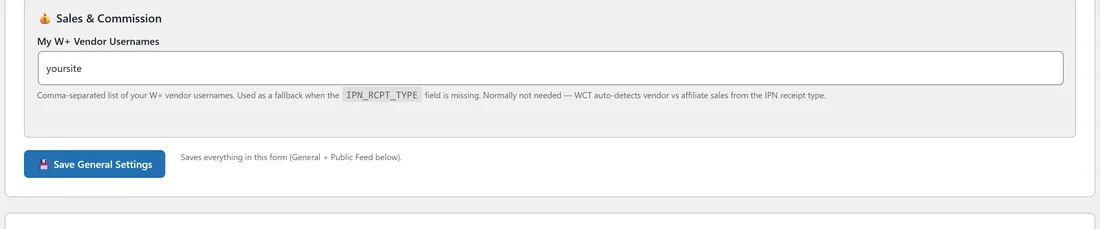
- 💰 Sales & Commission: My W+ Vendor Usernames, a comma separated list of your WarriorPlus vendor usernames. It is only used when a notification arrives without saying whether it is for the vendor or the affiliate, so most people never need it.
Click 💾 Save General Settings.
Saving:
General Settings and Public Feed share one form, so 💾 Save General Settings and 💾 Save Public Feed Settings both save everything in both sections. You cannot clear one section by saving the other.
The Other Cards:
- 📡 Public Feed: layout, date display, shortcode styles and the homepage option. See Public Link Feed And Shortcode.
- 🔌 API keys. See API Keys For Other Sites.
- 📥 Export Data. See Exporting Your Data.
- 🛡️ IP Blocking, 🪲 Debug Tools and ⚠️ Danger Zone. See IP Blocking And Data Cleanup.
A Real Example:
The owner of yoursite.com works in London and reports in New York time for a US partner. They set Timezone to America/New_York, keep Attribution Model on Last Click, set the 404 Redirect to the Free Resources page, leave Visitor consent on Automatic because their consent banner covers EU visitors, and click 💾 Save General Settings. From then on, the Dashboard's Today starts at midnight New York time.
Tips:
- Pick a colour scheme that is easy on your eyes during long reporting sessions. Developer Dark and Midnight Blue are the two dark options.
- Change one setting at a time and check the result on the Dashboard, so you always know what changed.