The public feed turns the links you choose into a tidy public list. Use it for a free resources page, a what's new page, an affiliate resource page or a simple link in bio page on your own domain. Every click on the feed goes through your tracking link, so it is counted like any other click.
Which Links Appear:
A link appears only when it has a Feed Title and Do NOT show in Public Feed is not ticked. Everything else stays private. A link with no Feed Title can never appear by accident. Set both in the link's 📡 Public Live Feed Settings panel, along with a Feed Description and a Feed Image. See Creating And Managing Tracking Links.
The Shortcode:
Put [wct_link_feed] on any page or post. With no attributes it uses the defaults from Settings.
Setting The Defaults:
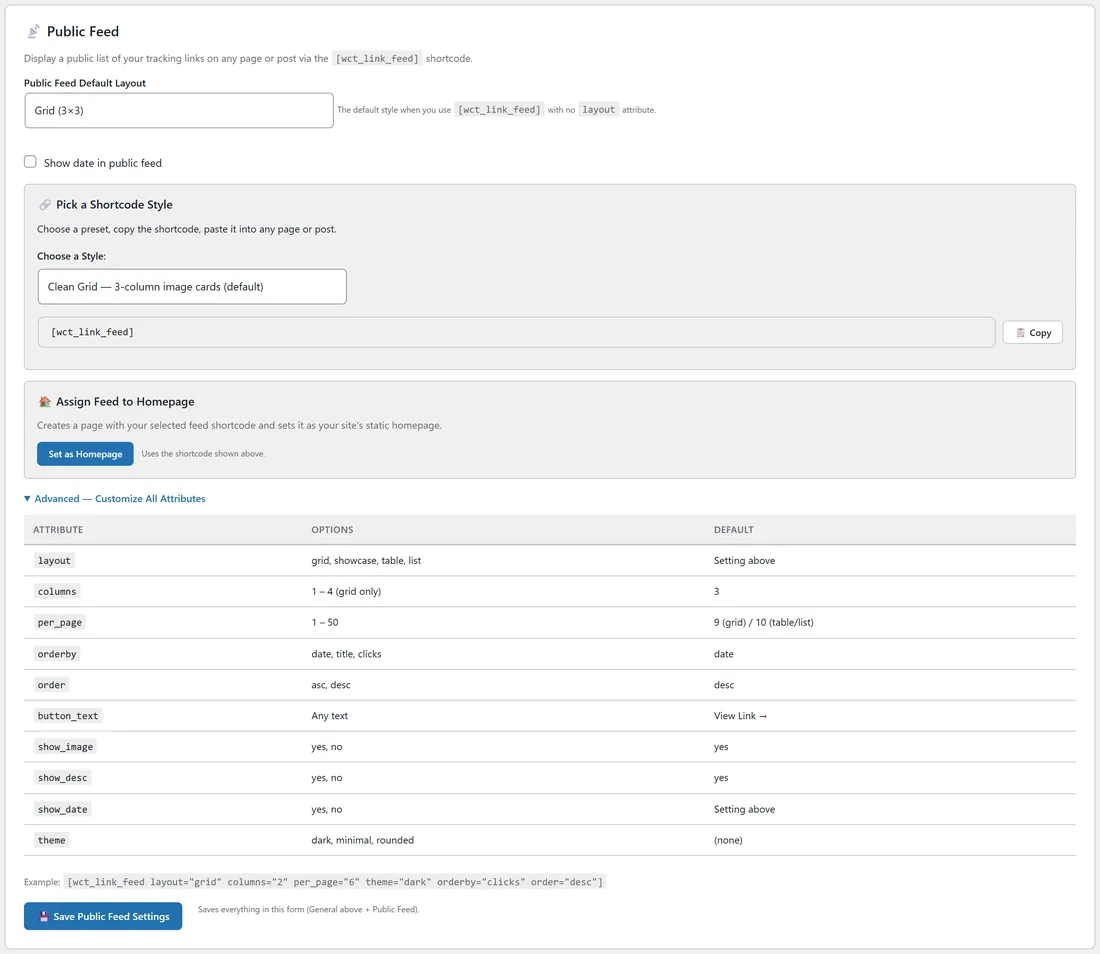
- Click ⚙️ Settings, then ⚙️ Settings in the menu, and scroll to 📡 Public Feed.
- Choose Public Feed Default Layout: Grid (3×3), Showcase (featured), Table or List (compact).
- Tick Show date in public feed if you want dates shown.
- Click 💾 Save Public Feed Settings.
General Settings and Public Feed share one form, so either save button saves both sections.
Ready Made Styles:
🔗 Pick a Shortcode Style offers presets: Clean Grid, Showcase, Showcase Dark, Minimal List and Rounded Cards. Choose one, click 📋 Copy, and paste the shortcode into your page. Open Advanced, Customize All Attributes for the full attribute table.
Making The Feed Your Homepage:
🏠 Assign Feed to Homepage creates a page holding your chosen feed shortcode and sets it as your site's homepage with Set as Homepage. Once it is set, the card shows the current state with links to view and edit the page, and Remove from Homepage unsets it while leaving the page in place.
Shortcode Attributes:
- layout: grid, showcase, table or list. Defaults to the Settings value.
- columns: 1 to 4, for the grid. Defaults to 3.
- per_page: 1 to 50. Defaults to 9 for the grid and 10 for the others.
- orderby: date, title or clicks. Defaults to date.
- order: asc or desc. Defaults to desc.
- button_text: any text. Defaults to View Link →.
- show_image: yes or no. Defaults to yes.
- show_desc: yes or no. Defaults to yes.
- show_date: yes or no. Defaults to the Settings value.
- theme: dark, minimal or rounded. No theme by default.
When there are more links than fit on one page, page numbers appear under the feed.
Examples:
[wct_link_feed] [wct_link_feed layout="grid" columns="2" per_page="6" theme="dark"] [wct_link_feed layout="list" orderby="clicks" order="desc" show_image="no"] [wct_link_feed layout="table" per_page="20" button_text="Check It Out"]
A Real Example:
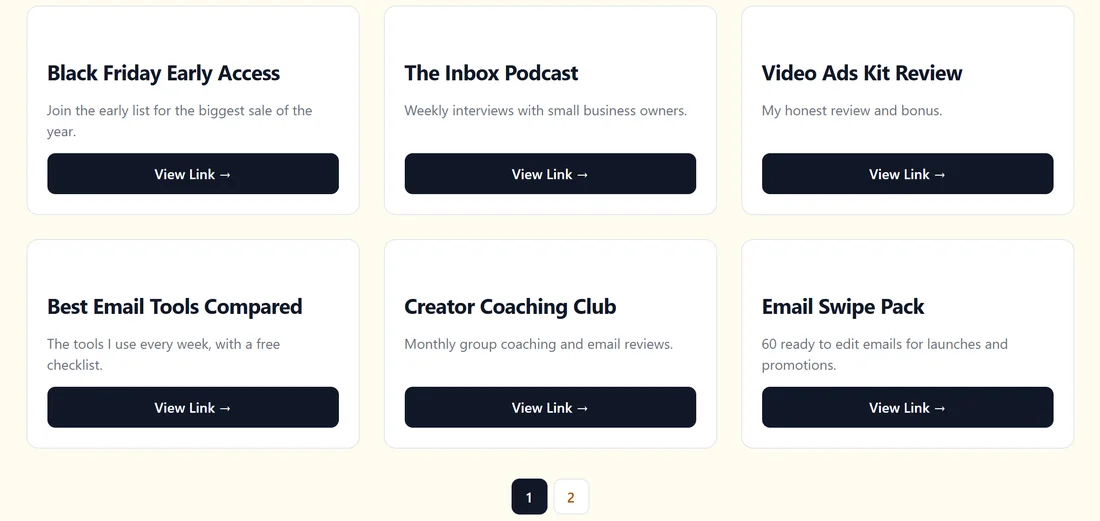
yoursite.com has a Free Resources page with [wct_link_feed layout="grid" columns="3" per_page="6"]. Links with a Feed Title, such as Black Friday Early Access, The Inbox Podcast and Video Ads Kit Review, appear as cards with their descriptions and a View Link → button. The paid ad links have Do NOT show in Public Feed ticked, so they stay off the page.
Building A Resources Page Step By Step:
- Give each link you want listed a Feed Title, a short Feed Description and a square Feed Image.
- Create a new page in WordPress, for example Free Resources.
- Add a Shortcode block and paste [wct_link_feed layout="grid" columns="3" per_page="6"].
- Publish the page and view it.
- To change the order, add orderby="clicks" to show the most popular links first.
Tips:
- Point the 404 Redirect in Settings at your feed page so mistyped addresses land somewhere useful. See Settings Tab Reference.
- The feed keeps showing even if the licence server cannot be reached for a moment, so visitors never see raw shortcode text.
- Use a Sub-ID on links you also share elsewhere, so you can tell feed clicks from other clicks.