Rotators are part of the Pro Tools add-on. A rotator is a link with several destinations that shares traffic between them. Use it to deliver solo ad orders, spread traffic across several offers, or share clicks fairly between partners.
Where To Find It:
Click 🔗 Links, then 🔄 Rotators.
Creating A Rotator Step By Step:
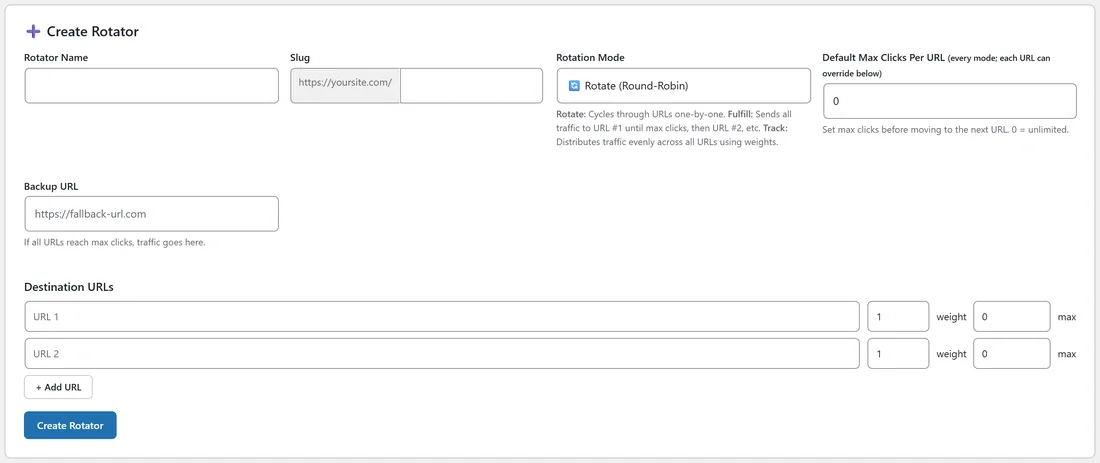
- In ➕ Create Rotator, type a Rotator Name.
- Type a Slug. Your site address is shown in front of it, so you can see the full rotator link.
- Choose a Rotation Mode, described below.
- Set Default Max Clicks Per URL. 0 means unlimited. Each destination can override it.
- Type a Backup URL for traffic once every destination is full.
- Under Destination URLs, add one row per destination, with a weight and an optional max. Click + Add URL for more rows.
- Click Create Rotator.
The Three Rotation Modes:
- 🔄 Rotate (Round-Robin): traffic goes to each destination in turn, one click each, then back to the start. A destination that has reached its cap is skipped.
- ✅ Fulfill (Sequential until max clicks): the first destination gets clicks until it reaches its max, then the rotator moves to the next. This is the mode for delivering solo ad orders of a set size.
- 📊 Track (Even Distribution): each click goes to a destination picked in proportion to its weight, so a higher weight gets a bigger share. Destinations that have reached their cap are left out.
Why The Backup URL Matters:
In Fulfill mode every destination fills up in the end. Once they are all at their cap, the Backup URL catches the extra clicks. If you leave it blank, extra traffic goes to the first destination. Set a backup, even if it is just your own main offer, so no click is wasted.
Reading A Rotator:
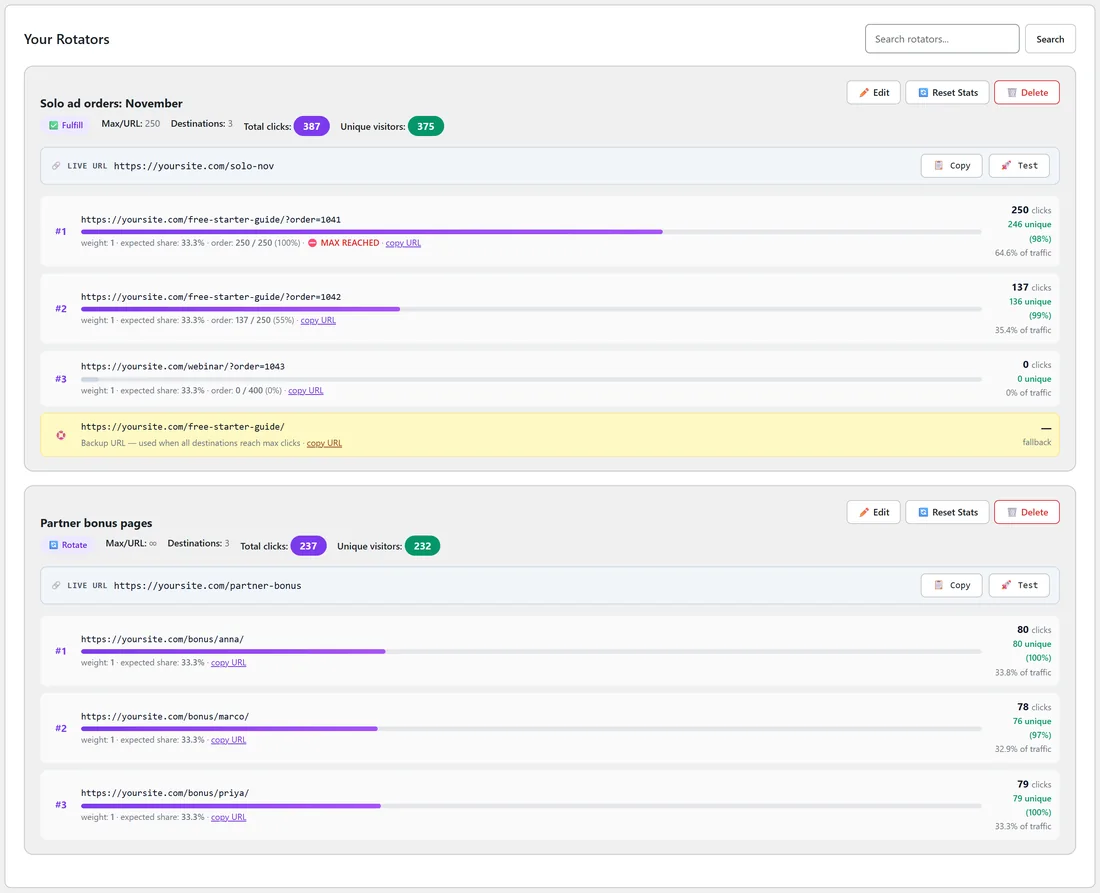
Each rotator card in Your Rotators shows its mode, the default max, the number of destinations, Total clicks and Unique visitors, and its 🔗 LIVE URL with 📋 Copy and 🚀 Test buttons. Each destination row shows:
- Its weight, expected share and, with a cap, its progress, for example order: 137 / 250 (55%).
- Clicks, unique visitors and its share of the traffic.
- ⛔ MAX REACHED once it hits its cap.
The 🛟 row shows the backup URL. Per rotator buttons are ✏️ Edit, 🔄 Reset Stats and 🗑️ Delete, and a Search box finds a rotator by name. Changing a weight keeps a destination's click count. Changing its URL resets that one destination.
Rotators And Normal Links:
A rotator has its own slug and lives next to your normal tracking links. If you set a Slug Prefix in Settings, rotator links use it too.
A Real Example:
yoursite.com sells solo ad traffic to its newsletter. A rotator called Solo ad orders: November uses ✅ Fulfill with a default max of 250. Order 1041 has received all 250 clicks and shows ⛔ MAX REACHED, order 1042 is at 137 of 250, and order 1043, a larger order, has its own max of 400 and waits its turn. The starter guide is the backup, so extra clicks still build the list.
Sharing Traffic Between Partners:
For a group of partners who each have a bonus page, use 🔄 Rotate with no caps and equal weights. Each partner gets the same share of clicks over time. If one partner should get more, raise their weight and switch to 📊 Track, which shares clicks in proportion to weight.
Tips:
- Give each buyer's destination a parameter such as ?order=1041 so they can see the traffic arrive in their own stats.
- Use 🚀 Test after any change to check where the rotator sends the next click.
- To show a buyer live proof of delivery, see Share Live Stats Pages With Pro Tools.