WarriorPlus, JVZoo and ClickBank each let you set only one Notification URL per product. If that slot is already used by a delivery tool, a licence server or a membership platform, you would normally have to choose between tracking and delivery. IPN Pass-Through means you do not have to choose.
How It Works:
Set the platform's one Notification URL to your tracker. The tracker records the sale and also sends an exact, byte for byte copy of every notification it receives, sales, rebills and refunds, to each address you list. The copy goes out without waiting for a reply, so a slow or offline endpoint can never delay or break your own tracking.
Where To Find It:
Click 🔌 Connections, then 🎯 Tracking Setup, and scroll to 📡 Forward a Copy (IPN Pass-Through).
Setting It Up Step By Step:
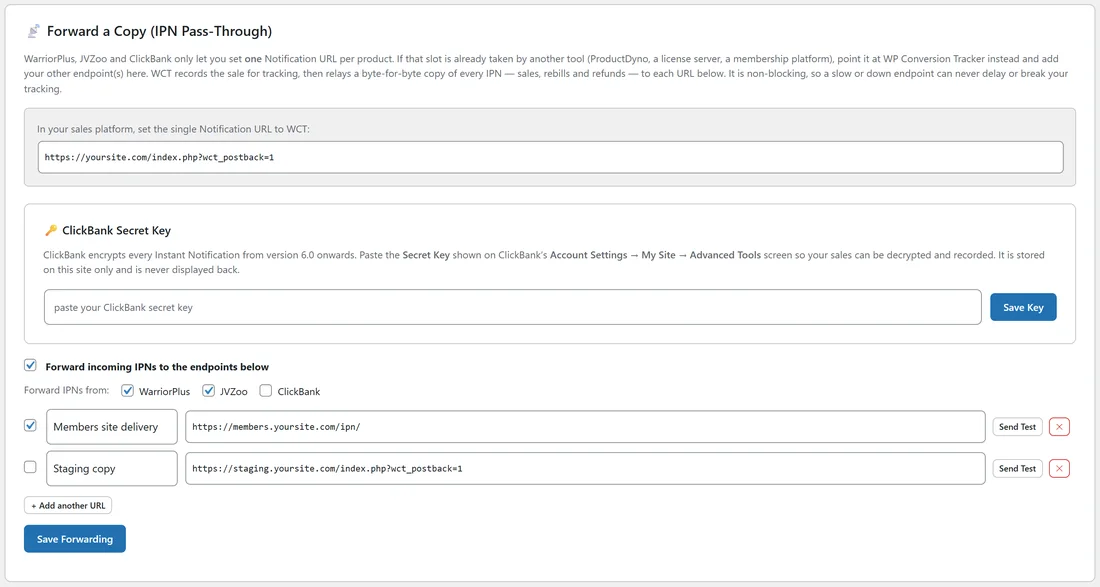
- Copy the URL shown under In your sales platform, set the single Notification URL to WCT, and paste it into your sales platform as the Notification URL.
- Tick Forward incoming IPNs to the endpoints below.
- Under Forward IPNs from, tick WarriorPlus, JVZoo, ClickBank or any mix.
- In the first row, tick the row's box to enable it, type a Label for your own reference, and paste the endpoint URL of your other tool.
- Click Send Test on the row. A short message shows the response code the endpoint returned.
- Click + Add another URL for each extra endpoint.
- Click Save Forwarding.
The ClickBank Secret Key Box:
The same card holds 🔑 ClickBank Secret Key. ClickBank encrypts its notifications from version 6.0, so paste the Secret Key from ClickBank's Account Settings, My Site, Advanced Tools screen and click Save Key. The key is stored on your site only. See ClickBank And PayPal Setup.
What Gets Forwarded:
The copy is the original notification, unchanged. Your other tool receives exactly what it would have received from the platform directly, so it needs no special setup on its side.
Common Uses:
- Keep an existing delivery platform working while adding tracking.
- Feed a licence server and a membership site from the same sale.
- Send a copy to a staging site to test a new integration with real traffic.
A Real Example:
yoursite.com sells the Traffic Toolkit on WarriorPlus and delivers it through its members site at members.yoursite.com. The product's one Notification URL now points at the tracker. In Forward a Copy, the owner ticks WarriorPlus and JVZoo, adds Members site delivery with https://members.yoursite.com/ipn/, and keeps a second row, Staging copy, unticked for later testing. Buyers still get their access instantly, and every sale is tracked.
Checking An Endpoint Step By Step:
- Click Send Test on the row.
- Read the message. A response code in the 200 range means the endpoint accepted the test.
- If you see another code, open the other tool's own settings and check the URL it expects, then paste it again and save.
- Make one real or test sale and check that both the tracker and the other tool recorded it.
Tips:
- Untick a row to pause an endpoint without losing its URL.
- Only the sources you tick are forwarded, so you can forward JVZoo without forwarding WarriorPlus.
- Because forwarding never waits, a slow endpoint will not show up as a tracking problem. Use Send Test whenever you want to check one.