Stripe sends signed JSON webhooks that a plain postback URL cannot read. The Stripe Connect add-on receives those webhooks directly and turns them into normal conversions, so Stripe sales appear on 💰 Conversions, the Dashboard and each link's Stats page like any other sale. It has no licence key of its own and runs wherever WP Conversion Tracker AI is active.
Where To Find It:
Click 🔌 Connections, then 💳 Stripe Connect.
What It Records:
- Checkout sales, from checkout.session.completed.
- Refunds, from charge.refunded. A refund reverses the matching sale, the same way refunds from other platforms do.
- Subscription rebills, from invoice.paid on renewal cycles.
- Every other Stripe charge, from charge.succeeded and charge.captured. This catch-all covers API charges, payment links and standalone invoices that have no Checkout session.
Setting It Up Step By Step:
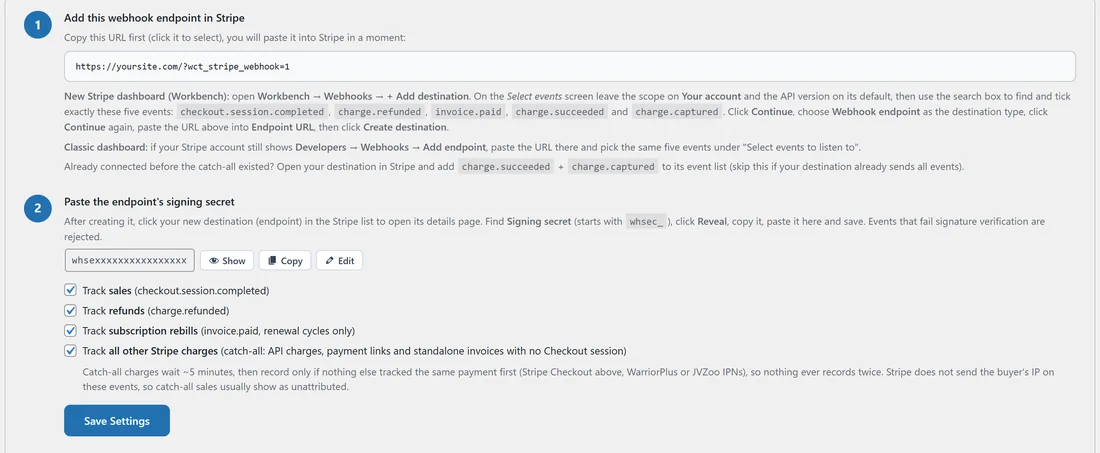
- Copy the webhook URL in step 1 at the top of the tab. It looks like yoursite.com/?wct_stripe_webhook=1.
- In Stripe, open Workbench, then Webhooks, then + Add destination. Leave the scope on Your account and the API version on its default.
- Search for and tick the five events: checkout.session.completed, charge.refunded, invoice.paid, charge.succeeded and charge.captured. Click Continue.
- Choose Webhook endpoint as the destination type, click Continue, paste the URL into Endpoint URL and create it. If your Stripe account still shows Developers, then Webhooks, then Add endpoint, use that with the same five events.
- Open your new destination in Stripe, click Reveal next to Signing secret, which starts with whsec_, and copy it.
- Back in Stripe Connect, paste it into step 2 and click Save Settings. Events that fail the signature check are refused.
- Use Stripe's Send test event button, or wait for a real sale.
The Status Line:

The line at the top tells you where you are. It moves from NOT CONNECTED to READY once a signing secret is saved, and to CONNECTED, with the time of the last conversion, once a Stripe conversion has been recorded.
Choosing What To Track:
Four boxes in step 2 switch each kind of event on or off: Track sales, Track refunds, Track subscription rebills and Track all other Stripe charges. The catch-all waits about five minutes before recording a charge, and it skips any payment that Stripe Checkout, WarriorPlus or JVZoo has already recorded, so nothing is counted twice. Stripe does not send the buyer's IP address on these events, so catch-all sales usually show as unattributed.
Matching Sales To Clicks:
When your site creates the Stripe Checkout session, set client_reference_id to the visitor's wct_click_id. The value comes from the address or from the wct_click_id cookie the tracker sets on every tracked click. Stripe returns it on every related event, so the sale attaches to the exact click. A sale without a click ID is still recorded and simply shows as unattributed.
Recent Webhook Activity:
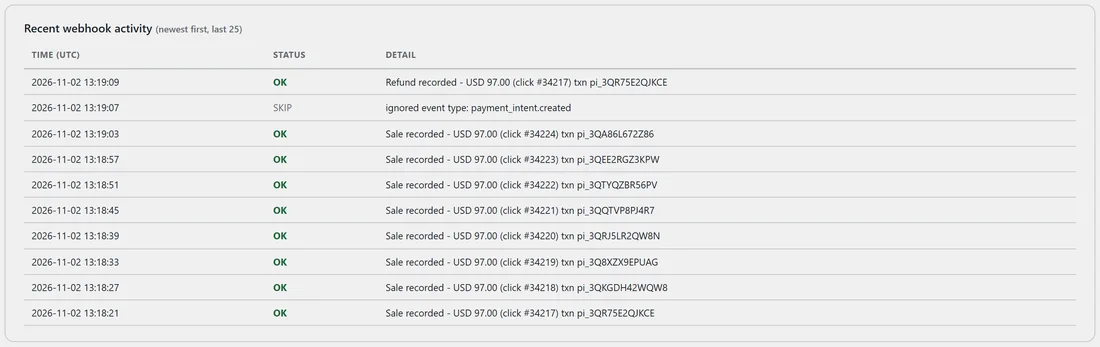
The Recent webhook activity table lists the last 25 events, newest first, with the time in UTC, a status and a short detail, for example Sale recorded, USD 97.00 (click #34221). Events the add-on does not need are listed as SKIP with the reason.
Importing Past Stripe Sales:
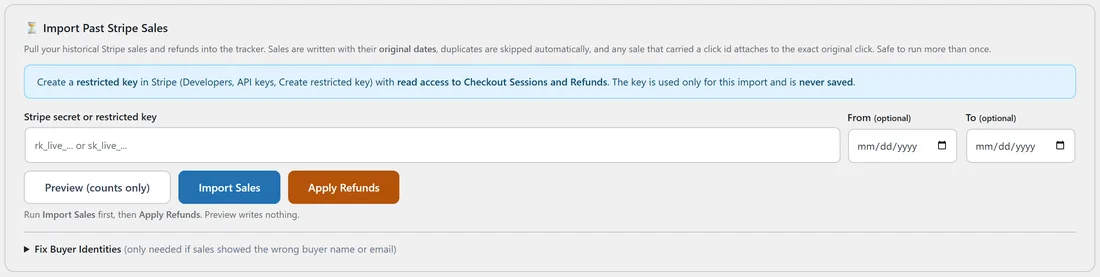
The ⏳ Import Past Stripe Sales card brings in sales from before you connected.
- In Stripe, create a restricted key with read access to Checkout Sessions and Refunds. The key is used for the import only and is never saved.
- Paste it into the card and, if you like, set From and To dates.
- Click Preview (counts only) to count everything without writing anything.
- Click Import Sales, then Apply Refunds.
Every sale keeps its original date, so charts and date ranges stay accurate. Sales that carried a click ID attach to that click, older ones are recorded as unattributed, and duplicates are skipped, so it is safe to run more than once.
Tidy Up Cards:
The tab can also show optional one click tidy up cards when it finds older Stripe records that can be improved, such as Fix Buyer Identities. Each has a preview first, and a card disappears once there is nothing left for it to do.
A Real Example:
yoursite.com sells the Inbox Growth Course through Stripe Checkout. The sales page passes the visitor's click ID as client_reference_id, and Stripe Connect is set up with the five events. Each sale appears in Recent webhook activity as Sale recorded with its click number, and on the course link's Stats page under the email or Facebook Sub-ID that sent the buyer. When a buyer is refunded in Stripe, the activity shows Refund recorded and the sale is marked Refunded on Conversions.
Passing The Click ID From Your Own Code:
If your site creates Stripe Checkout sessions in its own code, read the click ID from the wct_click_id cookie or from the wct_click_id parameter in the address, and set it as client_reference_id when you create the session. If you create sessions in several places, such as a sales page and an upsell page, do the same in each, so every sale carries its click.
Tips:
- Stripe Connect is the recommended route for Stripe. The sale pixel described in Cart And Checkout Platform Setup still works if you prefer it.
- Behind Cloudflare? Make sure Stripe's webhooks are allowed through. See Diagnostics And Cloudflare Checks.