The 🛡️ IP Activity Log is part of the Pro Tools add-on. It lists every recorded visit to your tracking links, newest first, so you can see exactly who arrived, from where, and what happened next. When one address looks wrong, you can block it from the same row.
Where To Find It:
- Click 💰 Sales & Reports, then 🛡️ IP Activity Log.
- Show All on the Dashboard's 🖱️ Recent Clicks opens it too.
The heading shows the total, for example IP Activity Log (11,681 total entries).
The Columns:
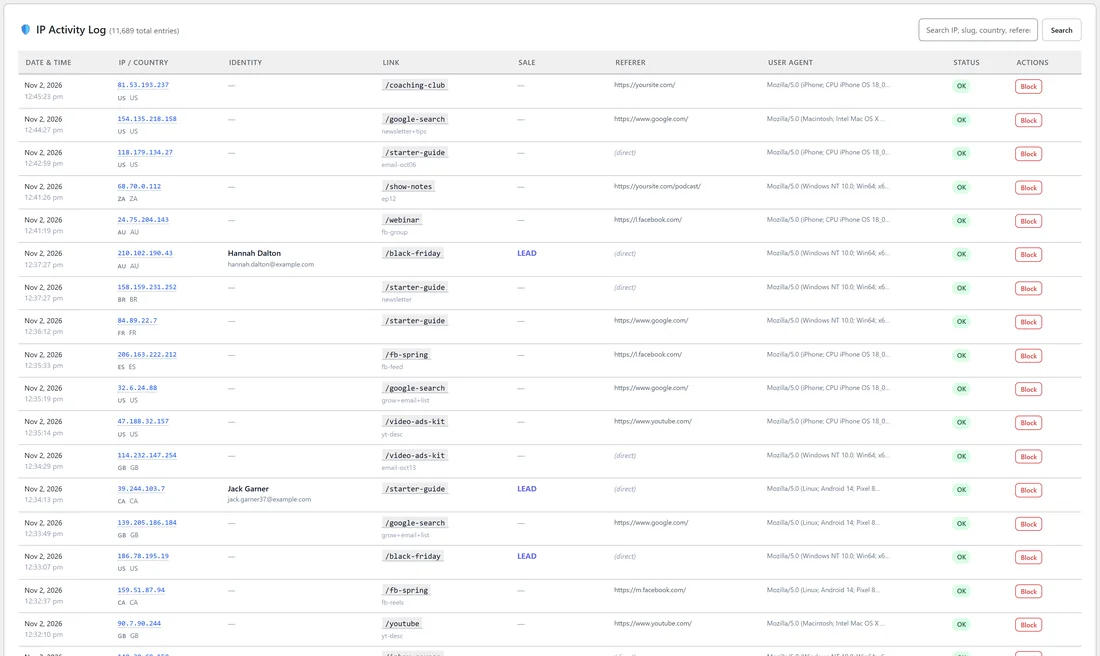
- Date & Time: when the click happened.
- IP / Country: the visitor's address and country.
- Identity: the person's name and email when the Audience Vault knows them.
- Link: the tracking link and its Sub-ID.
- Sale: LEAD or the sale amount when the click converted.
- Referer: the page that sent the visitor.
- User Agent: the visitor's browser details.
- Status: OK, or Blocked for addresses on your blocked list.
- Actions: a Block button.
The log shows 100 visits per page.
Searching The Log:
Type into Search IP, slug, country, referer, email, product... and click Search. Use it to follow one person, one link or one traffic source.
Blocking An Address Step By Step:
- Find the row, for example by searching the IP address.
- Click Block on that row.
- The address joins the blocked list in Settings, and its rows show Blocked.
Blocked visitors still reach the destination as normal. Their clicks are simply no longer recorded. To undo it, click Unblock next to the address in the 🛡️ IP Blocking card in Settings. See IP Blocking And Data Cleanup.
When To Use It:
- A link suddenly gets many clicks from one address.
- A traffic seller's clicks look odd, such as empty browser details.
- You want to see the exact path one buyer took.
A Real Example:
The owner of yoursite.com sees a spike on the Google Ads link. In the IP Activity Log they search google-search and notice dozens of visits from one address within minutes, all with the same browser details. They click Block on one of the rows, and from then on that address no longer adds clicks or cost to the link.
Following One Buyer's Path:
- Search the buyer's email or IP address.
- Read the rows from oldest to newest: each tracking link they clicked, with its Sub-ID and the page that sent them.
- Find the row with the sale.
- With the Audience Vault, open the person in 👤 Audience Vault for every address they used.
Tips:
- Pair the log with 📊 Traffic Quality, which shows the overall share of clean and flagged clicks. See Traffic Quality Report With Pro Tools.
- Click 🛡️ Block My Own IP in Settings before testing your own links.